

This extended integration requires a paid Zencoder account.
Overview
The Salesforce integration gives Zenflow agents access to your Salesforce CRM workspace. Read and update leads, track accounts, manage opportunities, and run SOQL queries — perfect for aligning engineering, sales, and operations.Connecting Salesforce
1
Open Settings & Integrations
Navigate to Settings → Integrations in the Zenflow sidebar.
2
Search for Salesforce
Locate Salesforce in the Integrations Catalog and click the Connect or [+] button.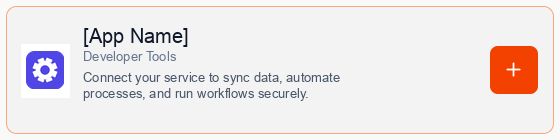
3
Consent to Connection
A secure popup window will open asking for permission to connect your account. Click Continue to proceed.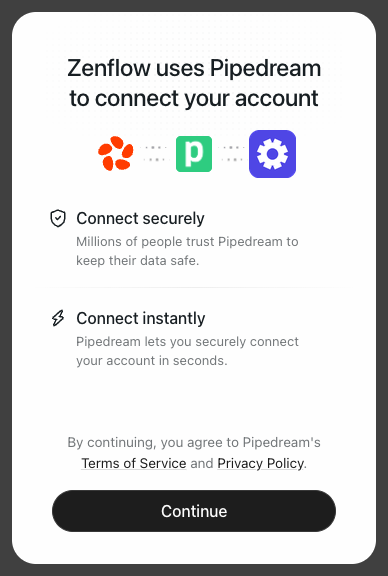
4
Authorize Connection
Authenticate and authorize Zenflow via the secure Salesforce OAuth popup window.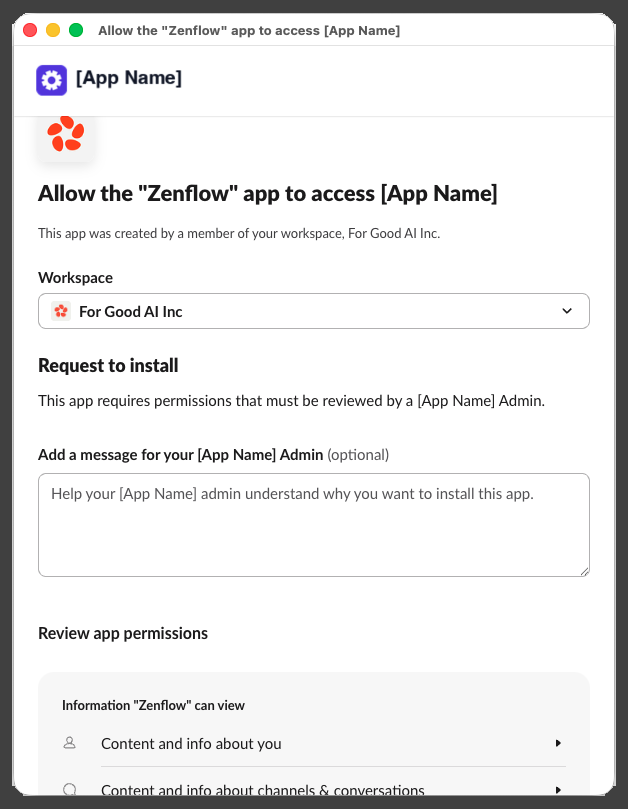
5
Complete Setup
A progress window will briefly indicate that the account connection is in progress, followed by a confirmation.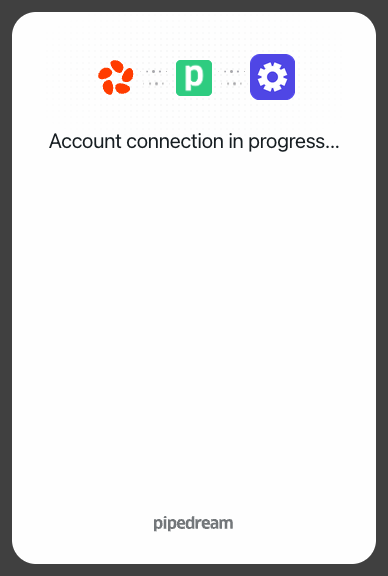
What the Agent Can Do
- Manage Leads — Retrieve, create, and update sales leads
- Track Accounts — Look up client accounts, contacts, and interaction history
- Execute SOQL — Run complex queries to extract customer and sales metrics
- Sync Workflows — Trigger actions based on opportunity or pipeline updates
Example Use Cases
- Sync closed-won opportunities with product provisioning systems
- Automatically create Salesforce leads from product signup events
- Compile weekly pipeline and conversion reports for sales leadership
- Search customer support history in Salesforce during ticket resolution