

Overview
Zenflow provides full visibility into every change made by AI agents. You can review modifications in real-time, approve or reject changes, and maintain complete control over what gets merged.Git Settings
Control how Zenflow handles commits and pushes from Settings → Git: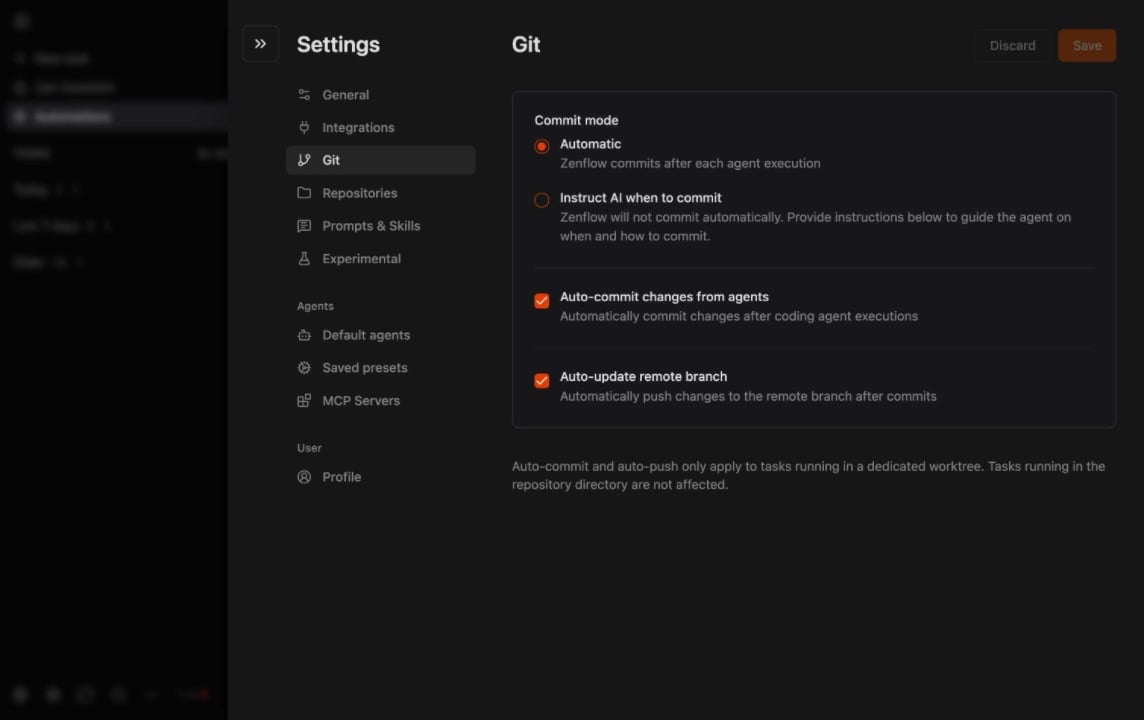
Auto-commit and auto-push only apply to tasks running in a dedicated worktree. Tasks running in the repository directory are not affected.
The Git Tab
Open the Git tab in any task’s top bar to see branch information, worktree link, and change status: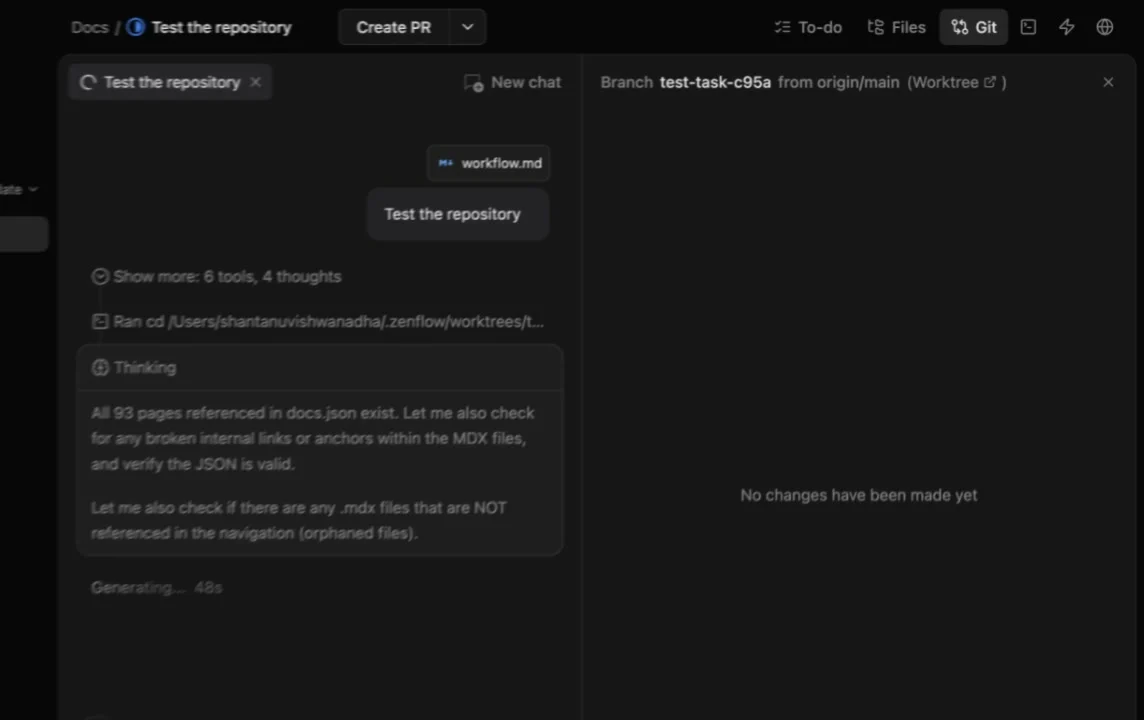
- Branch name and source branch (e.g.,
test-task-c95a from origin/main) - Worktree link to open the task’s isolated directory
- Change status — files modified, added, or deleted by the agent
The Changes View
Access the Changes view from any task to see:- File tree: All modified, added, and deleted files
- Diff view: Line-by-line comparison of changes
- Commit history: Every agent turn creates a checkpoint
- Uncommitted changes: Manual edits you’ve made in the IDE
Real-Time Monitoring
As agents work, Zenflow tracks every modification:1
Agent makes changes
The agent modifies files in the task worktree based on the workflow and your instructions.
2
Verification runs
If configured, your verification script executes automatically (linting, tests, type checking).
3
Checkpoint created
Zenflow auto-commits the agent’s changes with a descriptive message.
4
You review
Open the Changes view to see exactly what changed and why.
Change Actions
Commit Manual Edits
When you make changes in your IDE (using Open in IDE), they appear as uncommitted in Zenflow. You can:- Commit: Add your changes to the task branch
- Discard: Revert your manual edits
Rollback
If an agent produces unwanted changes:- View the commit history in the Changes panel
- Select the checkpoint to roll back to
- Confirm the rollback
Cherry-Pick
Select specific files or hunks to include while discarding others:- Open the diff view for a file
- Use the checkbox or stage controls to select changes
- Commit only what you want
Verification Integration
The Changes view shows verification results alongside code changes:
Failed verifications include the error output so you can guide the agent to fix issues.
Comparing Branches
Compare your task branch against:- Base branch: See all changes since the task started
- Main: Compare against the latest main branch
- Another task: Cross-reference changes between tasks
Best Practices
Review frequently
Check changes after each significant agent turn, not just at the end. Early feedback prevents compounding issues.
Use verification scripts
Automated checks catch syntax errors, type issues, and test failures immediately. Configure them in
.zenflow/settings.json.Commit your context
When you make manual edits, commit them with clear messages so the agent (and future you) understands the reasoning.
Next Steps
Git Worktrees
How task isolation works
Repository Configuration
Set up verification scripts