Overview

Every Zenflow project starts by picking a task type. When a project is empty you see four full-width cards—Quick Change, Fix Bug, Spec and Build, and Full SDD Workflow—each describing how the next task will run. Selecting a card launches the task creation modal and seeds the right workflow for the Task column.

Quick Change

Fastest path for small, well-understood tasks. The agent makes light assumptions and executes without back-and-forth.

Fix Bug

Triage regressions quickly with investigation, solution design, and implementation guardrails.

Spec and Build

Leads with a technical spec before coding. Great when you want the plan vetted before implementation.

Full SDD Workflow

Comprehensive spec-driven development for larger efforts. Generates PRDs, technical specs, and implementation plans with AI code review.

Creating a Task

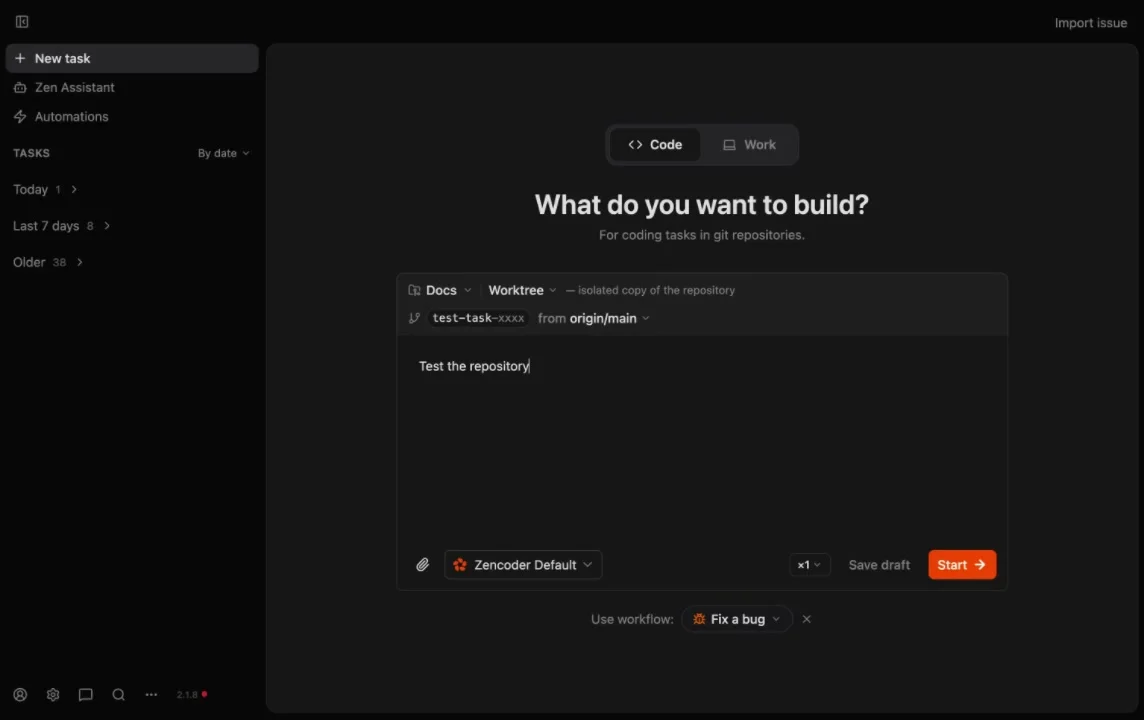
The modal follows the same steps regardless of type:
1

Describe the task

Provide a title and rich description. Use the @ button to reference files or attach screenshots so the assignee has full context.
2

Pick the workspace

Each task spins up an isolated copy of the repo. Choose the source branch so parallel tasks never collide.
3

Tune automation

Expand Advanced to select an agent (Claude Code, Codex, Copilot, Gemini, Qwen Code) plus a saved configuration such as APPROVALS, DEFAULT, or PLAN. Presets (under Settings → Agents) define prompt overrides, model choices, sandbox policies, and permission levels.
4

Confirm the type

You can still switch between Quick Change, Fix Bug, Spec and Build, or the Full SDD Workflow. The UI stays identical, but the downstream workflow adapts accordingly.
5

Create (or create and run)

Save the task for later or immediately spin up the chosen agent to begin execution.
Zenflow task creation modal showing description, workspace, and automation settings

Understanding Git Worktrees in Zenflow

Every task in Zenflow runs in its own isolated workspace powered by Git worktrees. This is what enables true parallel execution—multiple agents working simultaneously without stepping on each other’s changes.

The Basics

Git worktrees allow you to check out multiple branches from the same repository at once, each in its own directory. Instead of switching branches and stashing changes, you work in separate directories that all share the same Git history. When you create a task in Zenflow:
  • A new worktree is created at .zenflow/tasks/{task_id}
  • A dedicated branch is created for that task
  • Agents work in this isolated directory without affecting your main workspace
  • Changes remain completely separate until you merge

Real-world analogy

Think of worktrees like having multiple checkout counters at a store. Each counter (worktree) processes different customers (tasks) simultaneously using the same inventory system (Git repository). No one waits in line, and no work gets mixed up.

Best Practices

Keep worktrees task-scoped

Each task should have exactly one worktree. Don’t manually create additional worktrees inside .zenflow/tasks/ or you’ll confuse Zenflow’s orchestration.

Let Zenflow manage worktree lifecycle

Zenflow automatically creates worktrees when tasks start and cleans them up when tasks are archived or deleted. Manual worktree commands (git worktree add/remove) inside Zenflow directories can break this automation.

Merge or archive completed tasks promptly

Worktrees consume disk space. After merging a task’s changes, archive or delete the task so Zenflow can clean up the worktree directory.

Use the source branch selector carefully

When creating a task, the “workspace” dropdown lets you choose which branch to base your work on. This determines what code your task starts with—usually main or develop, but could be another feature branch if you’re building on unmerged work.

Common Issues

Don’t manually edit files in .zenflow/tasks/ outside of Zenflow
Worktree directories are managed by Zenflow. Editing files directly in these directories with external editors or scripts can cause sync issues. Always use “Open in IDE” from the task menu or work through the Zenflow interface.
Worktrees share refs and config
All worktrees share the same .git directory, which means:
  • Tags and branches are visible across all worktrees
  • Git config changes affect all worktrees
  • You can’t check out the same branch in multiple worktrees (Git prevents this by design)
Disk space adds up with parallel tasks
Each worktree is a full copy of your repository’s working files. If you have 10 active tasks and a 500MB repo, that’s ~5GB of disk space. Monitor your .zenflow/tasks/ directory and archive completed tasks regularly.
Submodules need special handling
If your repository uses Git submodules, each worktree needs its own submodule checkout. Zenflow handles this automatically during setup scripts, but be aware that submodule-heavy repos will consume even more disk space per task.

Troubleshooting worktree issues

If a task workspace becomes corrupted or won’t open:
  1. Try archiving and recreating the task
  2. Check that you have sufficient disk space
  3. Verify the source branch still exists in your repository
  4. Look for error messages in the task’s chat telemetry

Task Type Reference

Each type seeds .zenflow/tasks/{task_id} with artifacts and determines what appears in the middle column. Use the summaries below to pick the right fit.

Quick Change

When to use

Small, clearly scoped tasks or quick experiments where the requirements are obvious.

Artifacts & workflow

  • plan.md focuses on a single execution step so work can start immediately.
  • No additional docs are created by default—the agent moves straight into implementation.
  • You can add steps manually if the task grows beyond the initial scope.

Why it matters

Keeps turnaround time low while still tracking the work in Zenflow; the agent moves fast without asking clarifying questions.

Fix Bug

When to use

Regressions, failing checks, or any work focused on restoring existing behavior.

Workflow checkpoints

  1. Investigate the issue and capture the root cause.
  2. Design a targeted solution that covers edge cases.
  3. Implement the fix and verify with tests before shipping.

Artifacts & workflow

  • plan.md lists Investigation, Solution Design, and Implementation so you can see progress at a glance.
  • investigation.md documents summary, root cause, and impact.
  • solution.md outlines the proposed fix, files, tests, and risks.
  • implementation.md records the actual patch and verification steps.

Why it matters

Lightweight structure keeps triage fast while preserving the documentation reviewers need.

Spec and Build

When to use

Medium-sized features and improvements where you want to review the technical approach before code lands.

Workflow checkpoints

  1. Create the technical specification.
  2. Plan implementation steps based on the spec.
  3. Build step by step with optional human review in between.

Artifacts & workflow

  • plan.md outlines Specification → Implementation Plan → Implementation.
  • spec.md captures architecture, contracts, and verification strategy.
  • Implementation updates plan.md with executable steps and deliverables.

Why it matters

Keeps PM/design/engineering aligned while still delivering quickly; you get a clear plan before commits.

Full SDD Workflow

When to use

Larger initiatives that need product requirements, specs, and staged implementation with AI auto-review.

Workflow checkpoints

  1. Gather requirements and create the PRD.
  2. Prepare the detailed technical specification.
  3. Break the work into ordered implementation steps.
  4. Implement with AI code review guarding each stage.

Artifacts & workflow

  • requirements.md evolves into the PRD for stakeholder alignment.
  • spec.md details architecture, dependencies, and verification.
  • plan.md hosts the multi-step implementation plan with checkboxes.
  • AI verifier steps keep diffs reviewed continuously during implementation.

Why it matters

Ensures complex work ships safely—every stage is documented, reviewed, and verified before merge.
Picking the closest match upfront keeps reporting, Kanban views, and automation accurate. You can still change the type later if the work evolves.

Custom Workflows

Custom workflows let you design additional task templates beyond the four built-ins. Add a Markdown file describing the workflow steps to .zenflow/workflows/ in your repo root and Zenflow will surface it alongside the default options when creating a task.

Common Structure

Typical workflow files share these traits:
  • Title and configuration: Start with an #-level heading plus a Configuration section that sets shared context—typically an Artifacts Path pointing to {@artifacts_path} (.zenflow/tasks/{task_id}).
  • Workflow steps: Each step is written as ### [ ] Step: {Name} so it slots into the Steps column with unchecked boxes.
  • Detailed instructions: Under each step, describe objectives, acceptance criteria, and links to artifacts. The spec-focused steps output spec.md, optional planning uses plan.md, implementation steps create report.md, and review steps modify the prior artifact.
  • Optional reviews: You can insert extra stages such as “Specification Review” between the spec and implementation to enforce approvals or QA.
# Example Custom Workflow

## Configuration
- **Artifacts Path**: {@artifacts_path} → `.zenflow/tasks/{task_id}`

---

## Workflow Steps

### [ ] Step: Planning
Describe what information belongs here (requirements, scope, links). Reference `{@artifacts_path}/plan.md` if you need a persistent doc.

### [ ] Step: Implementation
Outline how code should be written, tested, and saved. Mention deliverables such as `{@artifacts_path}/report.md` if useful.

### [ ] Step: Review & Wrap-Up
Explain what to double-check (tests, documentation, approvals) before marking the task complete.

Authoring Tips

  • Scope steps so each represents a coherent milestone (e.g., “Technical Specification,” “Implementation,” “Review”).
  • Reference artifact placeholders ({@artifacts_path}/spec.md) so Zenflow resolves per-task paths automatically.
  • Use enumerated lists for actions and highlight decision criteria (approve vs. change requested) if the workflow requires loops.
  • Keep wording imperative so agents understand expected deliverables and verification requirements.