Public HTTPS VPS (browser access)
To set up a publicly reachable VPS instead, follow the instructions below or watch the DigitalOcean walkthrough.Public VPS requirements
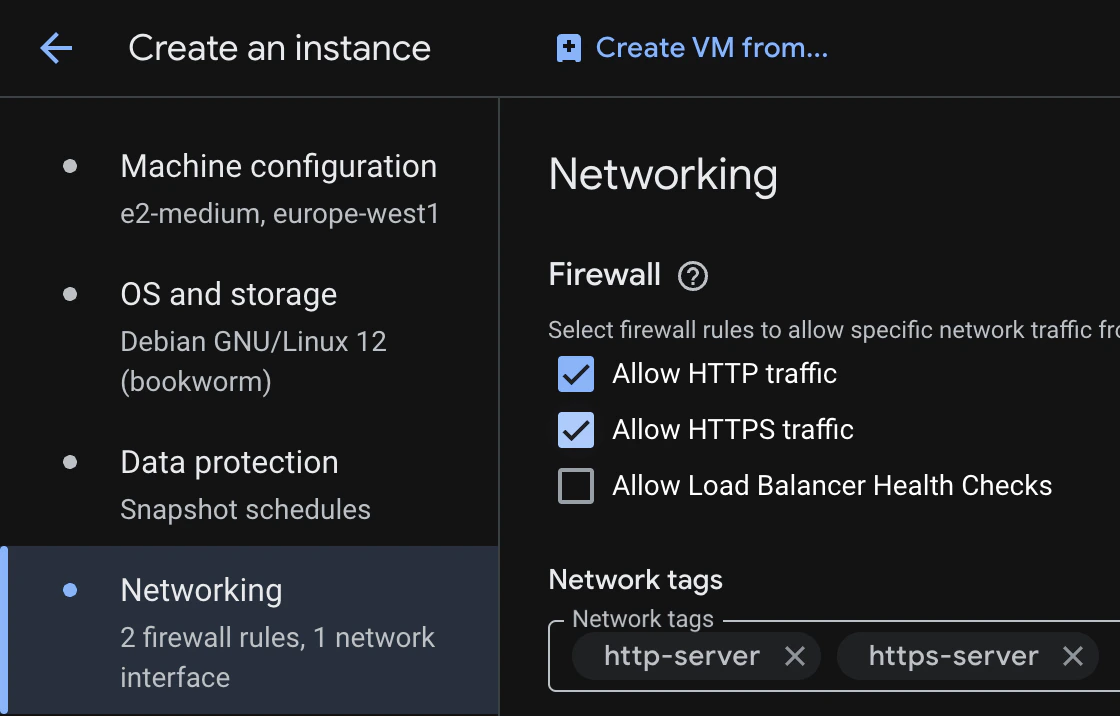
For this browser-access setup, allow HTTP and HTTPS traffic to the instance. The private SSH setup above does not need either port open.
- Digital Ocean
- Google Cloud
- Log into DigitalOcean
- Click Create dropdown and select Droplets

- Choose the region based on your requirements
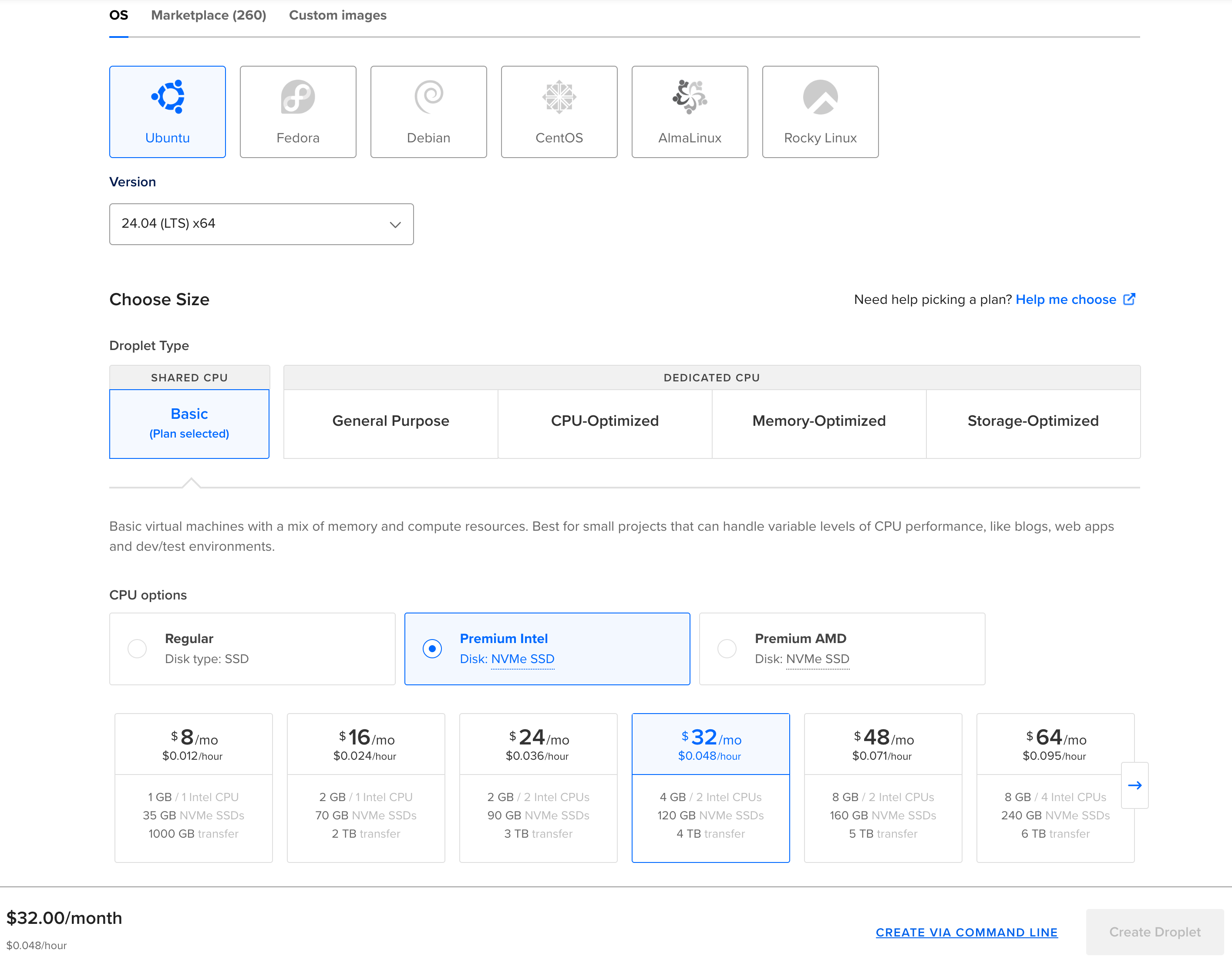
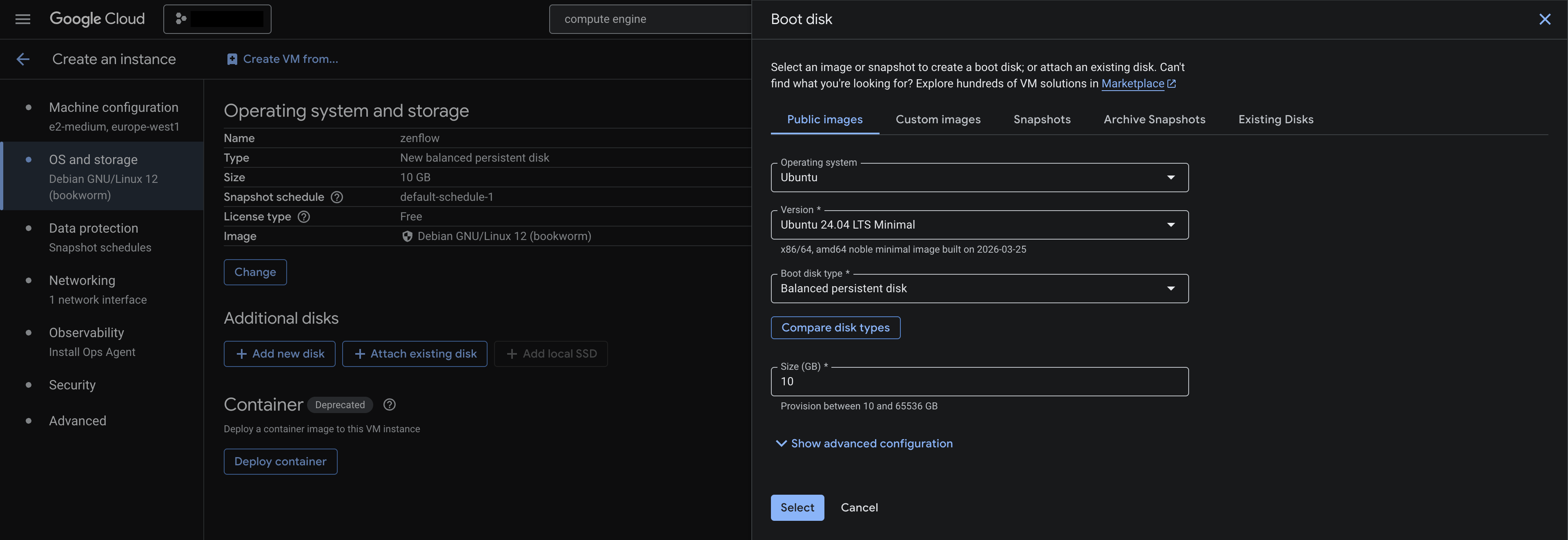
- Choose Ubuntu 24.04 for the OS (the default image)
- Droplet size depends on your needs - if you expect Zenflow to execute heavy tasks (e.g. compiling code), you might want to create larger droplet. Or you can start with the default
- Choose and set up your authentication method
- Optionally rename the droplet to something meaningful, like
Zenflow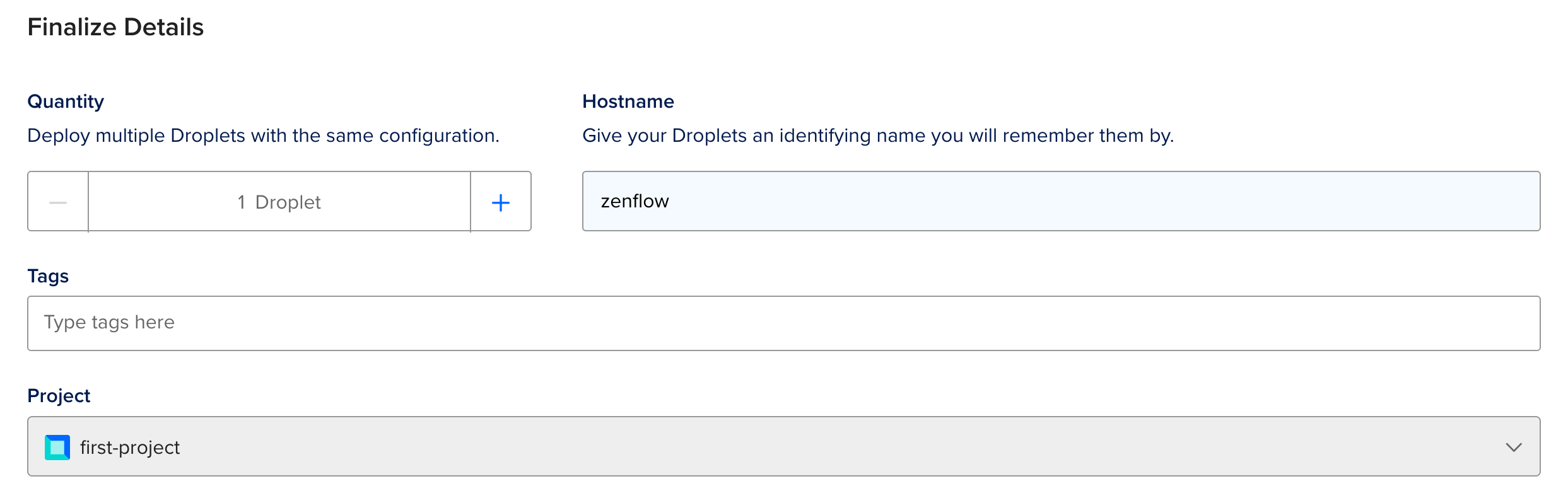
- Click Create Droplet button
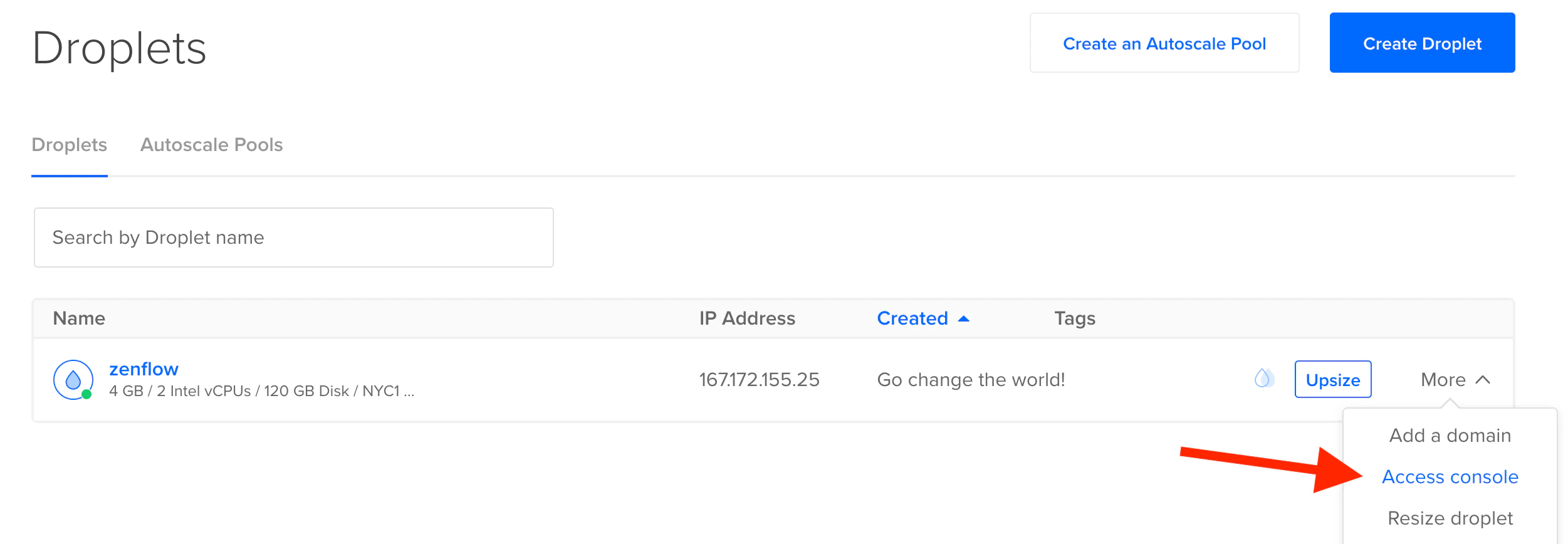
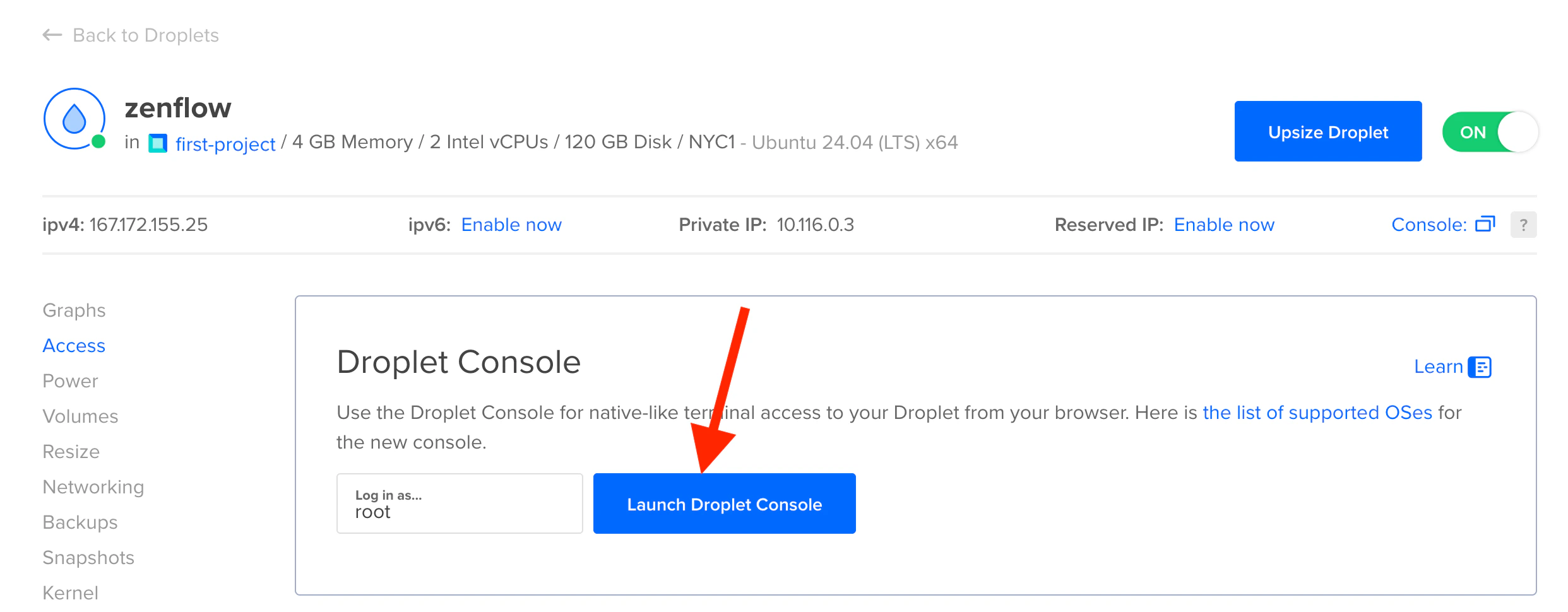
- After droplet gets created, connect to it either using terminal or through Digital Ocean’s Access console

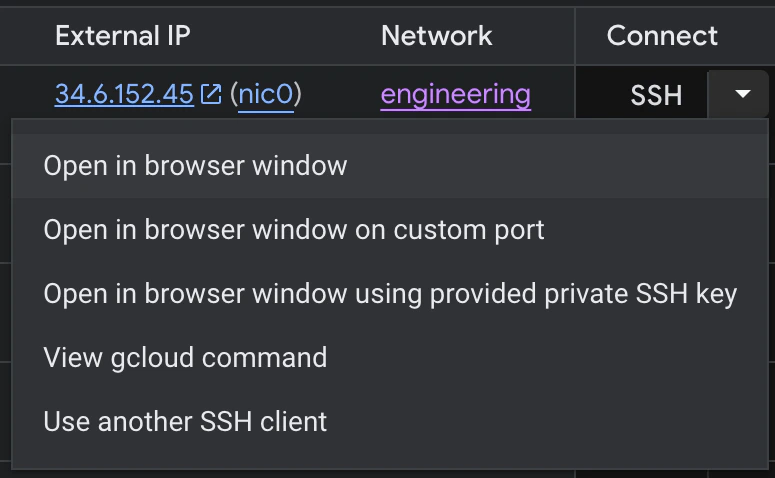
- Create non-root user with desired name (for example,
zenflow), give it sudo rights and switch to the user:
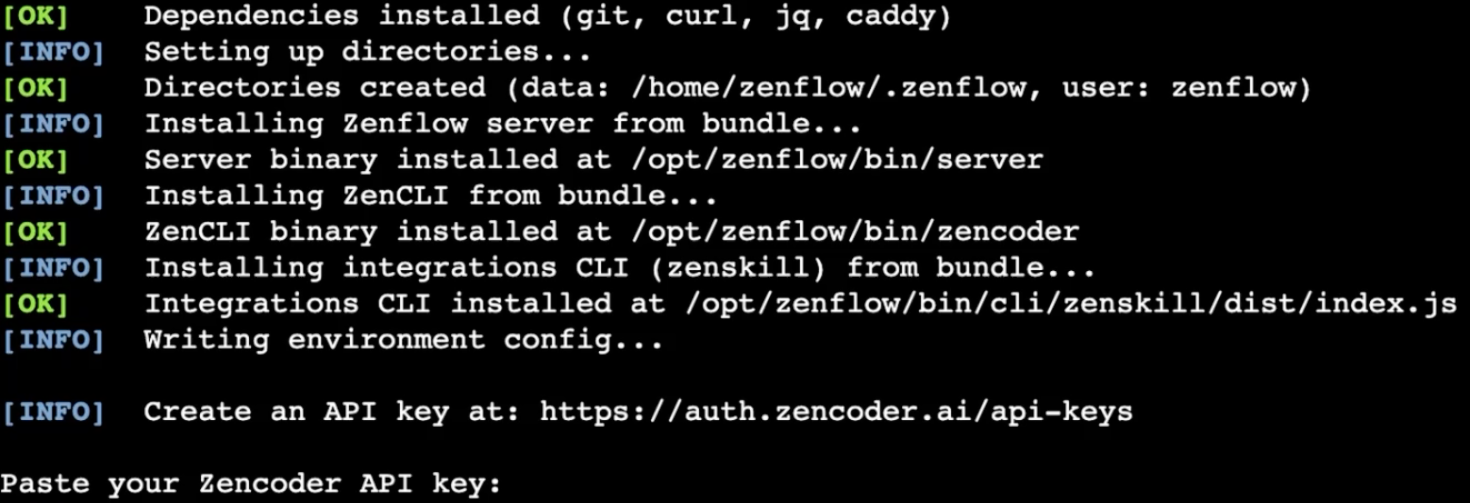
- Run the following command to download and execute set up script:
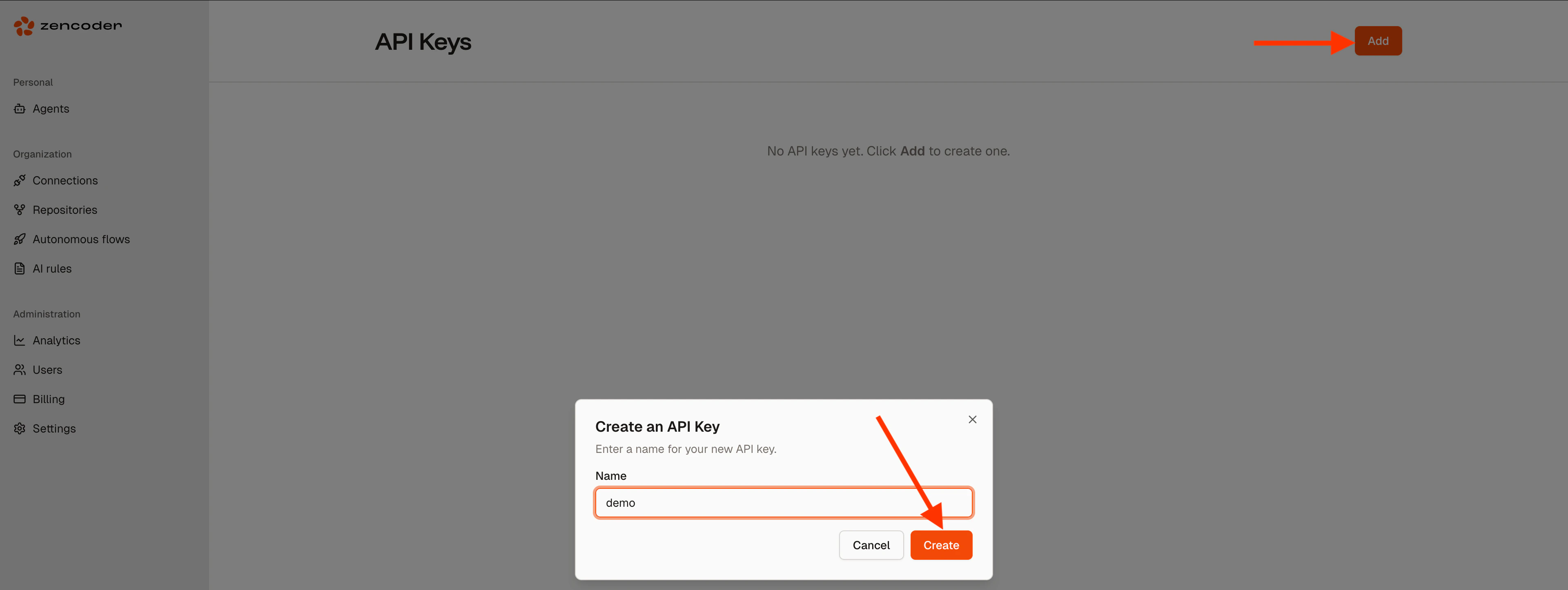
- After initial setup the script will ask you to create API key at https://auth.zencoder.ai/api-keys
- On that page click Add, give the API key a name and click Create. You will be shown the API key, store it in a secure place, it is only shown once
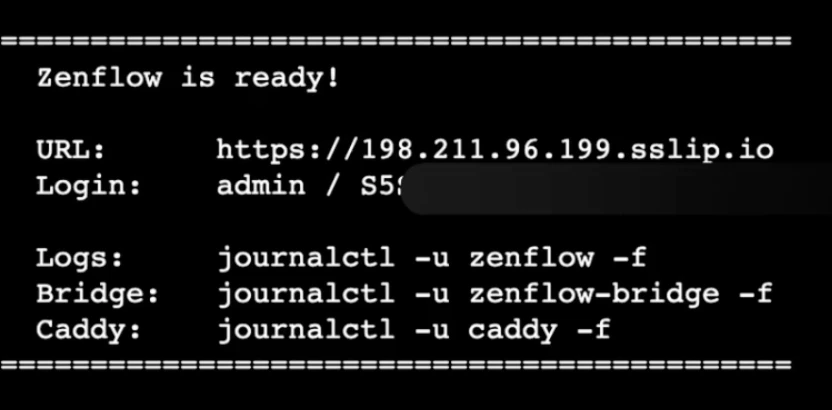
- Go back to your VPS and paste the API key
- You will then be shown the URL at which you can access Zenflow and credentials (username/password)
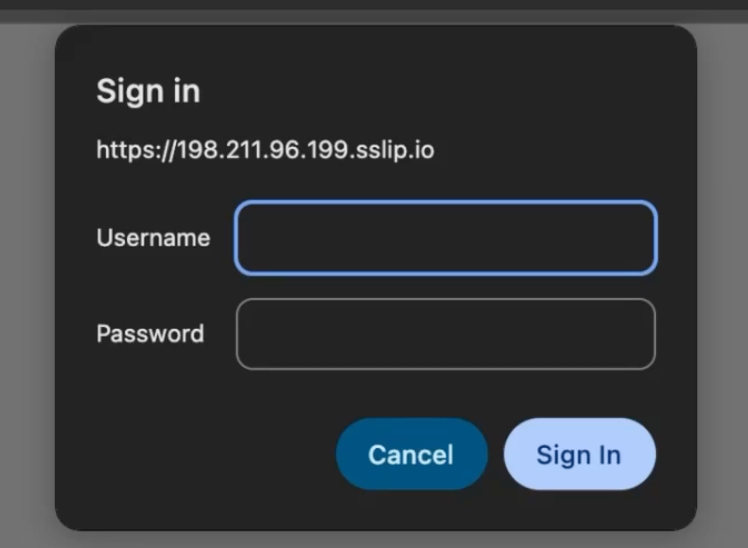
- When you visit the URL, you’ll be prompted for Username/Password from the previous step
- Once logged in, you’ll see the onboarding screen of Zenflow and now can work with it through browser remotely