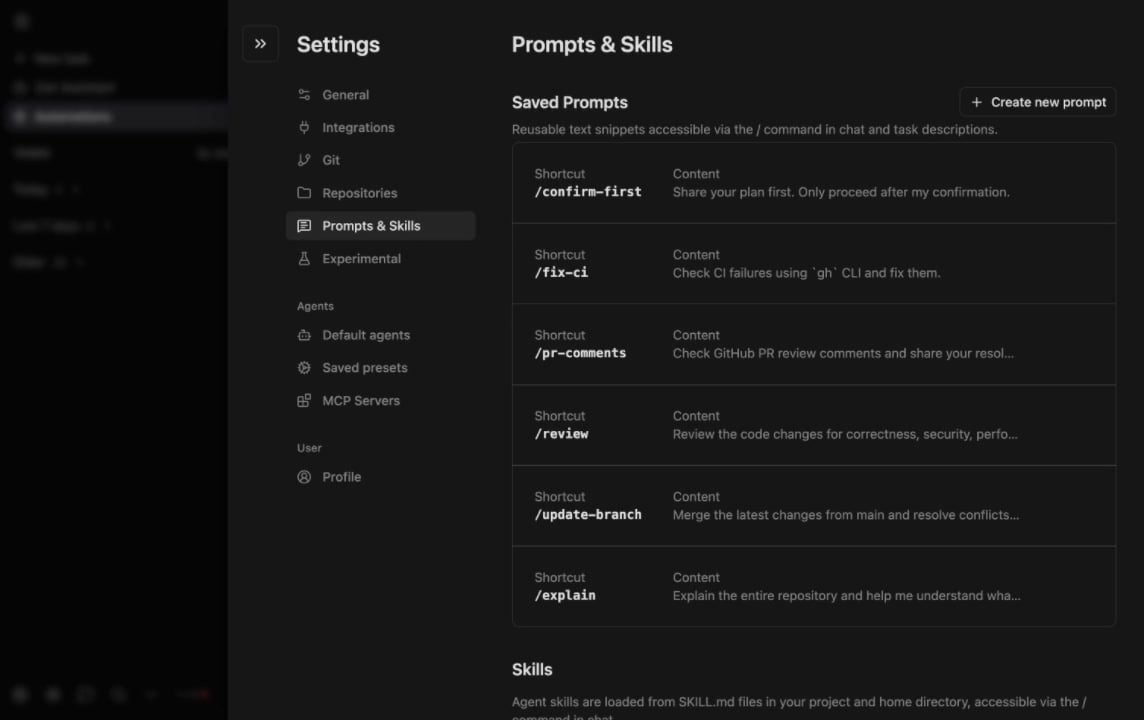
Saved Prompts let you create reusable prompt shortcuts that you can quickly insert into any chat or task description by typing /. Instead of retyping common instructions, save them once and reuse them everywhere.
Why Saved Prompts?
Developers often repeat the same types of requests: refactoring patterns, review checklists, commit message formats, or project-specific instructions. Saved Prompts eliminate this repetition by letting you:
- Save frequently used prompts as named shortcuts
- Insert them instantly by typing
/ followed by the prompt name
- Maintain consistency across your team’s workflows
- Speed up interactions with the agent by reducing typing
How to Use Saved Prompts
- Go to Settings → Prompts & Skills and click + Create new prompt
- Give it a shortcut name (e.g.,
/review) and add the prompt content
- In any chat or task description, type
/ to see your available prompts
- Select the prompt to insert it into your current input
Saved Prompts work in both Zencoder IDE Agents and Zenflow task descriptions, so you can standardize prompts across your entire workflow.
Example Use Cases