

General Settings
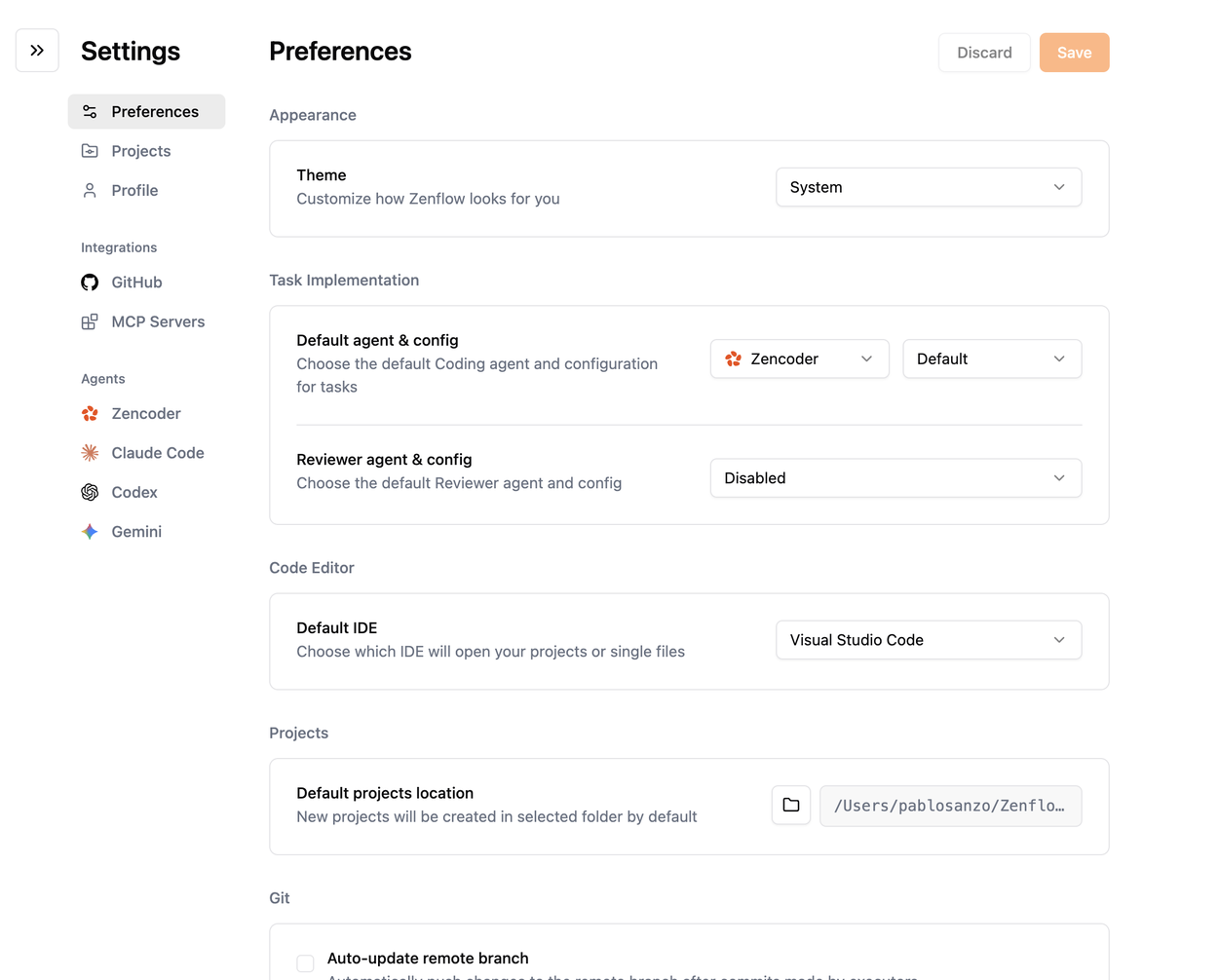
The top section covers personal preferences, project automation, and your profile—everything you need before wiring up integrations or agents.Preferences
Set global behaviors such as themes, default models, and notification preferences so every workspace starts with the right defaults.
Projects
Configure repository paths, scripts, file copying, and rule folders for each project so tasks inherit the correct automation.
Profile
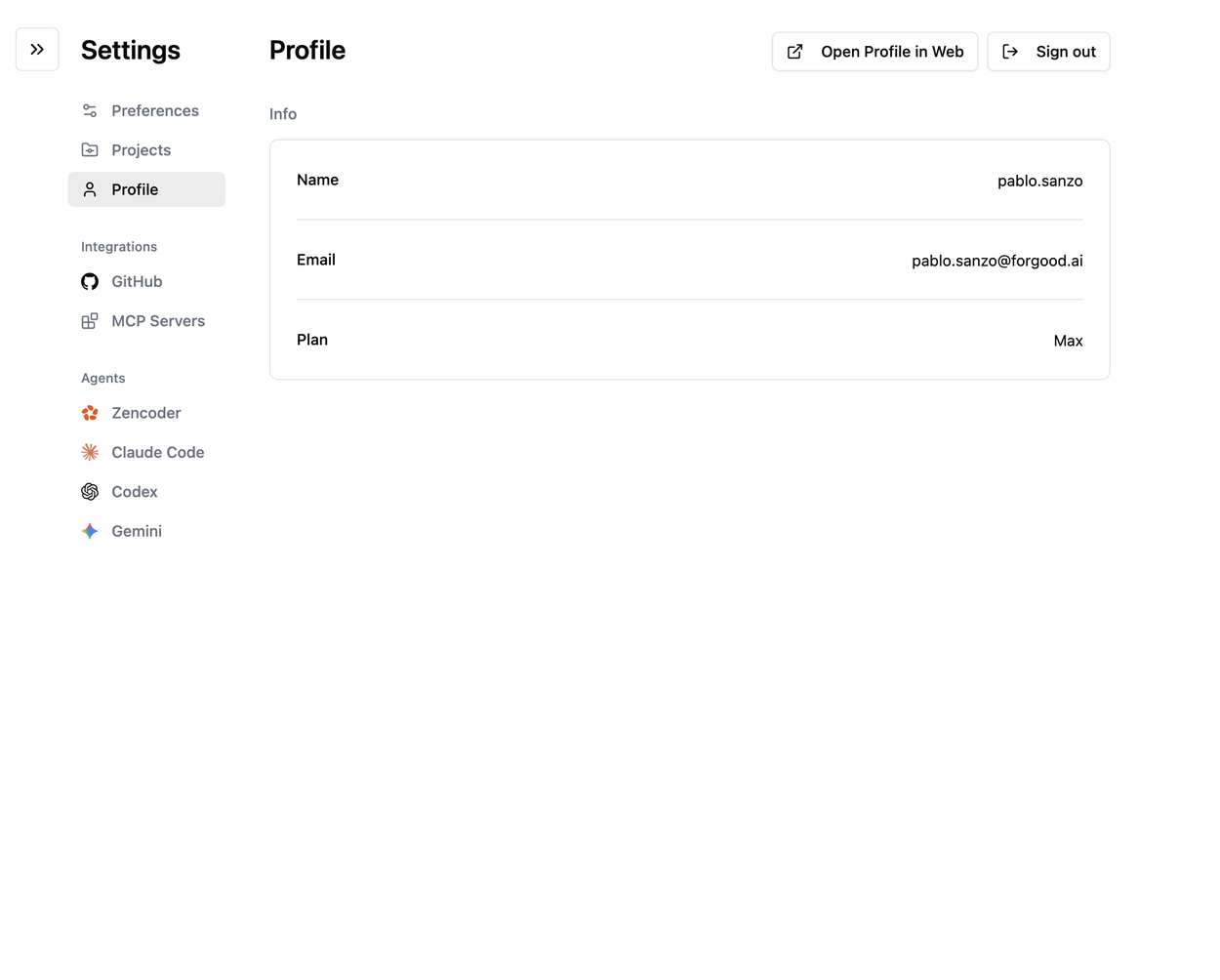
Manage your Zenflow identity, email, and authentication details.
Preferences
- Set global options like theme, default task view, and notification toggles to keep the workspace consistent across devices.
- Choose which model selector presets appear in chat by default.
Projects
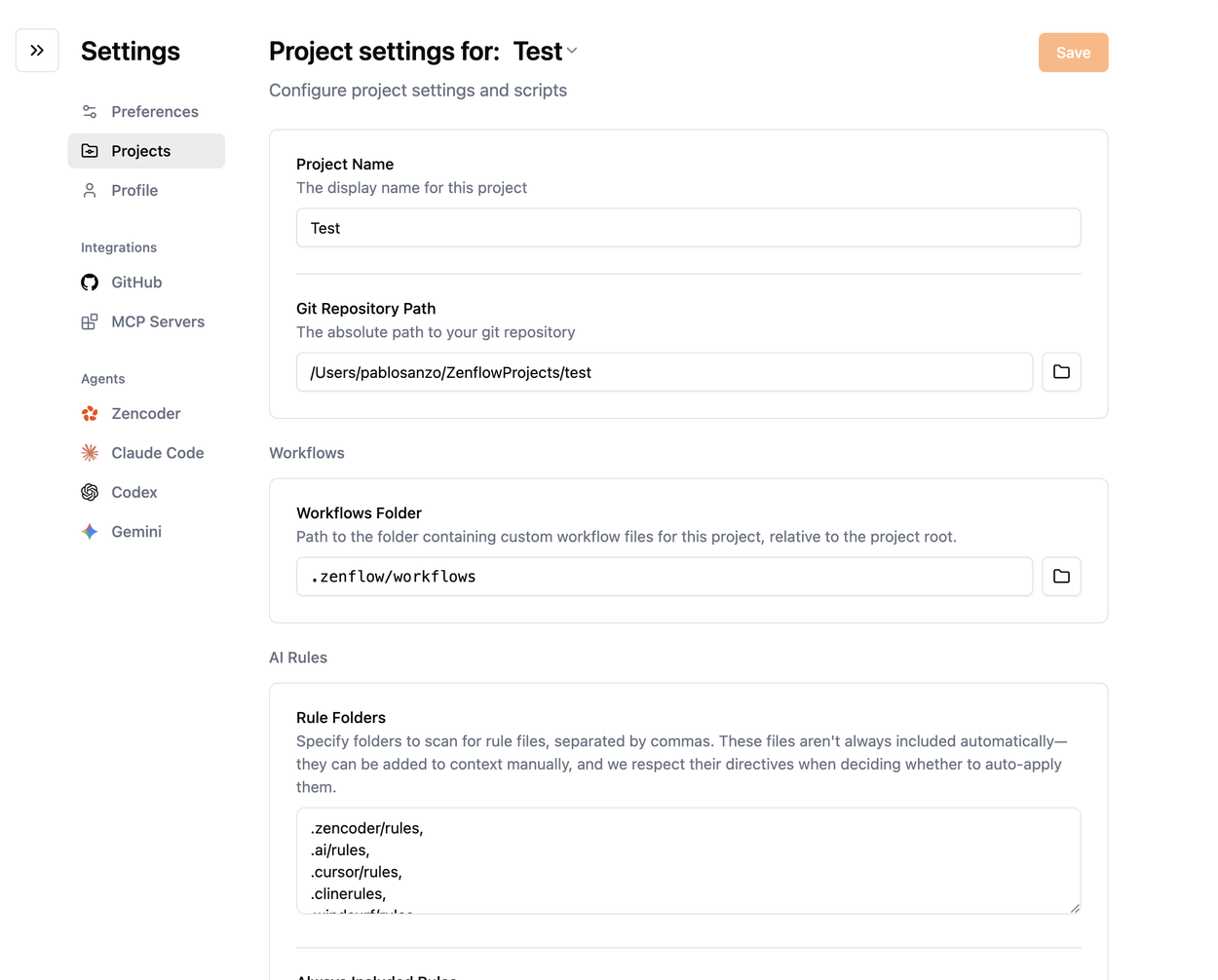
Every project gets its own configuration page (labeled Project config for …) with a Save button. Key sections:- Project Name – Display label for the project picker.
- Git Repository Path – Absolute path to the repo Zenflow should clone into task worktrees. Use the folder picker to browse.
- Scripts & Automation – Configure Setup, Dev Server, and Cleanup scripts so Zenflow can prep, run, and finalize work automatically.
- Copy Files – List local-only files (e.g.,
.env,config.local.json) to copy into each worktree. - AI Rules – Point to rule folders (e.g.,
.ai/rules,.cursor/rules) and always-include rule files so agents stay aligned.
Why it matters
Consistent project settings ensure every task runs against the right repo, scripts, environment files, and rule sets—critical for reliable agent automation.
Profile
- Update your name, email, and authentication methods.
- Review workspace membership and access levels.
Integrations
GitHub
Connect Zenflow to GitHub via OAuth or PAT so agents can open branches, manage pull requests, and sync checks.
MCP Servers
Configure per-agent MCP backends to extend what agents can do (Context7, Playwright, custom endpoints, etc.).
GitHub
Two authentication options keep access flexible:- Connect with OAuth (recommended) – Launches GitHub’s device authorization flow. Zenflow guides you through linking at
github.com/login/device, copying the one-time code, and approving the app. Once confirmed, the UI flips to “Connected as username” with a Disconnect button. - Personal Access Token – Paste a PAT if OAuth can’t reach certain private repos. Use tokens with
repopermissions so Zenflow can read and push branches.
MCP Servers
Each agent gets its own MCP configuration:- Pick the agent (Claude Code, Codex, Copilot, Gemini, Qwen Code) from the dropdown.
-
Edit the JSON config inline. Fresh installs start with:
- Use the Available servers gallery to add prebuilt integrations. Hovering Context7, for example, injects the correct HTTP stanza with API key headers.
- Save changes with the top-right Save button—Zenflow confirms with a toast.
Why it matters
Integrations turn Zenflow into a connected system—GitHub keeps branches and PRs in sync while MCP servers extend what agents can automate.
Agents
Claude Code
 Configure prompt append, model overrides, and permission gates for Anthropic’s coding agent.
Codex
 Control sandbox modes, reasoning effort, and model IDs for Codex tasks.
Gemini
 Choose between default and flash variants and add repo-specific guidance.
Claude Code
- Append Prompt – Append repo- or org-level instructions to every prompt.
- Model – Override the Claude model ID if you need a specific variant.
- Dangerously Skip Permissions – Decide whether Claude can run commands without explicit approval.
Codex
- Append Prompt – Adds persistent instructions to every Codex prompt.
- Sandbox – Control escalation policies with modes like
None,Always ask,Workspace write, orDanger full access. - Model – Free-text override for the Codex model ID.
- Model reasoning effort – Tune how much time Codex spends reasoning (
none,low,medium,high,null).
Gemini
- Append Prompt – Add clarifying instructions to every Gemini run.
- Model – Choose between
defaultandflashto balance quality vs. speed.
Why it matters
Agent configurations let teams standardize automation profiles—keeping prompts, permissions, and models aligned with your workflow.