

Overview
Zenflow organizes AI-driven work around two core pillars: Repositories (codebases configured for automation) and Tasks (discrete units of work executed by agents in isolated environments). By configuring repositories with custom automation scripts and managing tasks with structured workflows, you can build a highly optimized, automated software development lifecycle.Repositories Overview
A repository in Zenflow is the codebase your AI agents work in. Each repository contains tasks, workflows, and automation settings that define how agents interact with your code.Repository hierarchy
Organization → Repositories → Tasks → Subtasks/ChatsEach level inherits settings from above while allowing overrides for specific needs.
Adding a Repository
1
Open Zenflow
Launch the Zenflow desktop app and sign in with your Zencoder account.
2
Click Add repository
From the sidebar, click the + icon and select Add repository.
3
Choose how to add your repository
You have three options: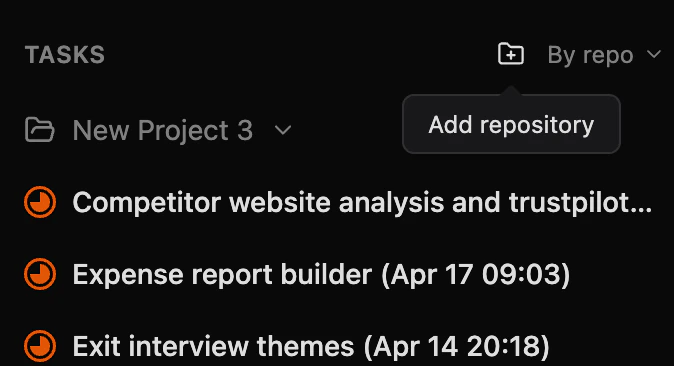

- Create blank repository — creates a new empty repository in your local ZenflowProjects folder
- Clone from GitHub — clone a repository directly from your GitHub account
- Select from computer — browse your local machine for an existing repository
4
Configure automation
Set up your default agent, verification scripts, and workflow preferences. You can always adjust these later.
5
Start working
Your repository is ready! Create your first task to begin.
Repository Settings
Access repository settings by selecting your repository in Zenflow. Settings are organized into sections:General
Scripts & Automation
Scripts run automatically during task execution to set up dependencies, start dev servers, and verify changes. Configuration is stored in.zenflow/settings.json.
Use Set up with Agent to have an AI agent analyze your repository and generate a suggested configuration automatically.
AI Rules
Repository Configuration
Zenflow supports repository-level automation through a.zenflow/settings.json configuration file that you can add to your repository. This file defines scripts and behaviors that execute at specific points in your task lifecycle, enabling consistent environment setup, automated testing, and verification across all tasks in your repository.
Getting Started with Repository Configuration
You can set up repository configuration directly from your repository’s Scripts & Automation settings. Click Set up with Agent to have an AI agent analyze your repository structure, dependencies, and development workflow, then generate a suggested.zenflow/settings.json for you.
- Open Repository Settings select the repository you want to modify and go to the Scripts & Automation section
- Click “Set up with Agent” — Zenflow creates a task where an agent analyzes your repository
- Review the suggested configuration that the agent generates based on your repository
- Edit the configuration to match your specific needs
- Merge the changes directly or create a pull request for team review
Configuration File Structure
Create a.zenflow/settings.json file in the root of your repository with the following structure:
Configuration Fields
setup_script
Executes after each task worktree is created The setup script runs automatically when Zenflow creates a new Git worktree for a task. Use this to install dependencies, configure the environment, or prepare the workspace for development. Common use cases:- Installing project dependencies (
npm install,pip install -r requirements.txt,bundle install) - Building necessary artifacts (
npm run build,make setup) - Initializing databases or running migrations
- Setting up git hooks or local tools
The setup script runs in the root of the newly created worktree with the repository’s default shell environment. Long-running setup steps are visible in the task logs.
dev_server_script
Defines the command to start your development server While not currently executed automatically, this field documents how to run your repository’s development server. Future Zenflow versions will use this to automatically start and manage dev servers during task execution. Common use cases:- Starting local development servers (
npm run dev,python manage.py runserver) - Running hot-reload watchers
- Launching containerized environments (
docker-compose up)
verification_script
Runs after each agent turn to validate changes The verification script executes automatically after every agent interaction within a task, acting as a continuous quality gate. Use this to run linters, type checkers, tests, or any static analysis tools that should pass before the agent proceeds. Common use cases:- Running linters (
eslint .,ruff check .,rubocop) - Type checking (
tsc --noEmit,mypy .) - Running unit tests (
npm test,pytest,go test ./...) - Security scanning (
npm audit,safety check) - Custom validation scripts
- Agent makes changes to the codebase
- Verification script runs automatically
- If the script exits with code 0 (success), the task continues
- If the script fails (non-zero exit), you’ll see the error output and can instruct the agent to fix the issues
Planned feature: Future versions will automatically pass verification errors to agents for self-correction. Currently, you review errors and provide guidance to the agent as needed.
copy_files
List of files to copy into each task worktree Specify files that should be copied from your local development environment into every task worktree. This is essential for environment-specific configuration, secrets, and local settings that shouldn’t be committed to version control. Common use cases:- Environment files (
.env,.env.local,.env.development) - API keys and secrets (
secrets.json,credentials.yaml) - Local configuration overrides (
config.local.js,settings.local.py) - SSL certificates for local development
- Private keys for service authentication
*.env- All files ending with .env in the root directory.env*- All files starting with .env (e.g., .env.local, .env.test)config/**/*.json- All JSON files in config directory and subdirectoriessecrets/*.{key,pem}- All .key and .pem files in the secrets directory
- Paths are relative to your repository root
- Files are copied from your main working directory to the same relative path in each task worktree
- Subdirectories in paths are created automatically if they don’t exist
- Both explicit file paths and glob patterns are supported
Complete Example
Here’s a comprehensive configuration for a Node.js web application:Tasks Overview
A task is a discrete unit of work that an AI agent executes within an isolated workspace. Tasks can range from quick fixes to full feature implementations, with workflows that adapt to scope and complexity.Task isolation
Every task runs in its own Git worktree with a dedicated branch, ensuring parallel execution without conflicts.
Task Modes
Zenflow supports two task modes, selectable via the Code / Work toggle at the top of the creation screen:Code
“What do you want to build?” — For coding tasks in git repositories. Tasks run in an isolated worktree with a dedicated branch.
Work
“What do you want to get done?” — For non-code tasks like brainstorming, research, and writing. No repository required — tasks use a local folder.
Code Workflows
Work Workflows
Creating a Task
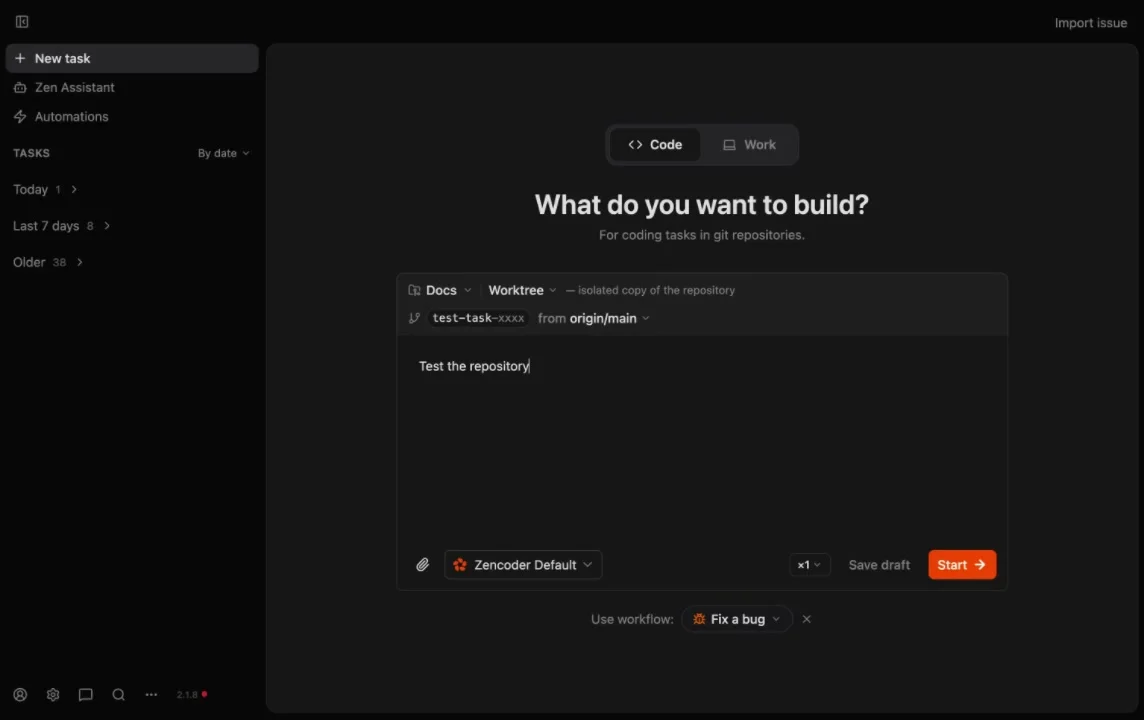
1
Select the mode
Choose Code for repository-based work or Work for non-code tasks.
2
Choose the workspace
In Code mode, select the repository and source branch. In Work mode, select a local folder. Each Code task creates an isolated worktree at
.zenflow/worktrees/{task_id}.3
Describe the work
Write a clear description. Use
@ to reference files or attach images for context.4
Pick a workflow
Select from the workflow buttons below the input area, or let the agent use Auto by default.
5
Select the agent preset
Click the preset dropdown (defaults to Zencoder Default) to choose a different agent configuration, or create a new preset.
6
Start or save
Click Start to spin up the agent immediately, or Save draft to run later.
Task View
Once a task is running, the interface splits into a multi-panel layout: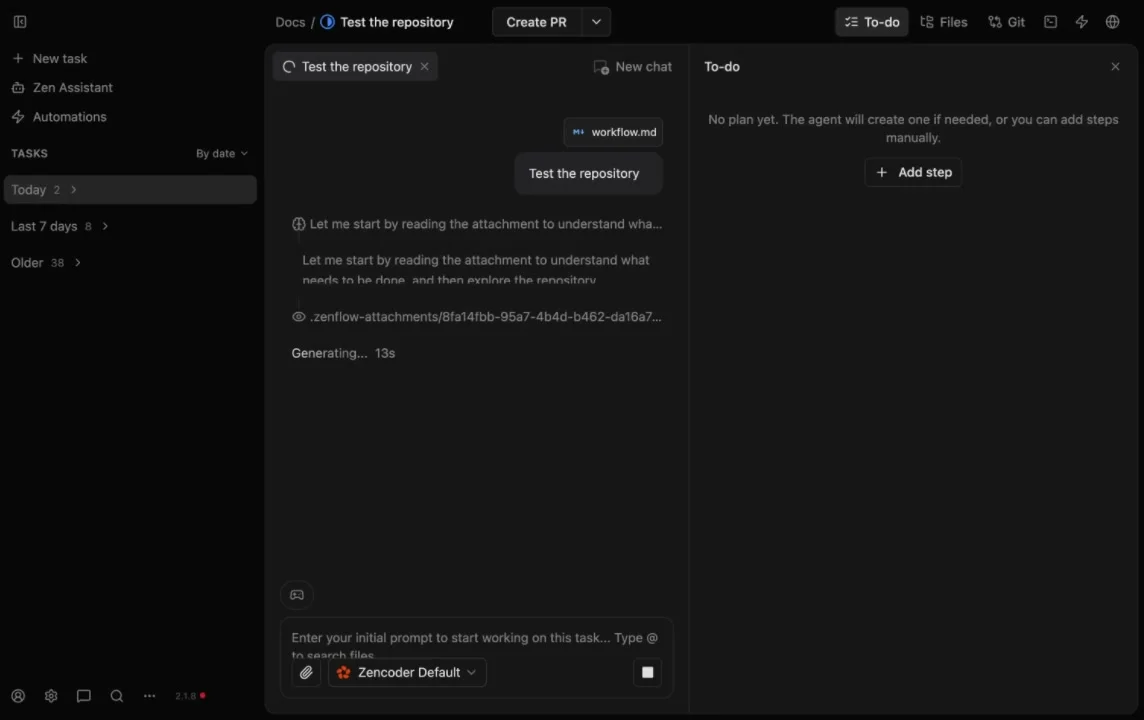
Top Bar
The top bar shows the repository name, task name, and key actions:Chat Panel (Left)
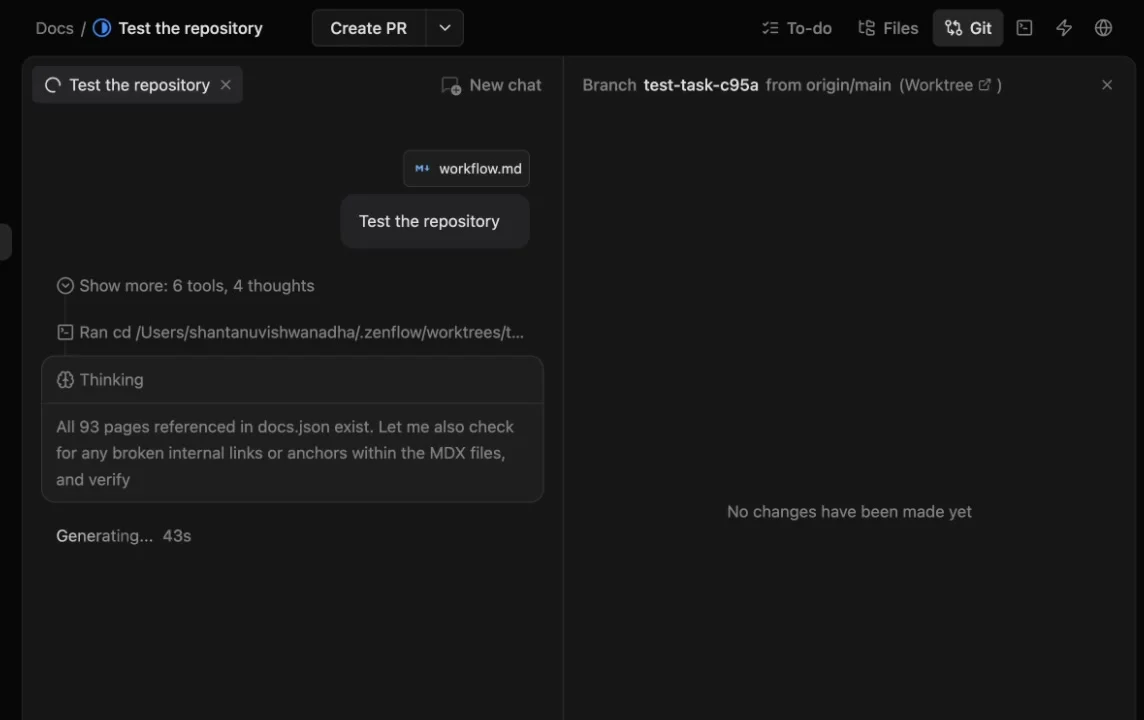
- Chat tabs — Each workflow step or subtask gets its own tab. Click New chat to open additional conversations for follow-ups or guidance.
- Live telemetry — Streams tool calls, shell commands, file reads, and thinking so you can watch what the agent is doing.
- Interactive composer — Type follow-up prompts, use
@to reference files, attach images, and switch agent presets mid-task.
Context Panel (Right)
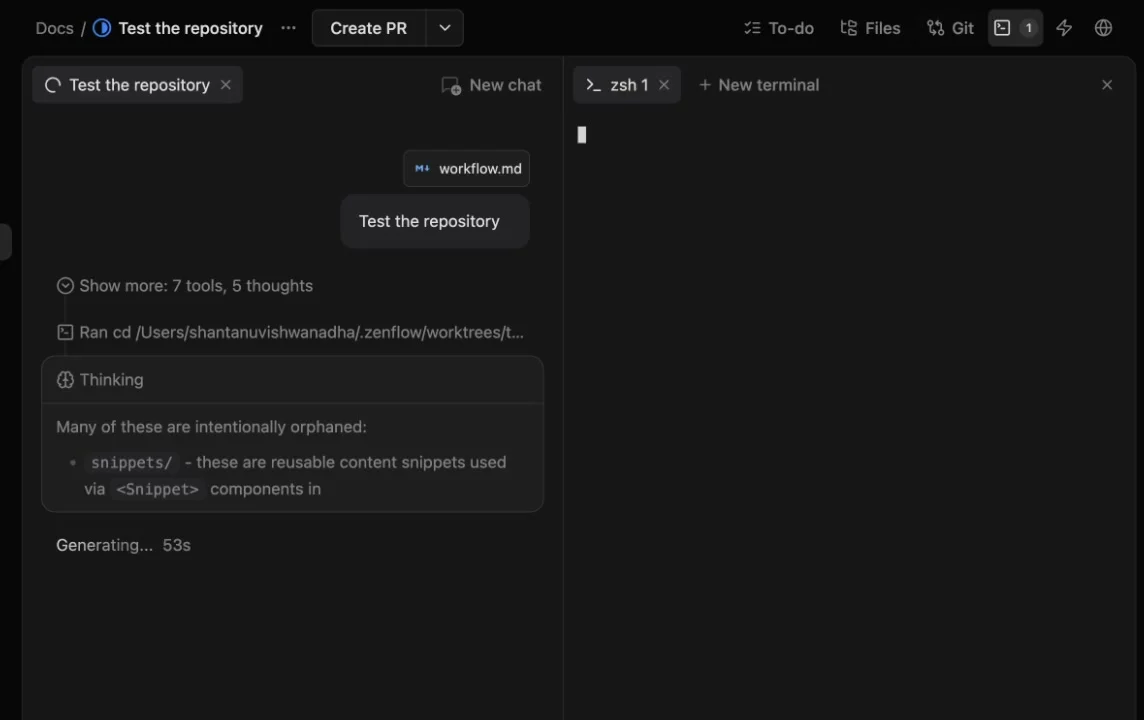
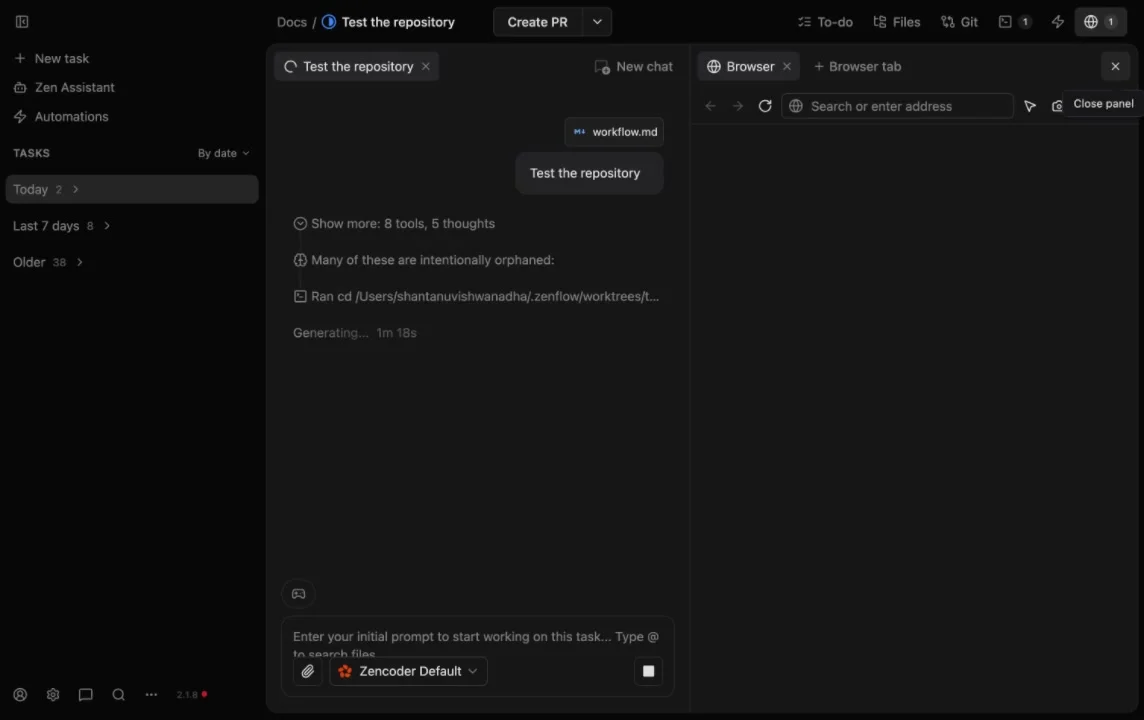
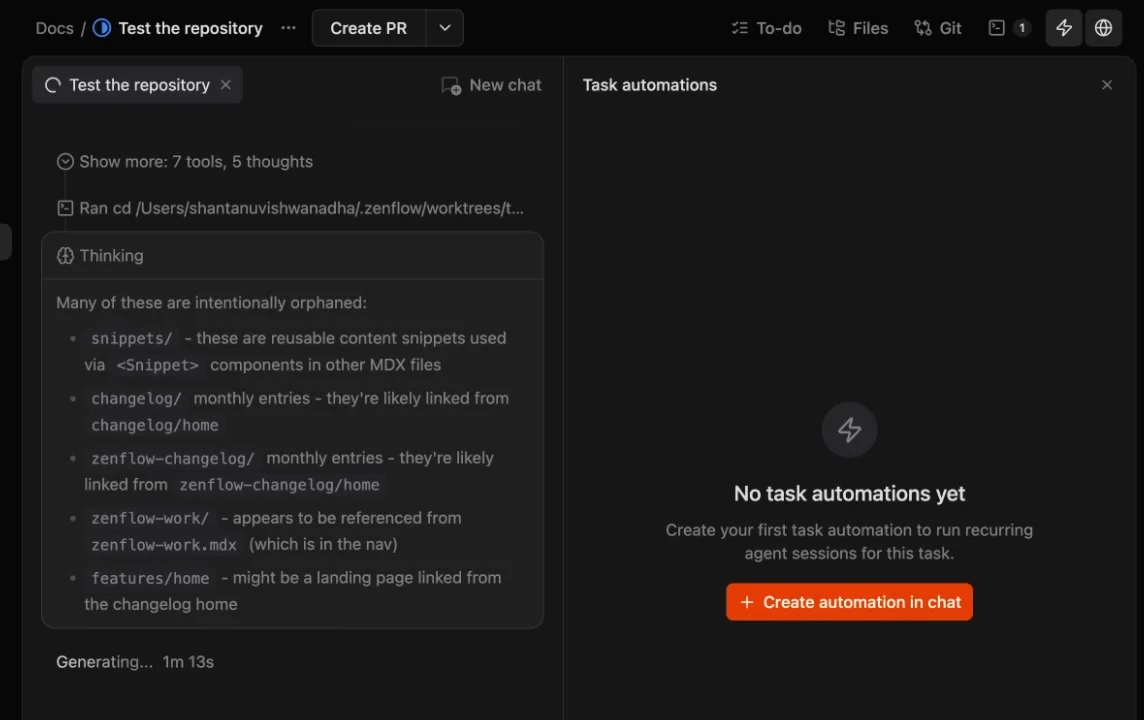
The right side changes based on which top bar tab is active. Here are the Git, Terminal, Browser, and Automations panels: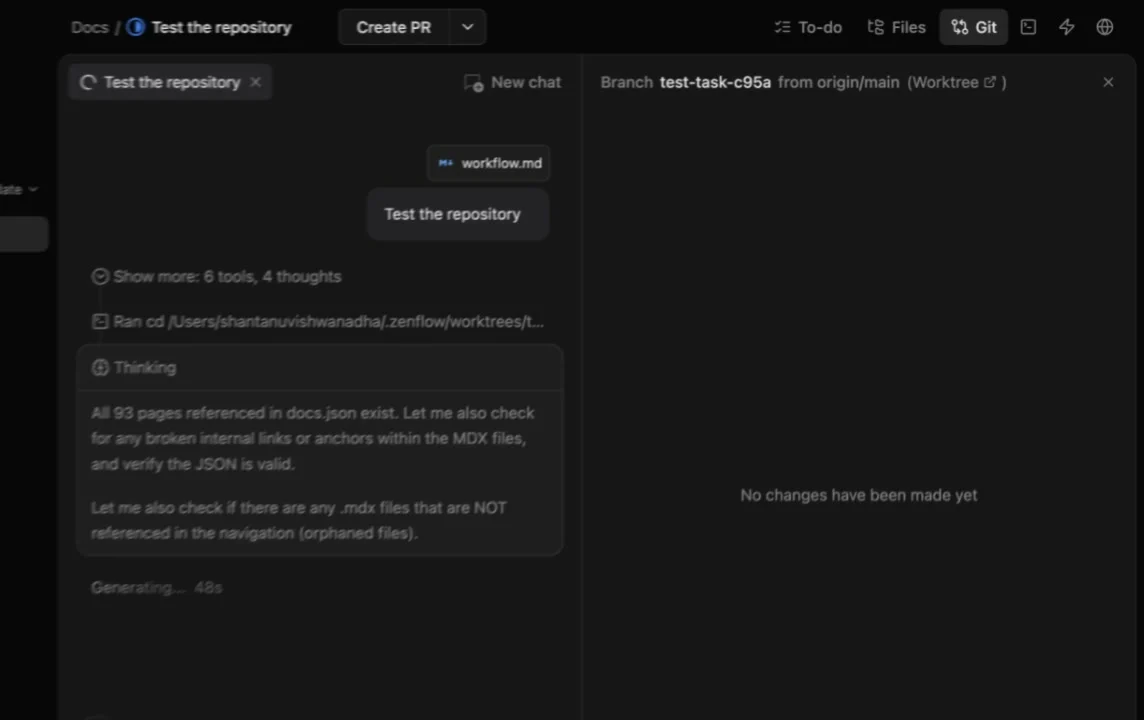
- To-do — Shows workflow steps from the plan. Use + Add step to create custom steps with a name, description, preset override, and toggles for “Start new chat” and “Stop after completion.”
- Files — File explorer with search and a Task files section for quick access to artifacts like
workflow.mdandplan.md. - Git — Branch name, base branch, and file-level diffs for all committed changes.
- Terminal — One or more terminal sessions rooted in the task worktree.
- Automations — In-task automation manager. Create recurring agent sessions that run on a schedule.
- Browser — Embedded Chromium browser with address bar, navigation, and dev tools.
Task States
Tasks move through these states as work progresses:Adding Steps
You can add steps to a task’s plan manually at any time: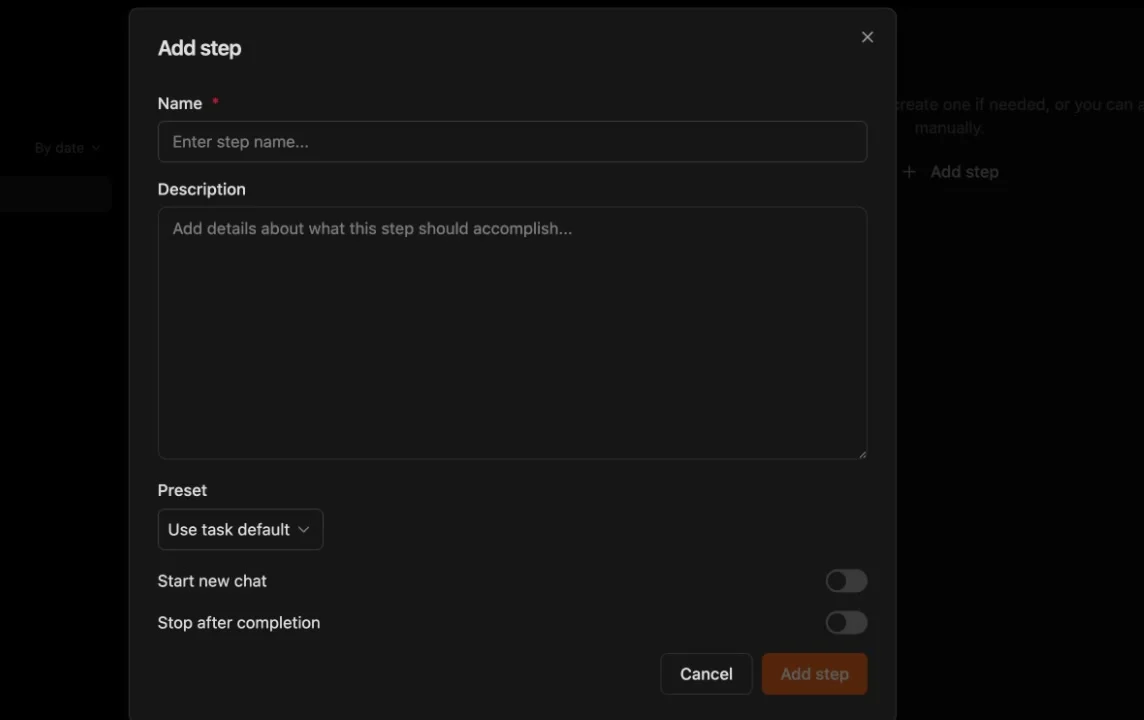
- Open the To-do panel from the top bar
- Click + Add step
- Fill in the step details:
Task Actions
Create PR
Push the task branch and open a pull request on GitHub. The dropdown offers additional options for merge strategies.Open in IDE
Launch your editor directly in the task’s worktree directory so you can make manual edits alongside the agent.Duplicate
Create a copy of the task with the same description and configuration. Useful for running variations of the same work.Archive
Remove the task from the active view and clean up the worktree. Archived tasks can still be referenced but no longer consume disk space.Delete
Permanently remove the task, its worktree, and all associated data.Parallel Execution
Zenflow supports running multiple tasks simultaneously:- Each task has its own worktree and branch
- Agents don’t interfere with each other
- You can start new tasks while others are in progress
- Disk space scales with active task count
Task Artifacts
Depending on the workflow, tasks generate artifacts in the task worktree:Best Practices & Troubleshooting
Best Practices
Keep setup scripts idempotent
Keep setup scripts idempotent
Design setup scripts to be safely re-runnable. Avoid commands that fail if run multiple times, or add conditional checks to skip steps that are already complete.Example: Check if dependencies are already installed before running a slow installation step.
Use verification scripts strategically
Use verification scripts strategically
Balance thoroughness with speed. Include critical checks (linting, type checking, fast unit tests) in verification, but save comprehensive integration tests and end-to-end tests for CI/CD after PR creation.
Document environment file requirements
Document environment file requirements
Create a
.env.example or README section that lists all required environment variables. This helps team members understand what files need to be present for copy_files to work correctly.Version your repository configuration
Version your repository configuration
Commit
.zenflow/settings.json to version control so the entire team shares the same automation setup. This creates a single source of truth for repository workflow configuration.Use exit codes correctly
Use exit codes correctly
Ensure your verification script exits with code 0 only when all checks pass. Most test runners and linters already follow this convention, but custom scripts should explicitly
exit 1 on failure.Troubleshooting
Setup script fails when creating worktree
Setup script fails when creating worktree
Check the task logs to see the exact error output. Common issues:
- Missing dependencies on the system (Node.js, Python, package managers)
- Incorrect paths in the script (remember it runs from the worktree root)
- Network issues preventing dependency downloads
- Insufficient permissions for file operations
Verification script always fails
Verification script always fails
If your verification script consistently fails even when code looks correct:
- Ensure the script runs successfully in your main development directory first
- Check that all required files are being copied via
copy_files(e.g.,.envfiles) - Verify that the setup script completed successfully before verification runs
- Confirm that your verification commands are compatible with CI-style execution (no interactive prompts)
echo statements to your verification script to debug which specific command is failing.Copy files not appearing in worktree
Copy files not appearing in worktree
If files specified in
copy_files aren’t being copied:- Confirm the files exist in your main repository directory (check the exact paths)
- Verify paths are relative to the repository root, not absolute paths
- Check file permissions—Zenflow needs read access to the source files
- Look for typos in file paths (paths are case-sensitive on Unix systems)
Configuration file not being recognized
Configuration file not being recognized
Zenflow looks for
.zenflow/settings.json in the repository root. Ensure:- The file path is exactly
.zenflow/settings.json(note the leading dot) - The JSON is valid (use a JSON validator or
jqto check) - The file is committed and present in the branch being used for task creation
- You’ve restarted Zenflow or refreshed the repository after adding the configuration