

Documentation Index
Fetch the complete documentation index at: https://docs.zencoder.ai/llms.txt
Use this file to discover all available pages before exploring further.
Overview
Zenflow orchestrates agent work across three mechanisms:- Structured workflows – Each task type (Quick Change, Fix Bug, Spec and Build, Full SDD) defines a sequence of steps with specific artifacts. Agents follow this structure rather than operating on ad-hoc prompts.
- Automated verification – Verifier agents run after builder agents to execute tests, lint, security checks, or spec validations. Failures are caught before code reaches you.
- Parallel execution – Multiple tasks run simultaneously in isolated worktrees. Within a task, different agents can handle independent steps (planning, coding, docs) concurrently.
UI Layout
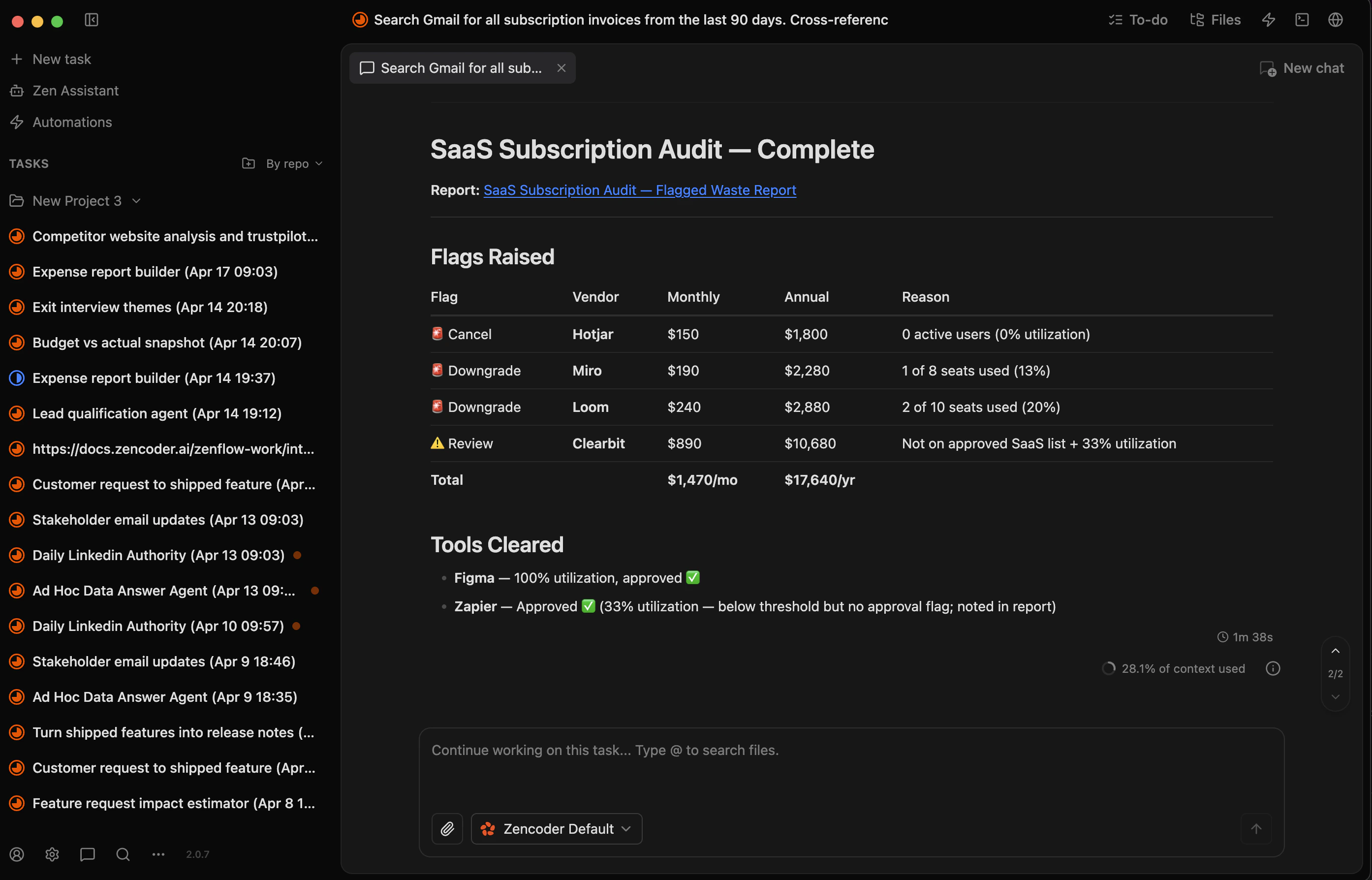
The Zenflow interface is split into three columns, each corresponding to a level of the orchestration hierarchy:| Column | What it shows |
|---|---|
| Left — Repositories | Repository list, task cards with status indicators |
| Middle — Task Overview | Workflow steps, branch info, diffs (Changes tab), commits |
| Right — Chats | Step-aware agent conversations, live telemetry, composer for guidance |
Repositories
Repositories define the scope and automation presets used across tasks. The left column gives you:- Repository switcher & quick menu – Jump between repositories, open in IDE, edit metadata, or delete.
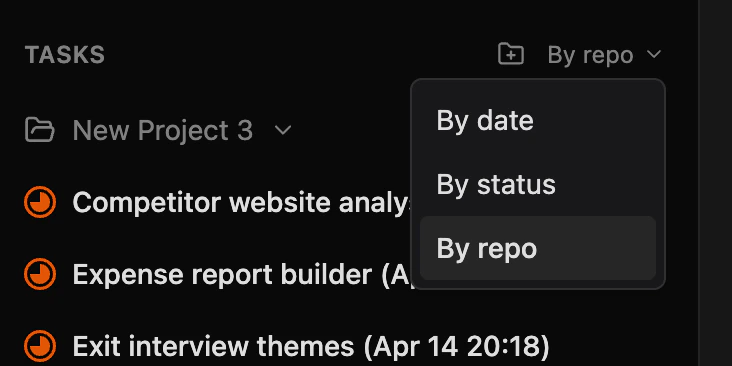
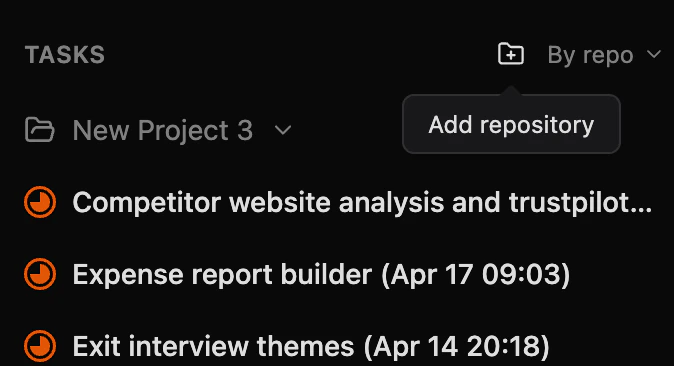
- Sort options – Sort tasks By repo, By date, or By status. In By repo mode you can also add a new repository or select an existing one from your computer.
- Task cards – Status indicators for each workflow stage. Each card has Edit, Open in IDE, Duplicate, Archive, and Delete actions.
- Task creation – The + icon and New task buttons open the workflow-aware creation modal.
Tasks
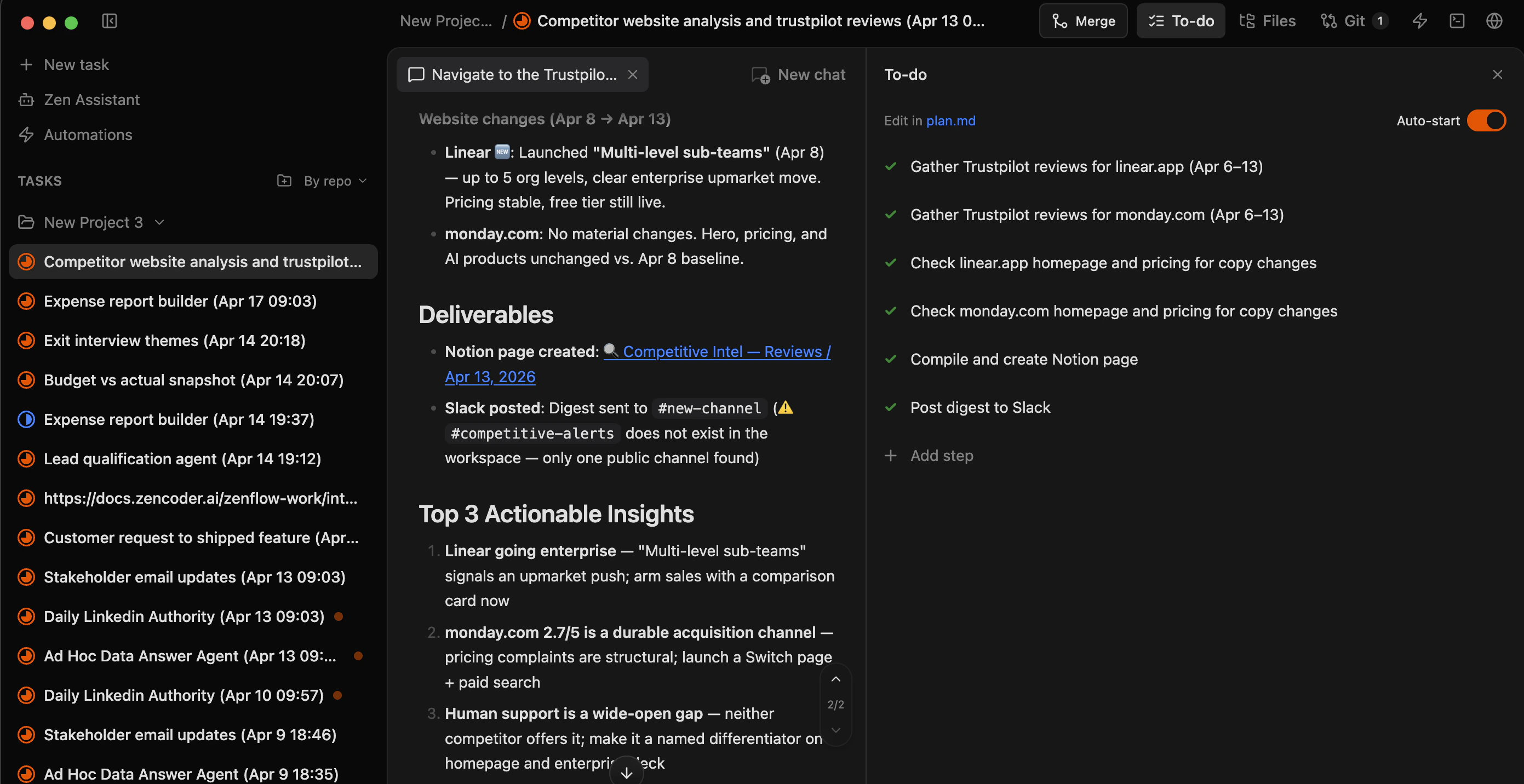
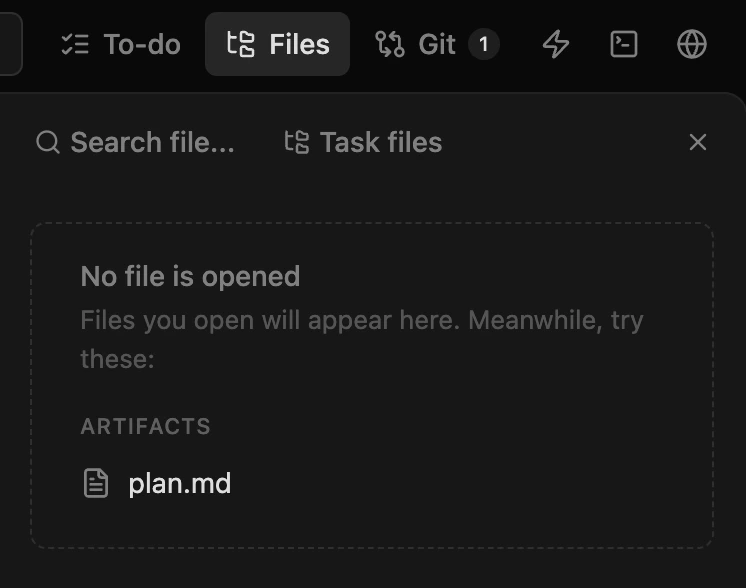
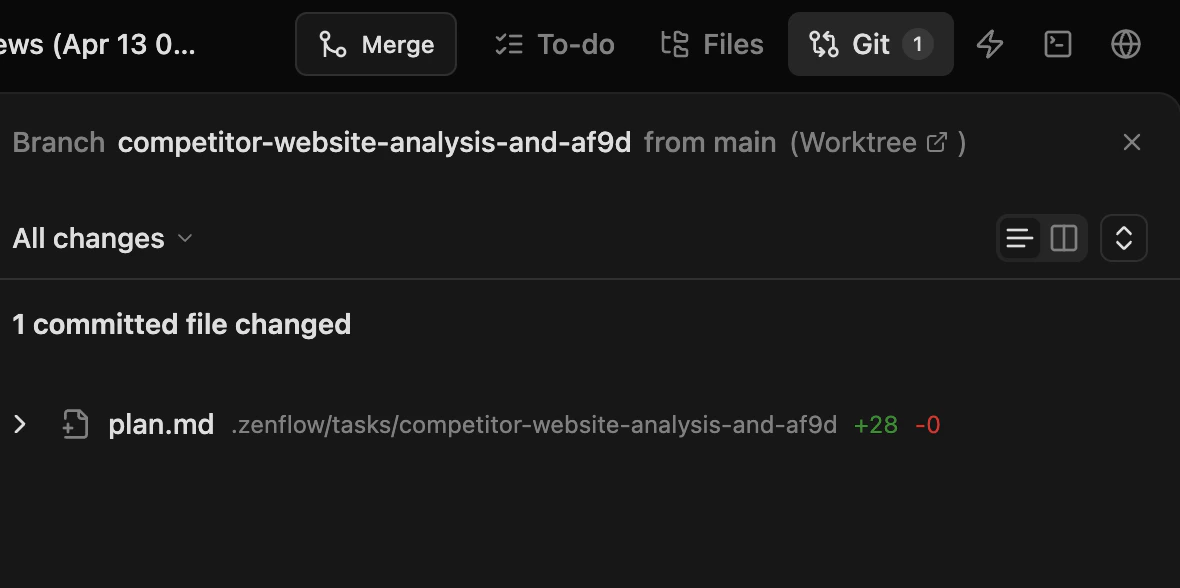
Open any task and the top bar gives you access to all task views:- Merge – Merge the task branch when work is ready.
- To-do – View and manage task steps from
plan.md. Toggle Auto-start to let agents run steps hands-free, or click Edit in plan.md to modify steps directly. - Files – Browse and search all files in the task worktree. The Task files view shows artifacts like
plan.mdfor quick access. - Git – See the task branch, diffs, and committed file changes.
- Task menu (⋯) – Rename, Open in IDE, Reveal in Finder, Duplicate, Archive, Delete.
Subtasks & Chats
The right column is the live agent context:- Step-aware tabs – Tabs like Requirements, Technical Specification, or Implementation mirror your plan. Each phase has its own chat log.
- Live telemetry – Streams the active step, shell commands, file reads, and reasoning so you can watch what agents are doing.
- Interactive composer – Reference files with
@, switch execution modes (DEFAULT, APPROVALS, PLAN), attach artifacts, inject guidance mid-run. - Add tab / All Tabs – Spin up additional chat contexts for new subtasks or switch between existing ones.
End-to-End Flow
- Create a task – Choose the repository, pick a workflow (Quick Change, Fix Bug, Spec and Build, or Full SDD).
- Run through steps – Use the Steps tab to view
plan.md, enable Auto-start, and watch Changes/Commits as artifacts appear. - Guide via chat – Monitor the right column, provide clarifications, let verifier agents run after builders.
- Parallelize – Run multiple tasks per repository or multiple step-specific chats so planning, implementation, and verification happen concurrently.