

Get Help
Discord Community
Real-time help from the community and Zencoder team.
Reddit Community
Discuss with developers in the Zencoder subreddit.
Email Support
For account or sensitive issues — support@zencoder.ai
Before reporting a new issue, please gather the debug information described below — it dramatically speeds up resolution.
Debug Information
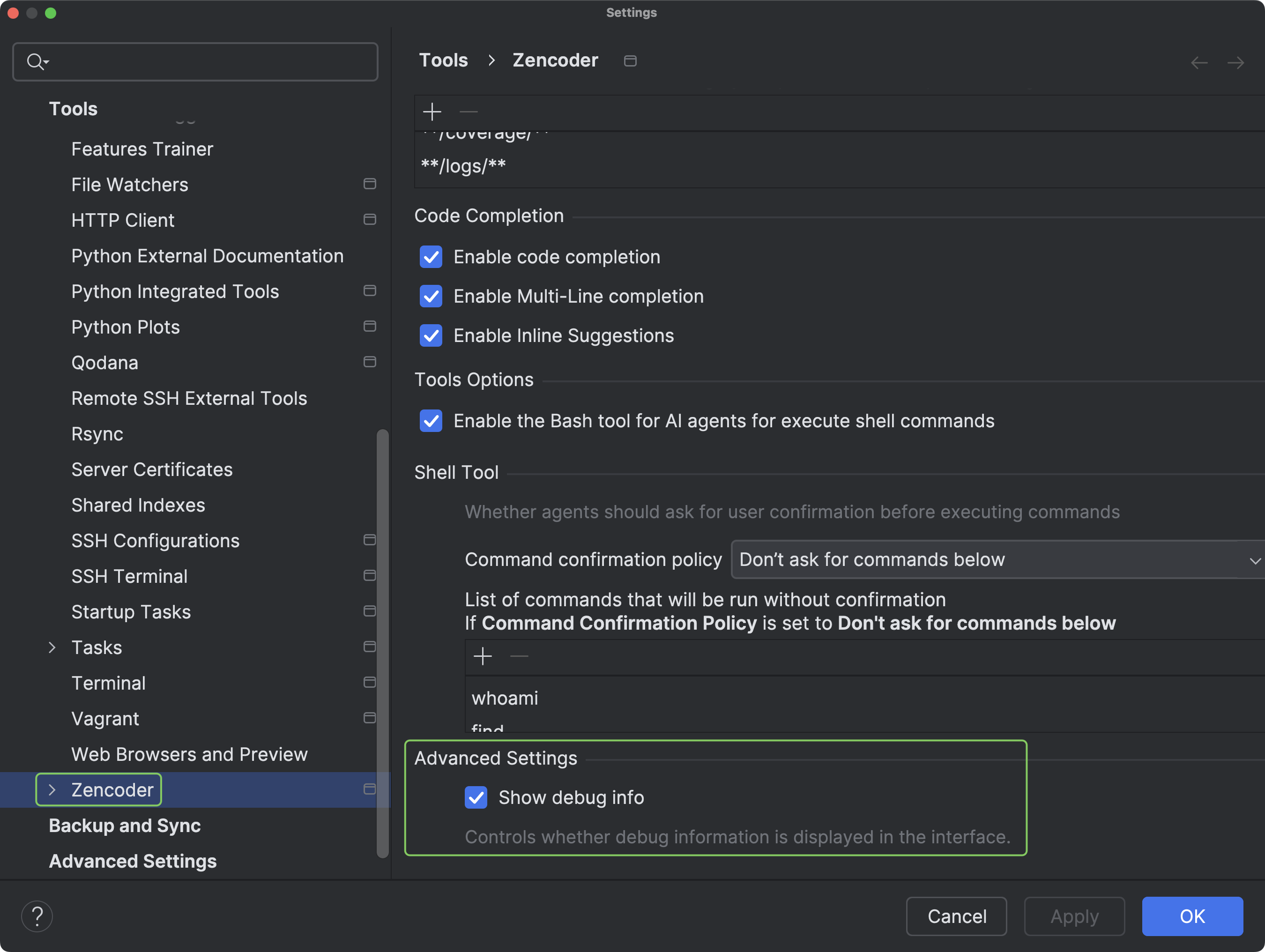
Each request to Zencoder is assigned a unique Operation ID. Sharing this identifier helps us trace exactly what happened in our systems.Enabling Debug Info
- VS Code
- JetBrains IDEs
-
Go to
Settings(File > Preferences > Settingsor pressCtrl+,/Cmd+,). -
Search for
Zencoder: Display debug info. -
Check the box labeled
Controls whether debug information is displayed in the interface.


Accessing Logs
- VS Code
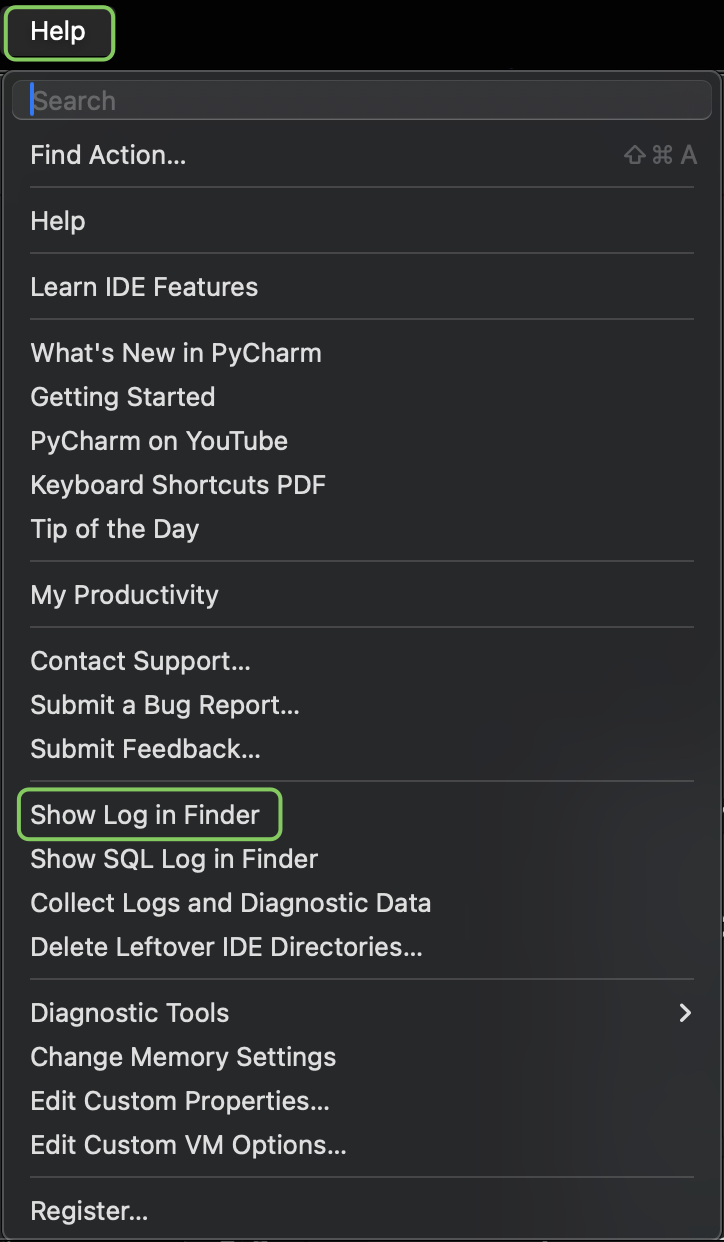
- JetBrains IDEs
Zencoder logs live in the Output panel:
-
Open the
Outputpanel withShift+Cmd+U(macOS) orCtrl+Shift+U(Windows/Linux). -
In the dropdown at the top-right, select
Zencoder. -
Use
Ctrl/Cmd+AthenCtrl/Cmd+Cto copy the whole log, or take a screenshot of the relevant lines.
Tips for Useful Logs
- Reproduce the issue right before capturing the log so the relevant entries are included.
- Include any error messages shown in the UI.
- Describe the steps that led to the issue.
- Mention your OS, IDE version, and Zencoder plugin version.
- Redact tokens, API keys, and other sensitive data before sharing publicly.
Screen Recordings
A short recording (using Loom, macOSShift+Cmd+5, or Windows Win+G) is often the fastest way to explain a UI issue.
Known Issues
VS Code: Gray Screen of Death (GSOD)
VS Code: Gray Screen of Death (GSOD)
Symptoms: The Zencoder chat panel opens as a gray, unresponsive area with no content or error messages. May occur intermittently.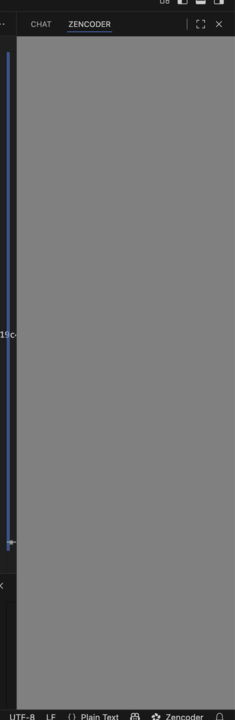
- Save any open work and quit VS Code completely (not just close the window).
- Terminate lingering VS Code processes:
- Windows: end all VS Code processes in Task Manager.
- macOS: quit any VS Code processes in Activity Monitor.
- Linux: run
pkill code.
- Relaunch VS Code — the Zencoder chat should render correctly.
- Disable and re-enable the Zencoder extension.
- Run
Developer: Reload Windowfrom the Command Palette (Cmd/Ctrl + Shift + P). - Check for VS Code and Zencoder extension updates.
Windows: CLI installation fails (PowerShell execution policy)
Windows: CLI installation fails (PowerShell execution policy)
Symptoms: Installing Claude Code or OpenAI Codex through the Universal AI Platform fails with a PowerShell execution policy error such as:Fix:
1
Open PowerShell
Open PowerShell from your Windows system.
2
Set execution policy
3
Confirm
Type
Y and press Enter to accept the policy change.4
Retry the install
Re-run the Claude Code / Codex installation from the Universal AI Platform.
GPT-5 fails with your own OpenAI API key (BYOK)
GPT-5 fails with your own OpenAI API key (BYOK)
Symptoms: Server errors when selecting GPT-5 with a BYOK OpenAI key, or the key connects but GPT-5 refuses to run.Why it happens: This is almost always an OpenAI-side restriction, not a Zencoder issue. GPT-5 access depends on:If it still fails after verification: verify the key has no extra spaces, isn’t expired or revoked, and try regenerating it in the OpenAI dashboard.
- Usage tier — your OpenAI organization must be on a qualifying tier (1–5).
- Organization verification — some orgs must complete OpenAI’s verification.
- API credits / billing — insufficient credits will fail requests.
- Click the Zencoder three-dot menu (
⋮) in your IDE. - Select
User API Keys. - Paste your OpenAI API key and toggle it on.
- Select GPT-5 from the model selector.
- Check your tier in the OpenAI Developer Console.
- Complete organization verification if prompted.
- Confirm you have credits or an active billing method.
Zencoder cannot assist with OpenAI verification — the process is entirely managed by OpenAI. While waiting, use an alternative model.
Reporting a New Issue
If your problem isn’t listed above, reach out through any of the support channels at the top of this page. Include:- Your Operation ID (see Debug Information).
- The plugin version, IDE version, and OS.
- Steps to reproduce and expected vs. actual behavior.
- Logs and, when useful, a screen recording.
- The email address on your Zencoder account (so we can locate your workspace).