

Documentation Index
Fetch the complete documentation index at: https://docs.zencoder.ai/llms.txt
Use this file to discover all available pages before exploring further.
Overview
The Sentry integration gives the AI agent access to your error monitoring and incident data. Track exceptions, monitor application health, surface recurring issues, and generate incident reports — all from within a Zenflow task.Sentry integration is based on Sentry MCP
Connecting Sentry
Click Connect
Click Connect and authorize Zenflow to access your Sentry workspace via the OAuth flow:
Select desired scopes, click Approve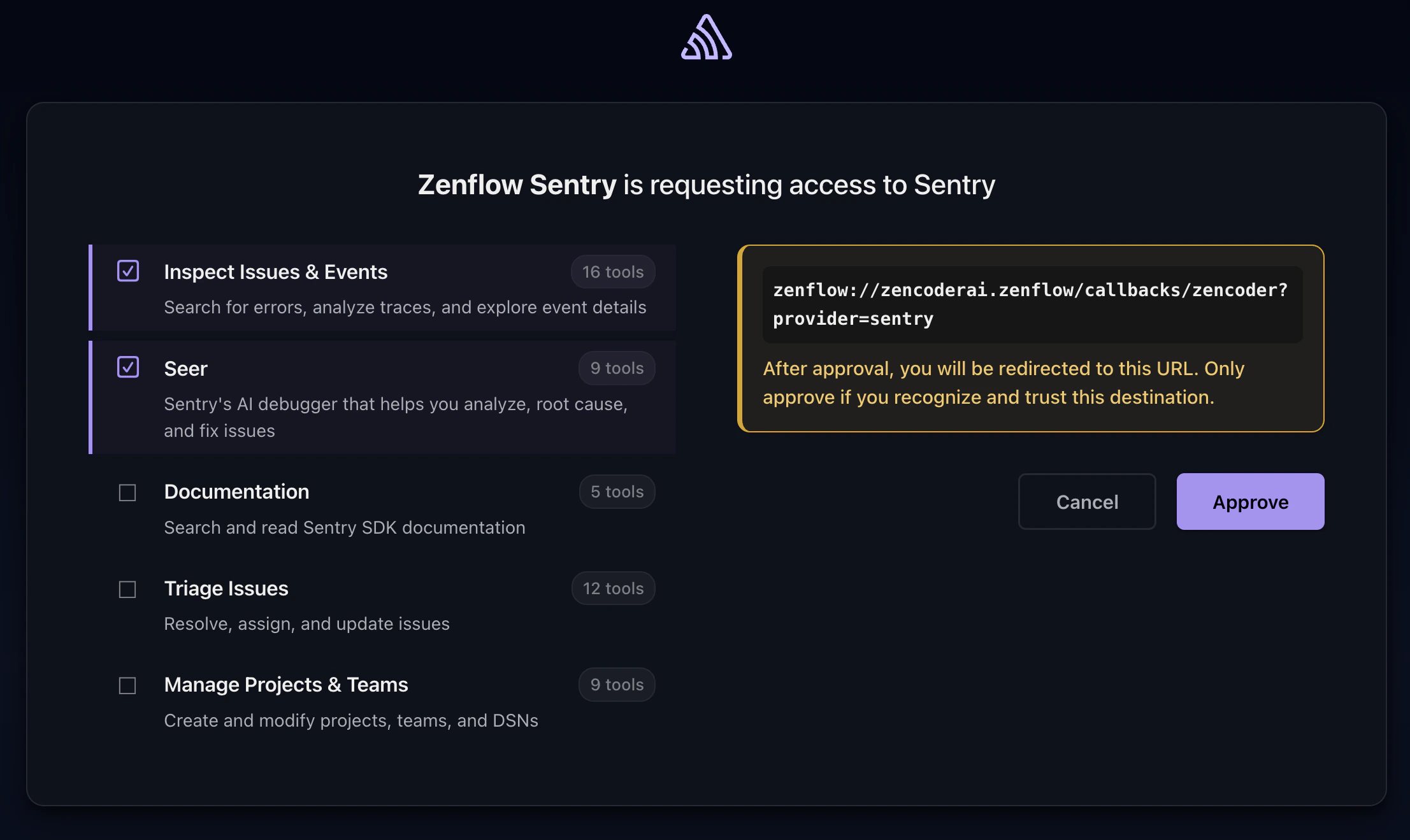
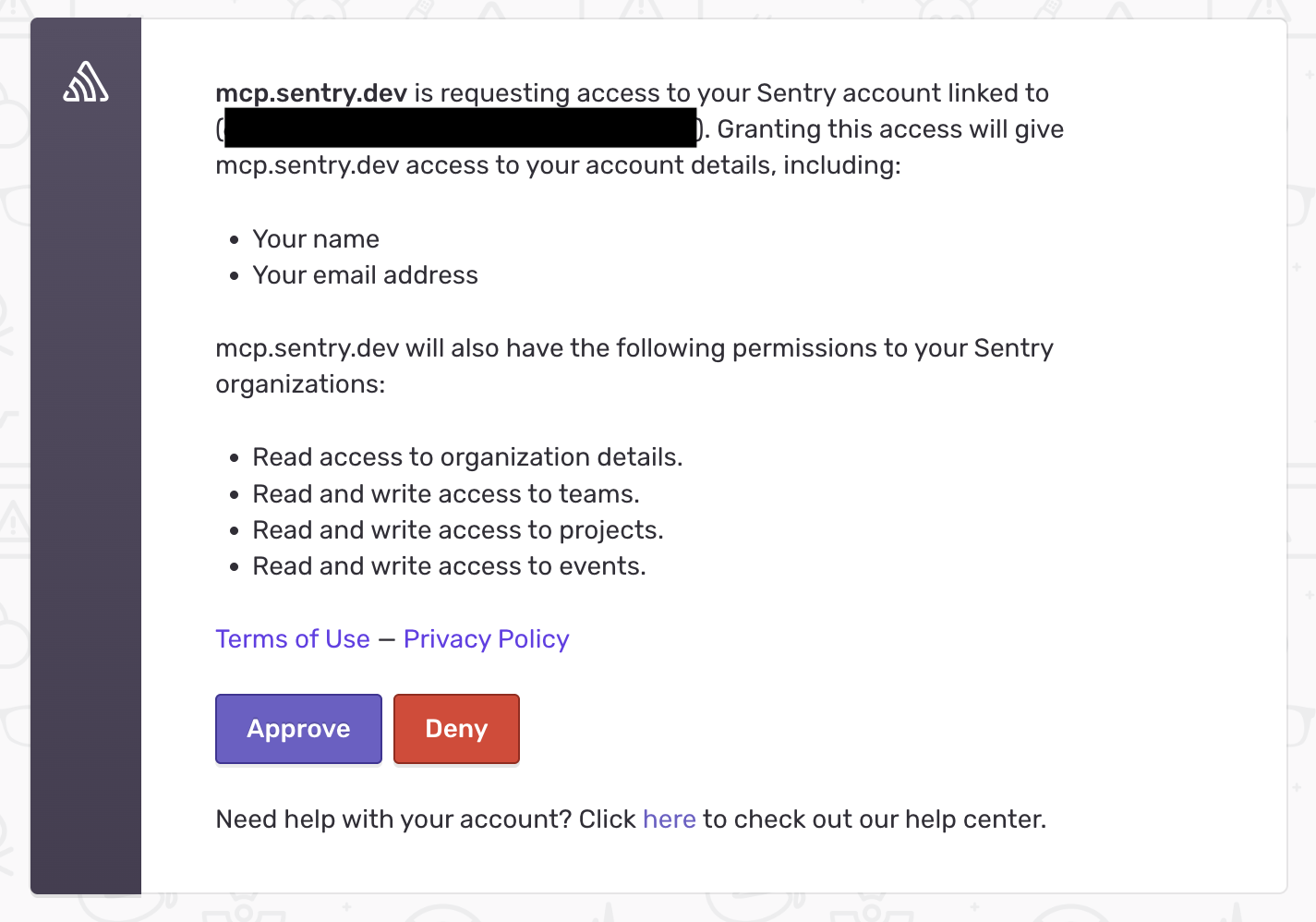
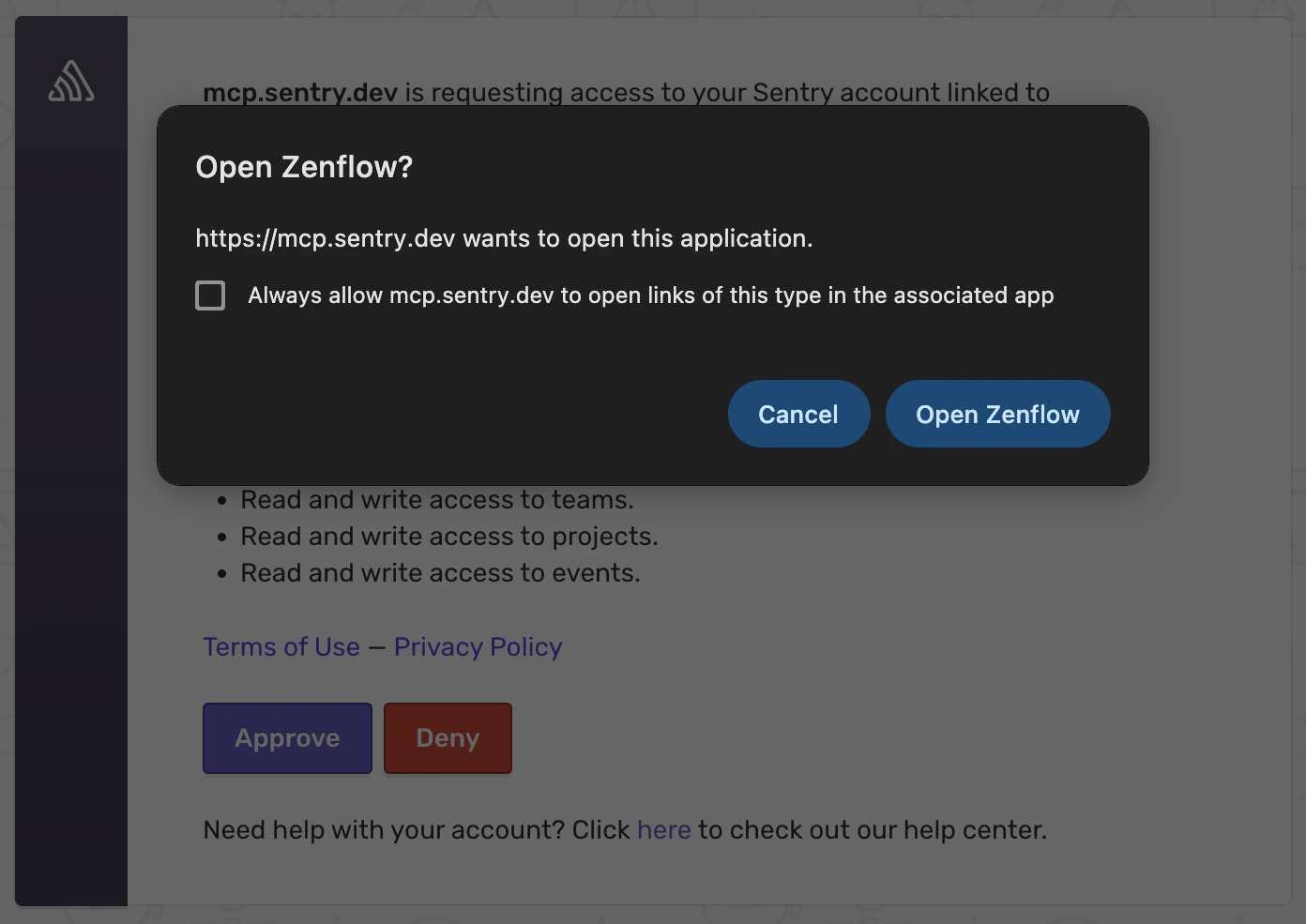

What the Agent Can Do
- Monitor errors — Access exception data, stack traces, and error frequency
- Track incidents — View active incidents, their status, and resolution history
- Surface trends — Identify recurring issues and regression patterns
- Generate reports — Compile error summaries and application health digests
Example Use Cases
- Generate daily error summaries for the engineering team
- Identify top recurring exceptions for bug prioritization
- Monitor error rates after deployments and flag regressions
- Compile incident reports for post-mortems