

Documentation Index
Fetch the complete documentation index at: https://docs.zencoder.ai/llms.txt
Use this file to discover all available pages before exploring further.
Overview
Zenflow integrates with GitHub to streamline your development workflow. Connect your repositories, create pull requests directly from tasks, and sync status across platforms.Connecting to GitHub
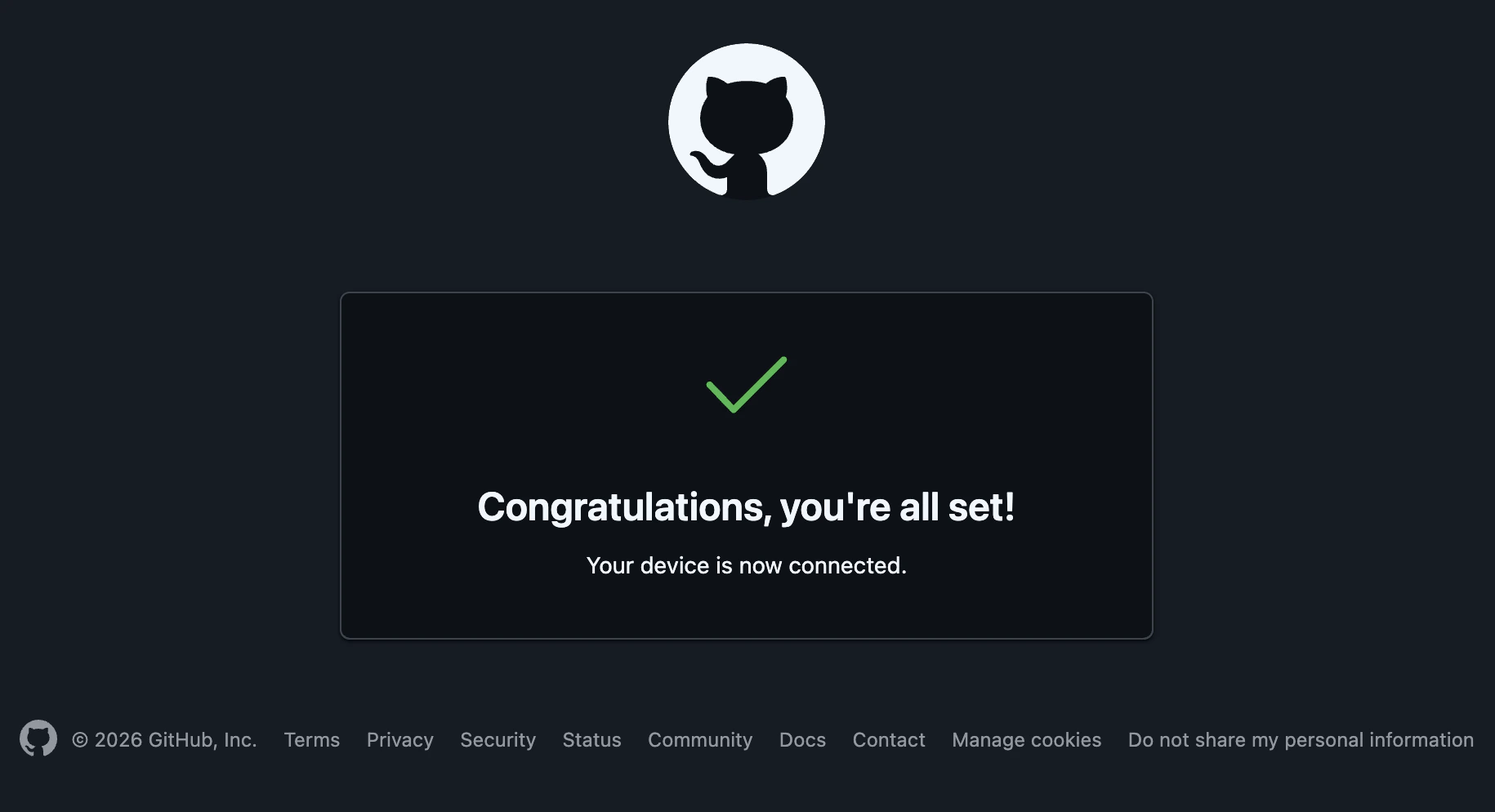
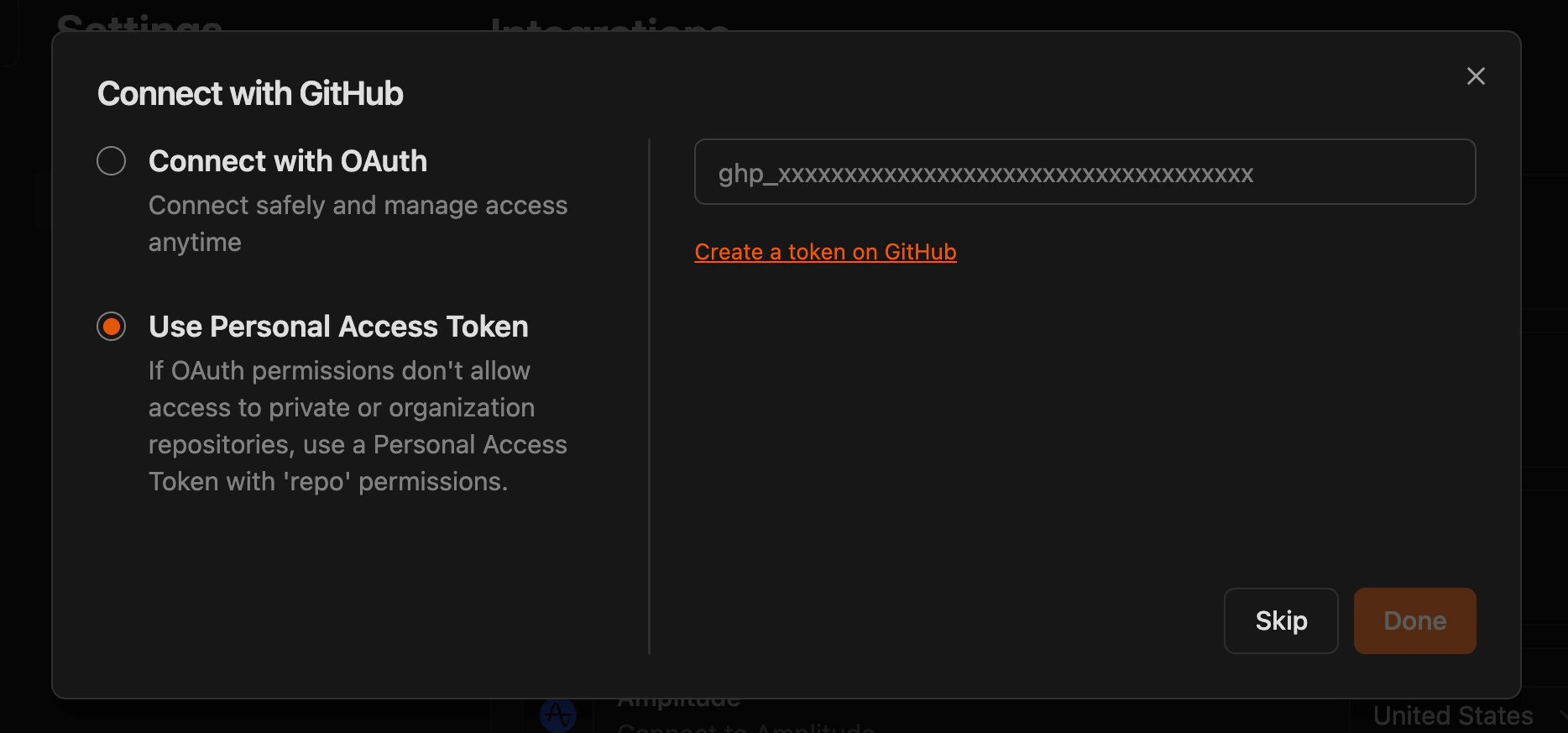
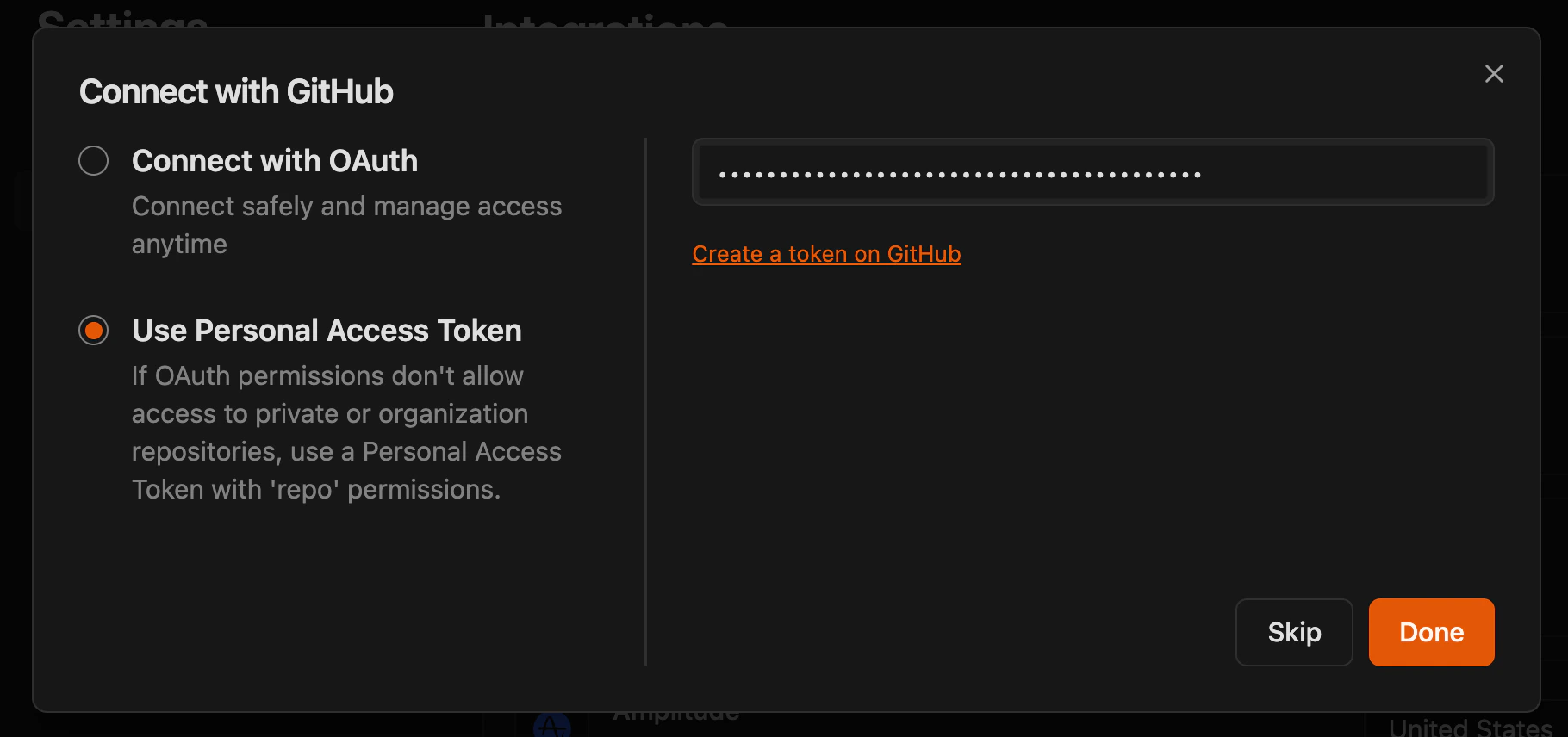
There are two ways to connect to Github - OAuth flow and Personal Access Token flow- OAuth
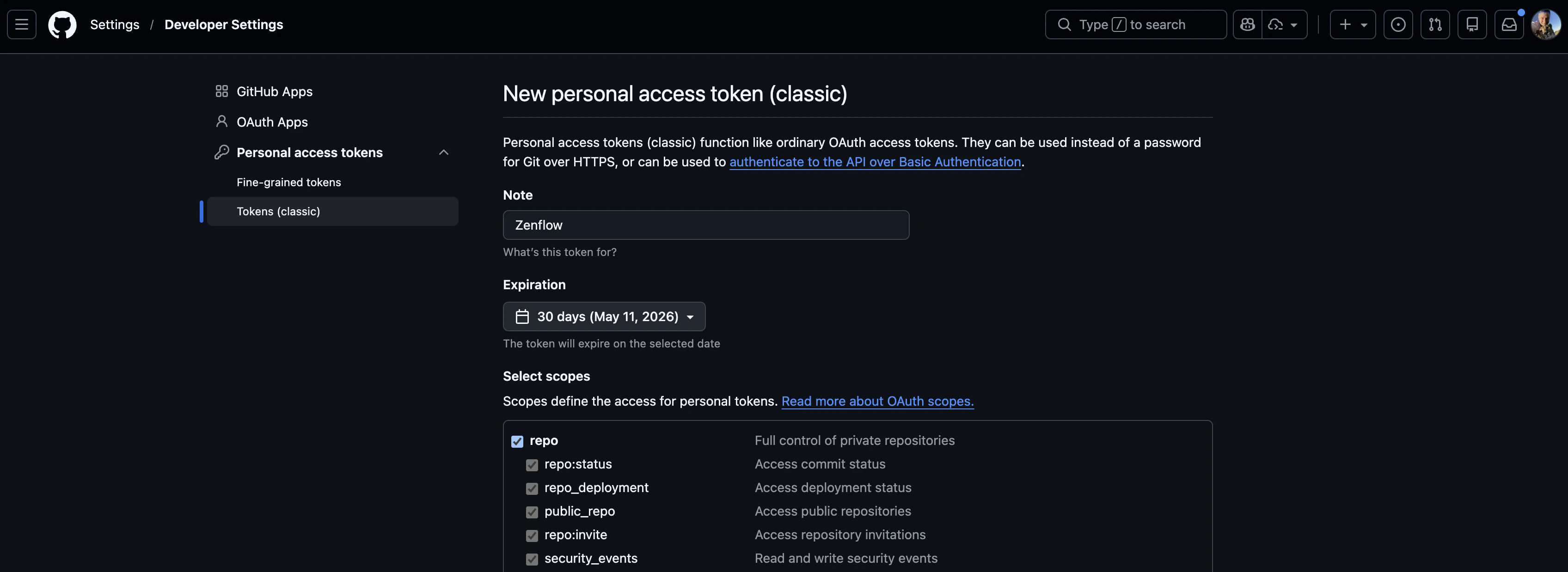
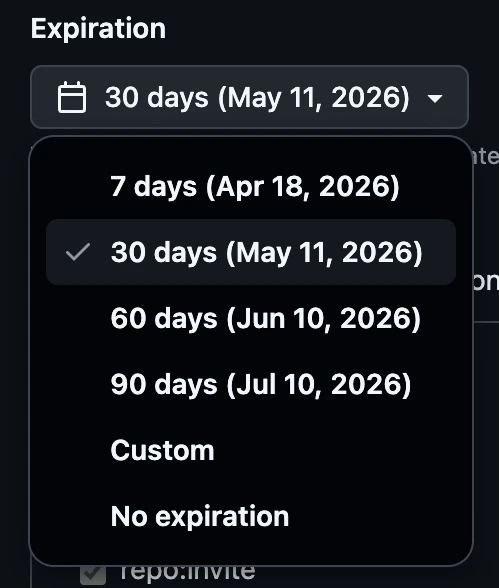
- Personal Access Token
Click Connect
Click Connect, select Connect with OAuth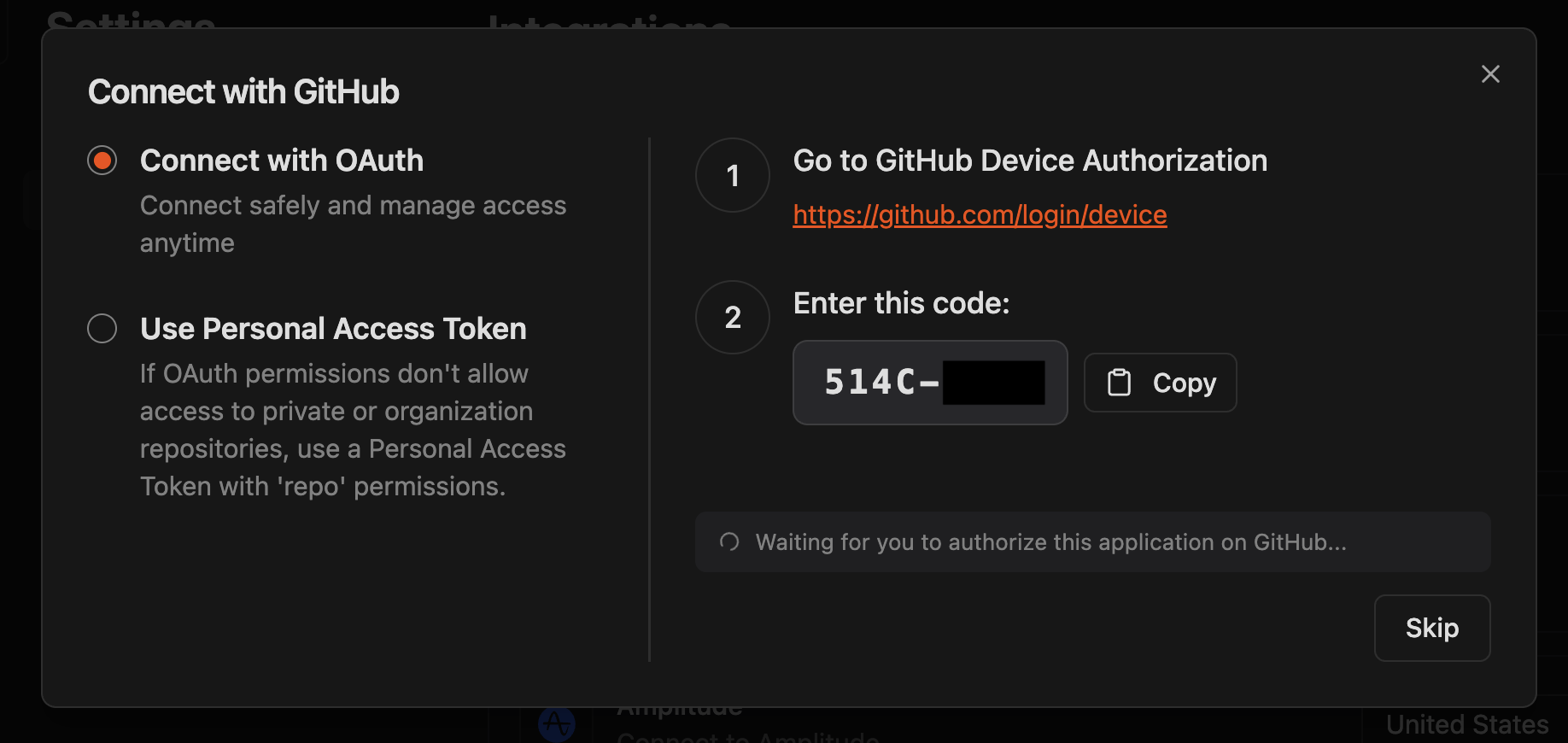
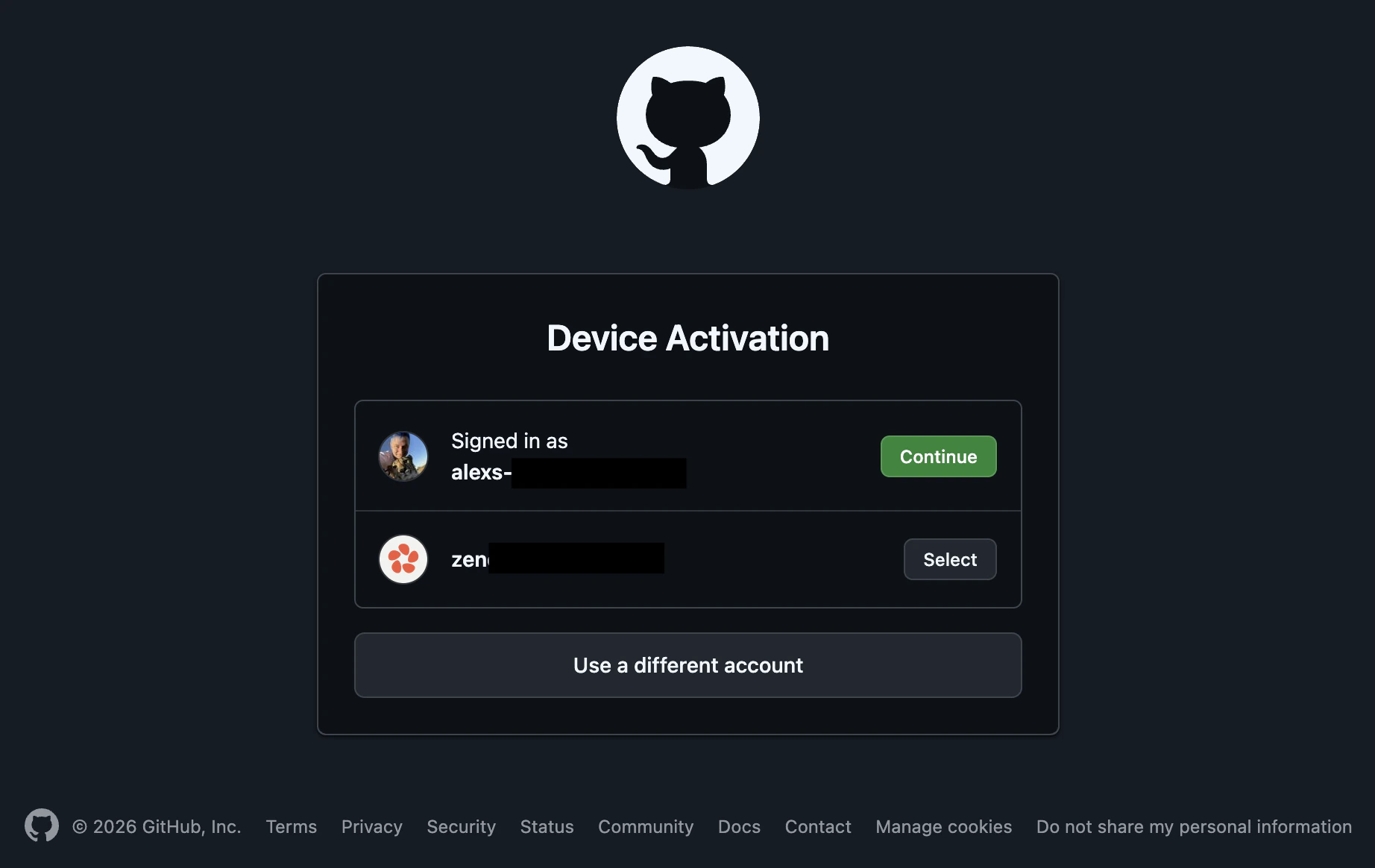
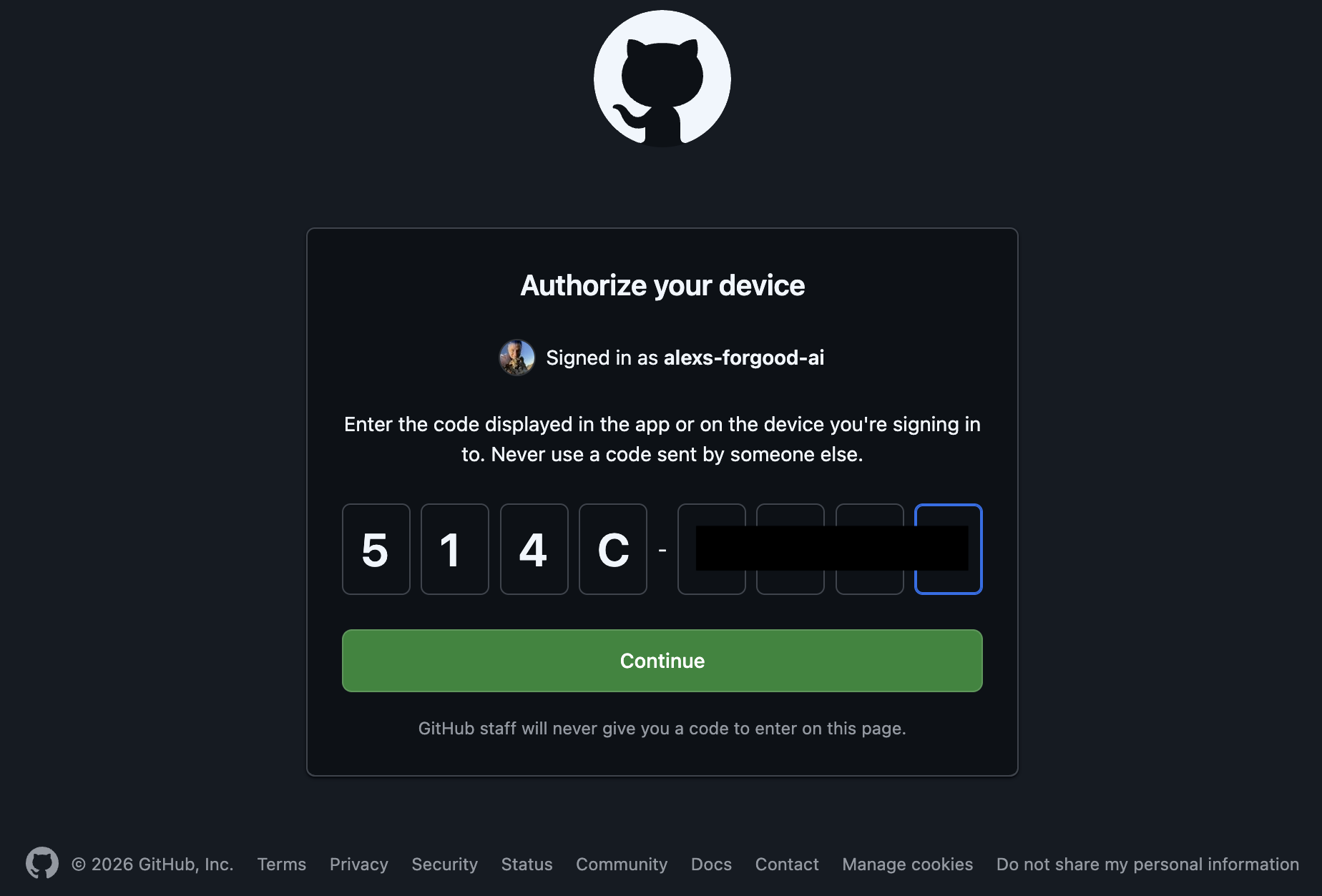
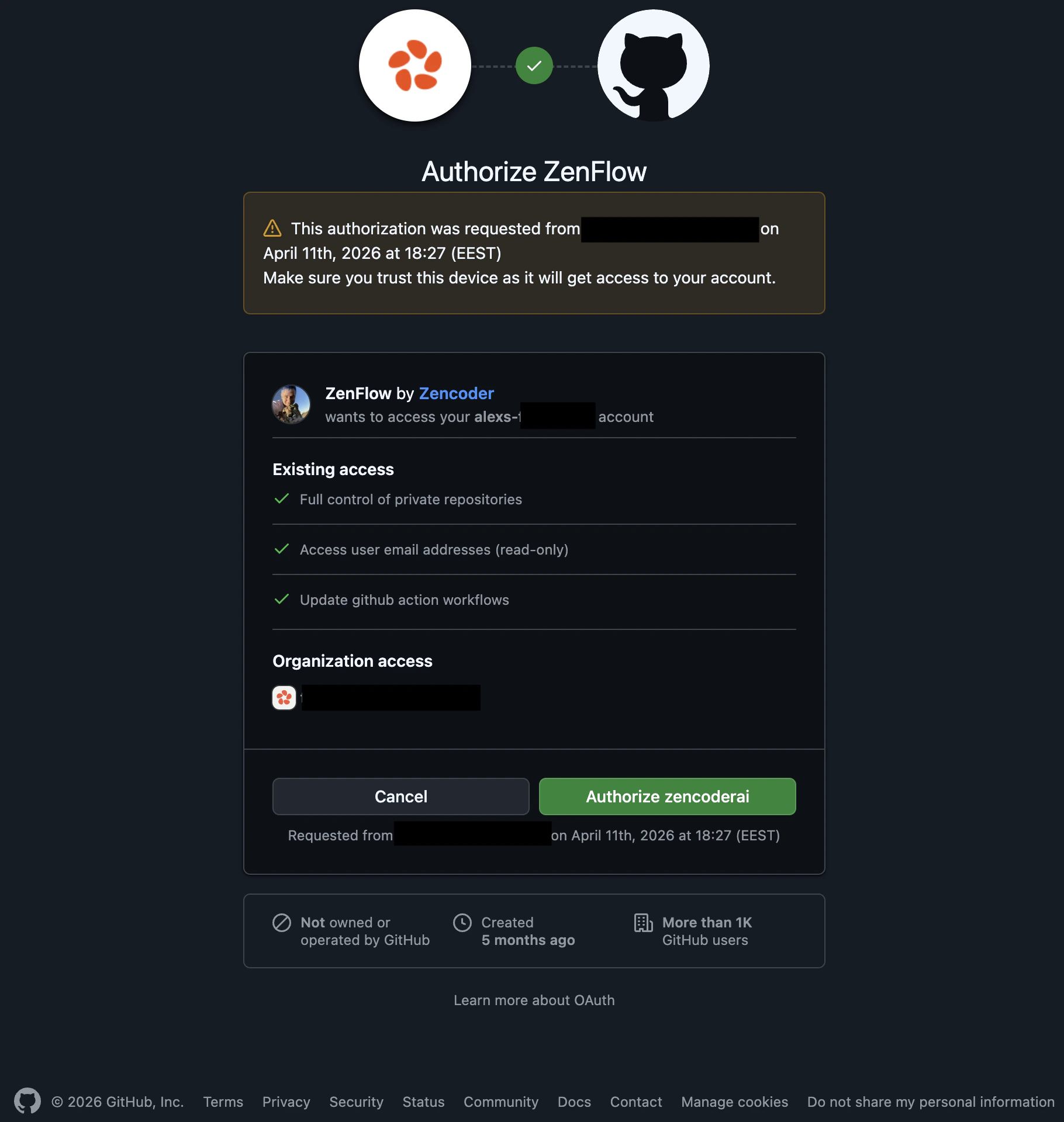


Features
Clone from GitHub
When creating a new project, you can clone directly from GitHub:- Click New Project → Clone from GitHub
- Select the repository
- Choose the local directory
- Zenflow clones and sets up the project
Create Pull Requests
When a task is complete:- Open the task’s context menu (⋯)
- Click Create PR
- Review the PR title and description (pre-filled from task)
- Select target branch
- Create the pull request
PR Status Sync
Zenflow syncs PR status back to tasks:| GitHub Status | Task Status |
|---|---|
| PR Open | Review |
| PR Merged | Completed |
| PR Closed | Archived (optional) |
Automated Workflows
Trigger Zenflow tasks from GitHub events:- Issue created: Auto-create a Fix Bug task
- PR comment: Re-run agents with new instructions
- Review requested: Notify in Zenflow inbox
Authentication Options
OAuth (Recommended)
Standard GitHub OAuth flow—sign in with your GitHub account and authorize Zenflow.Personal Access Token
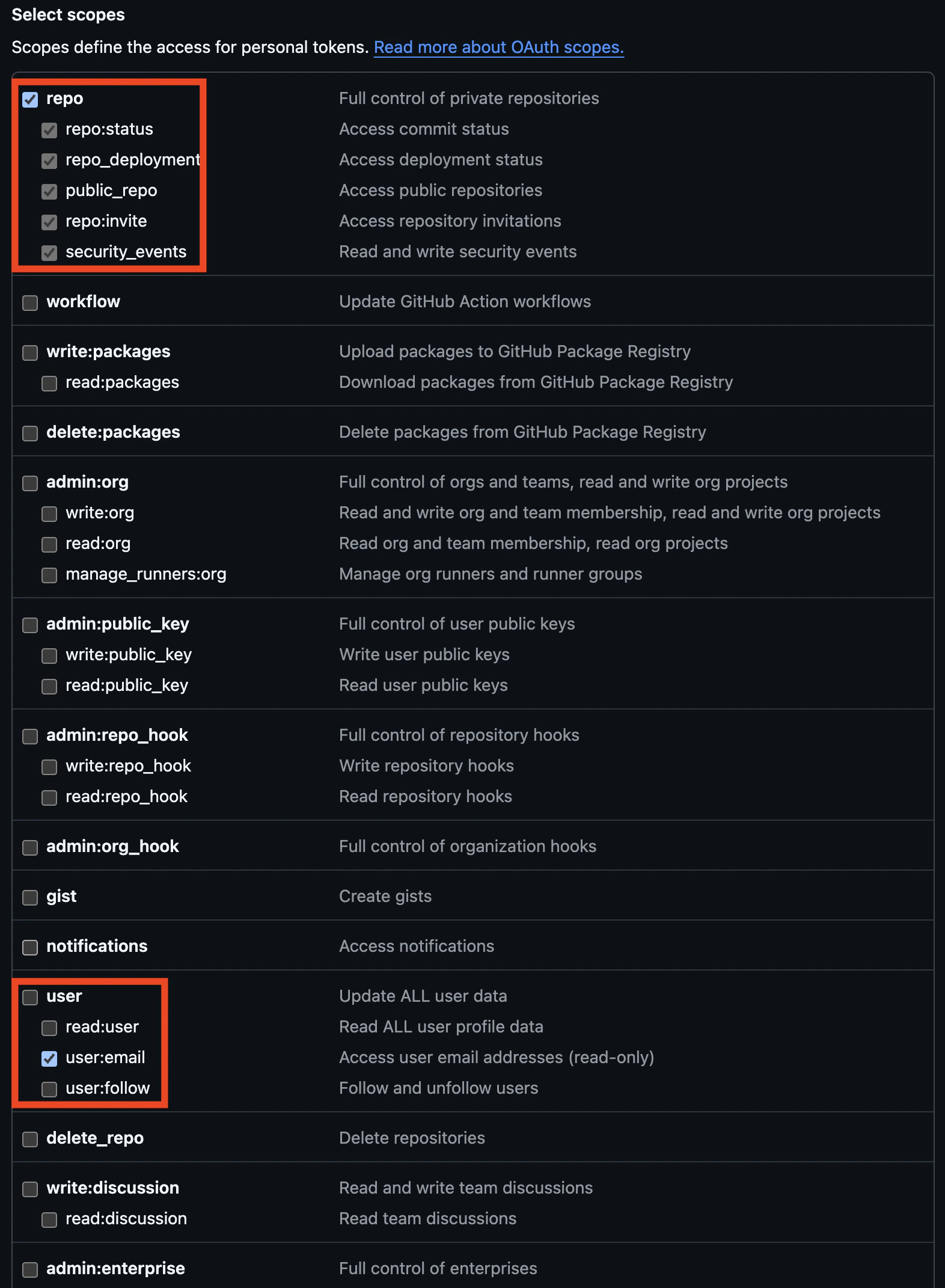
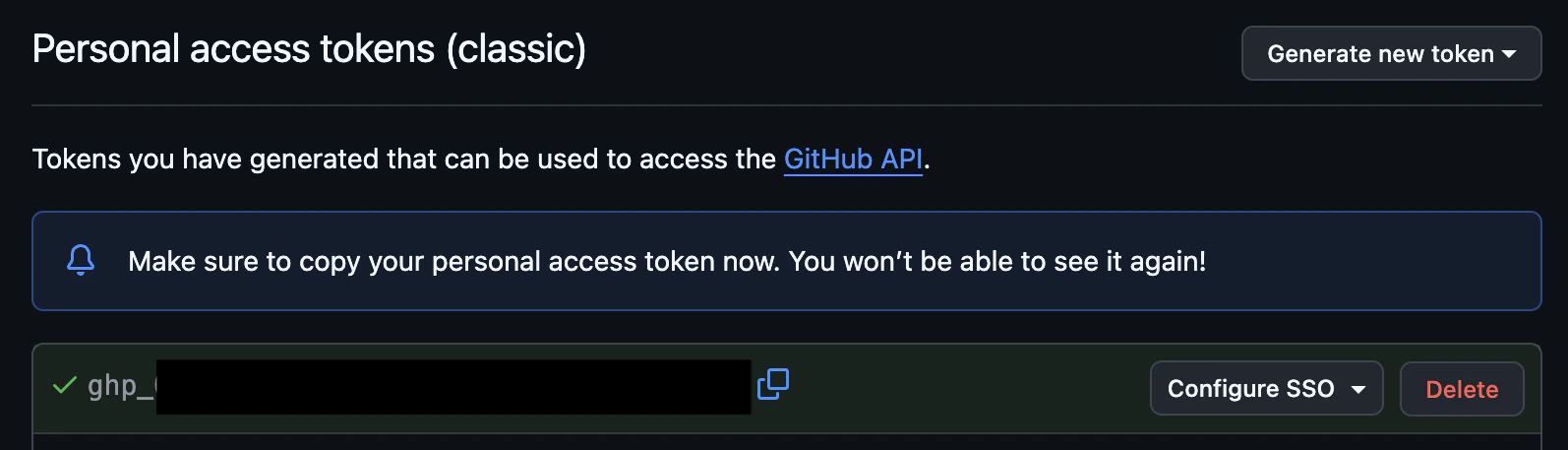
For fine-grained control or organizations with OAuth restrictions:- Generate a token at GitHub → Settings → Developer settings → Personal access tokens
- Required scopes:
repo,workflow - Enter the token in Project → Settings → GitHub
GitHub App (Enterprise)
Organizations can install the Zenflow GitHub App for centralized access control:- Admin manages permissions
- No individual tokens needed
- Audit logging for compliance
Repository Settings
Configure per-repository behavior:| Setting | Description |
|---|---|
| Default branch | Base for new tasks (usually main) |
| Branch prefix | Naming pattern for task branches |
| Auto-push | Push branches automatically |
| PR template | Default description template |
Troubleshooting
Can't see my repository
Can't see my repository
Verify that your GitHub connection has access to the repository. For organization repos, an admin may need to grant access.
PR creation fails
PR creation fails
Check that:
- The task branch has commits
- You have write access to the repository
- The target branch exists
- There are no GitHub branch protection conflicts
Webhook not triggering
Webhook not triggering
Zenflow webhooks may be blocked by:
- Firewall rules
- GitHub organization settings
- Network connectivity issues
Next Steps
MCPs
Connect additional tools via MCP
Repository Configuration
Configure automation settings