Documentation Index

Fetch the complete documentation index at: https://docs.zencoder.ai/llms.txt

Use this file to discover all available pages before exploring further.

Integration requires Zencoder account

Overview

The Slack integration lets the AI agent interact with your Slack workspace. Send messages, monitor channels, post updates, and automate communication workflows — all from within a Zenflow task.
Early access. Slack support is in early access and improving fast. Setup currently requires creating a Slack app per user, and some interaction patterns (channel mentions, multi-user workspaces, acting on running tasks) are on the near-term roadmap. We recommend Slack users start with 1:1 DMs with the bot while we work on the channel experience.
Known limitations:
  • One Slack app per user. Each user currently creates their own Slack app and installs it into the workspace. Free Slack plans allow a maximum of 10 custom apps per workspace, which may be a constraint for larger teams.
  • No channel mentions. The bot cannot currently be invoked with @mentions in channels. Interact via direct message to the bot instead.
  • No live task interaction. You cannot message the bot to act on a task that’s already running. Start a new task from Slack and track updates in the same thread.
  • Non-YOLO mode. Non-YOLO mode is not supported for Slack-initiated tasks during early access.

Connecting Slack

1

Open Zenflow Settings

Navigate to Settings in the Zenflow sidebar, then click on Integrations.
2

Find Slack under Messengers for Zen Assistant

Scroll to the Messengers for Zen Assistant section and locate Slack.
3

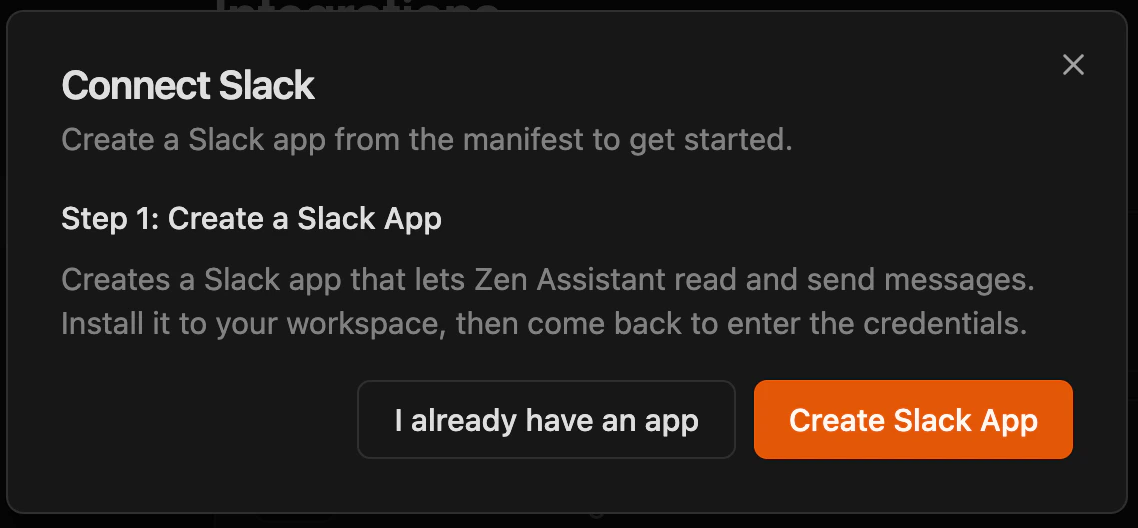
Click Connect

Click Connect.
4

Create App

If you already have app, skip to step X. Otherwise, click Create Slack Appcreate app or existing app screen
5

App Creation

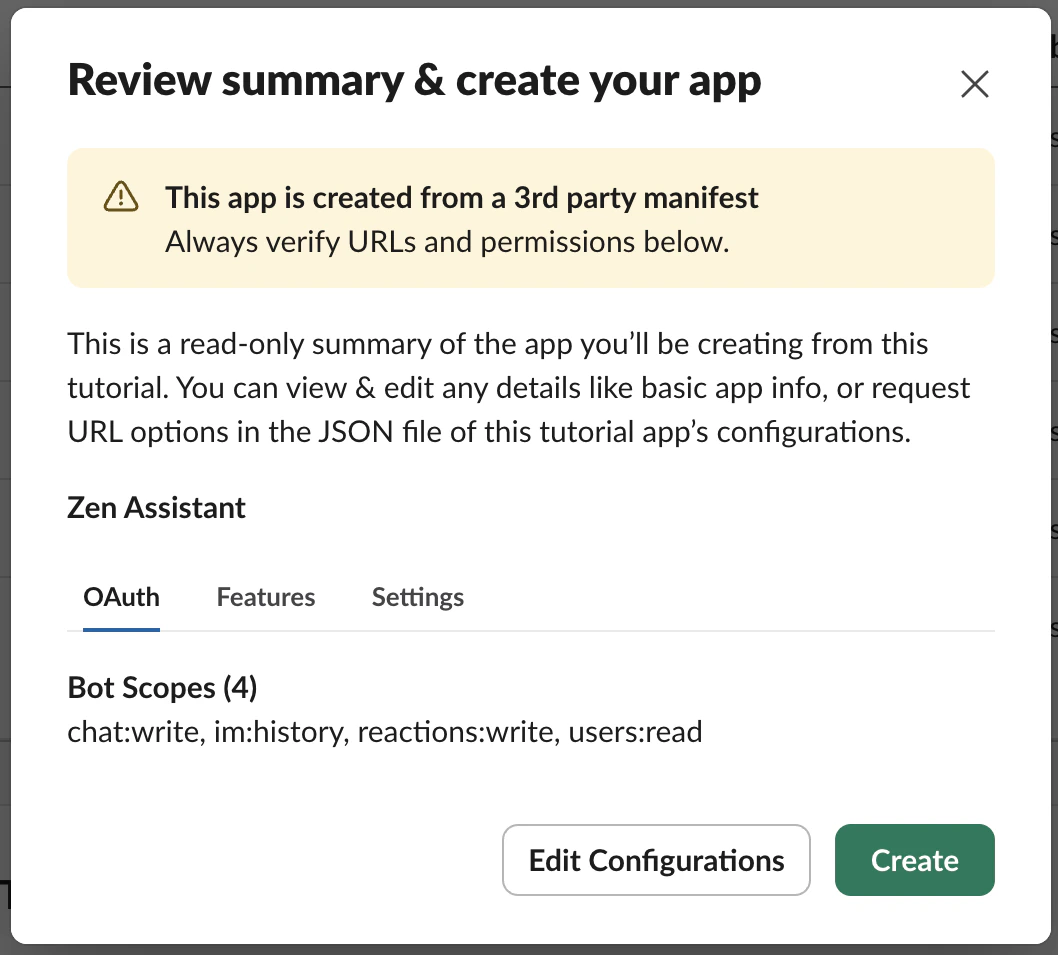
Pick a workspace for your appworkspace pickIf you’ve clicked Create Slack App previously, the scopes on the next screen will be prepopulated. Otherwise, use the following manifest:
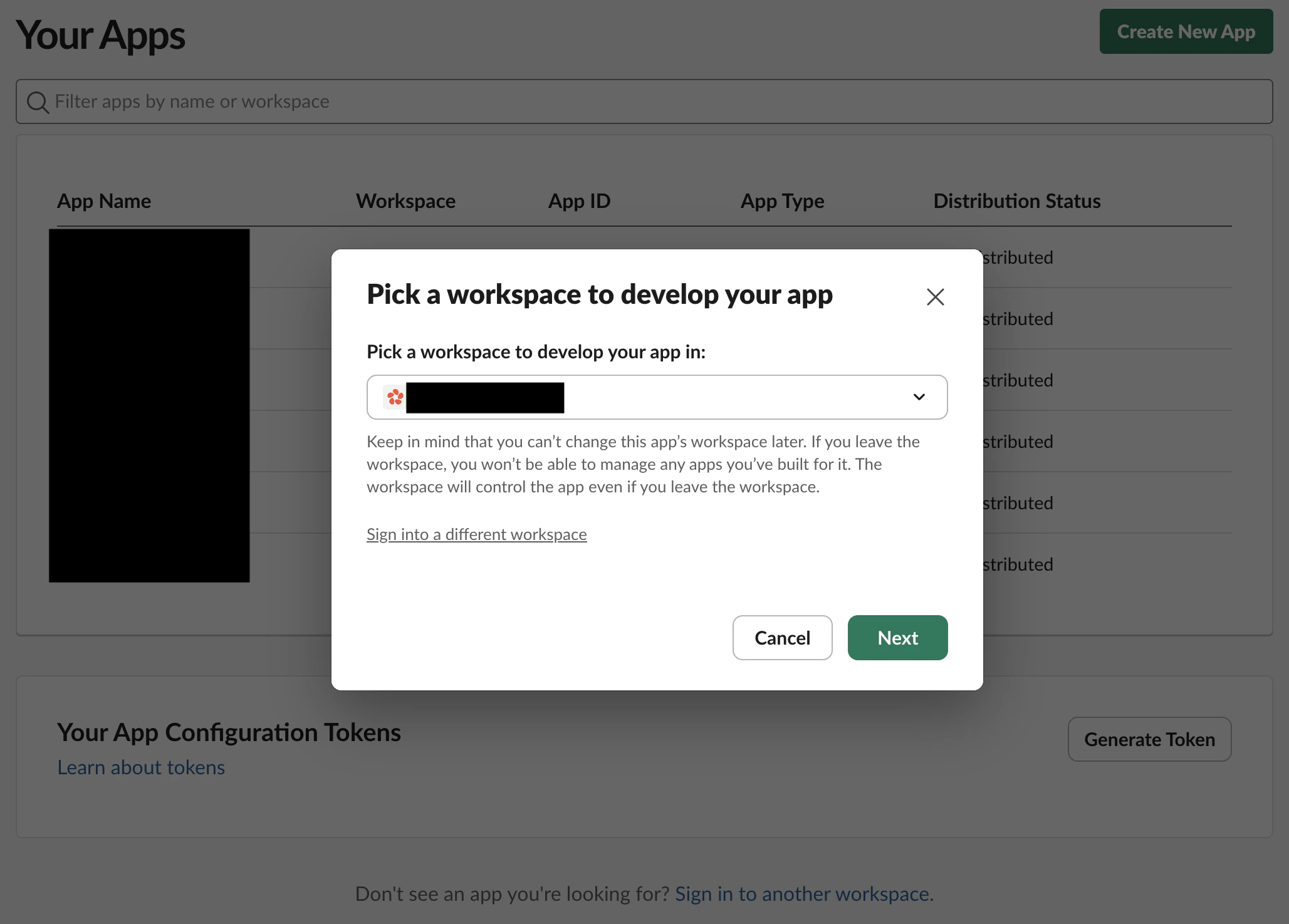
{"display_information":{"name":"Zen Assistant"},"features":{"app_home":{"messages_tab_enabled":true,"messages_tab_read_only_enabled":false},"bot_user":{"display_name":"Zen Assistant","always_online":true}},"oauth_config":{"scopes":{"bot":["chat:write","im:history","reactions:write","users:read"]}},"settings":{"event_subscriptions":{"bot_events":["message.im"]},"interactivity":{"is_enabled":false},"org_deploy_enabled":false,"socket_mode_enabled":true}}
scope reviewOnce the app is created, you’ll be redirected to the “Basic Information” page.
6

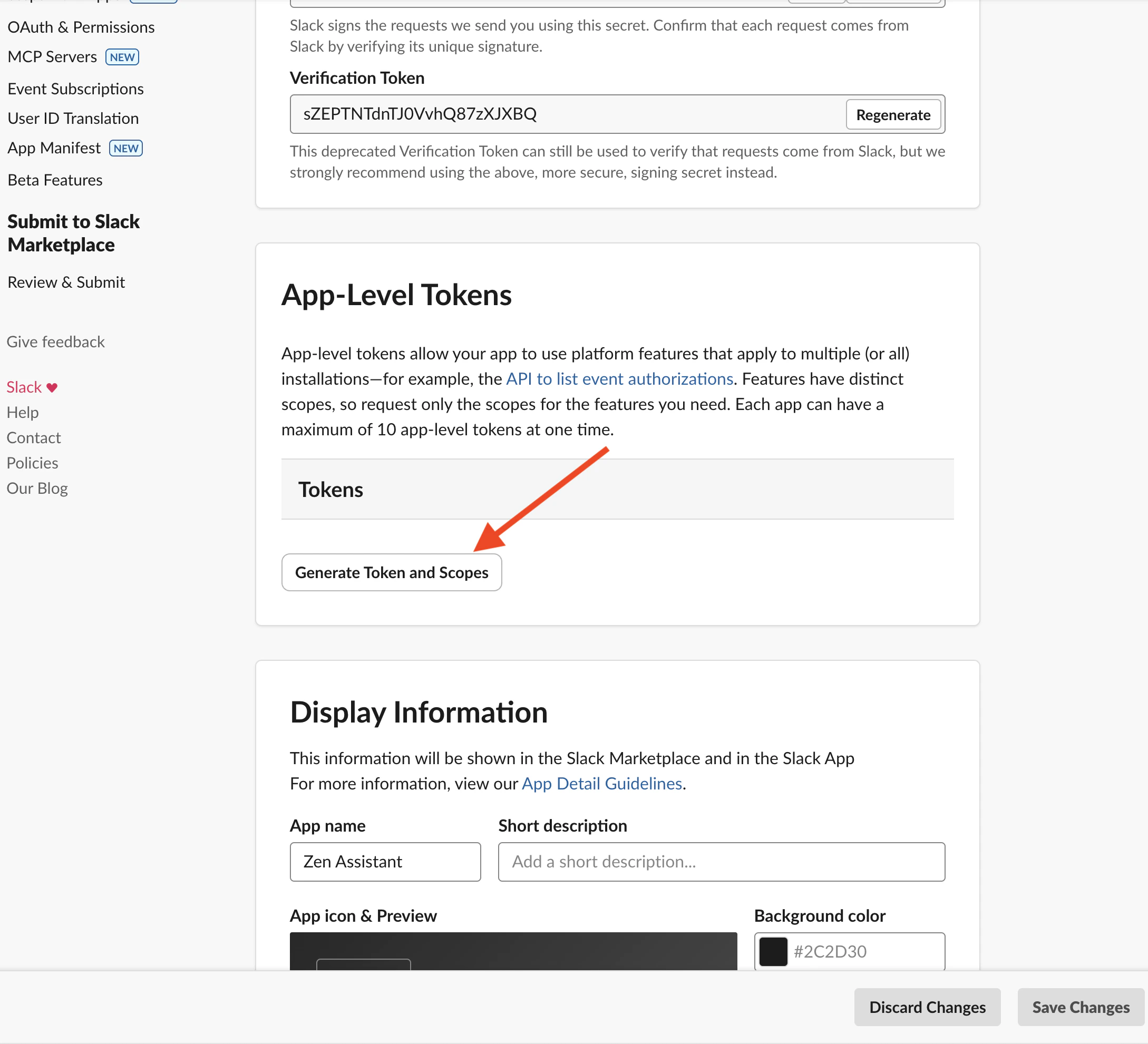
App-Level Token Creation

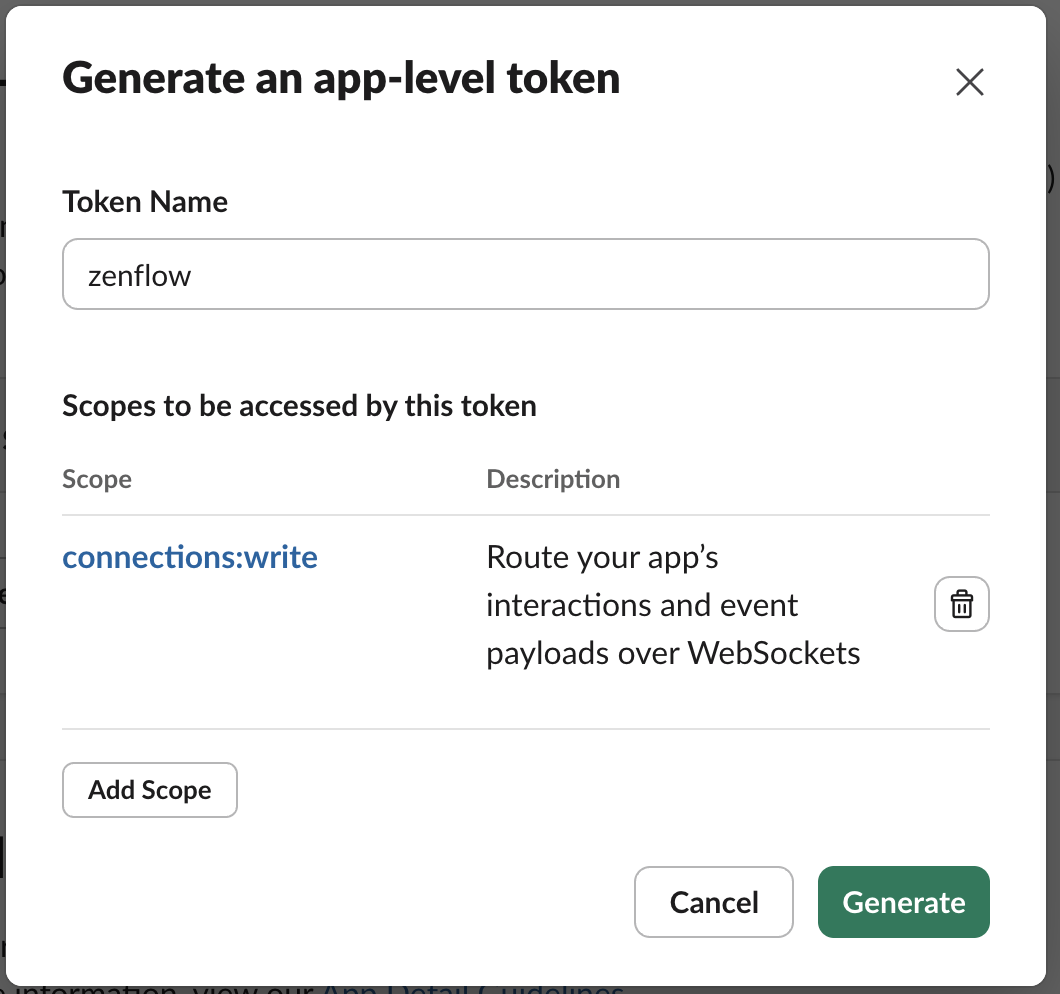
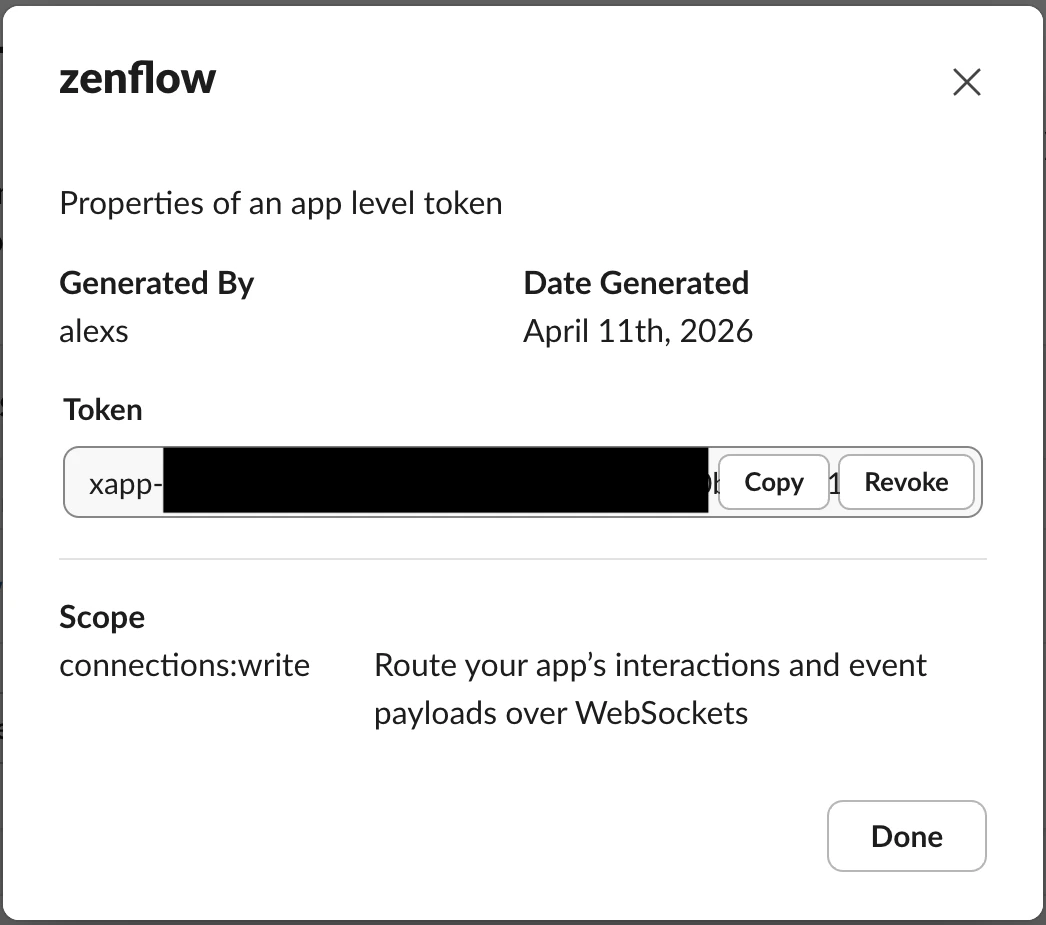
Scroll to App-Level Tokens section and click Generate Token and Scopestoken generation buttonGive name to the token and add connetions:write scope, click Generatetoken scope and name set upYou will be shown the token, copy and store it, you will need it latergenerated app level token
7

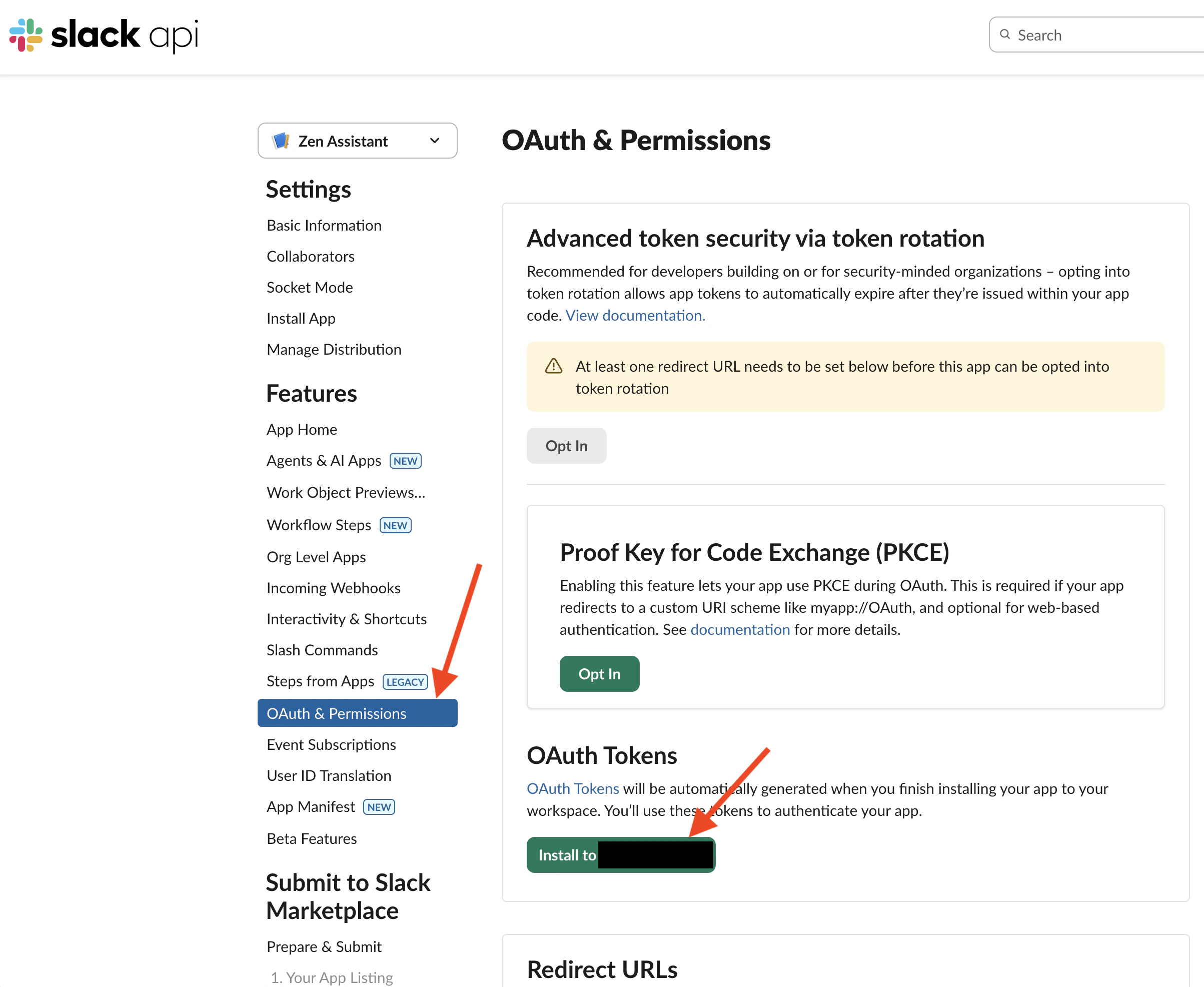
OAuth Token Creation

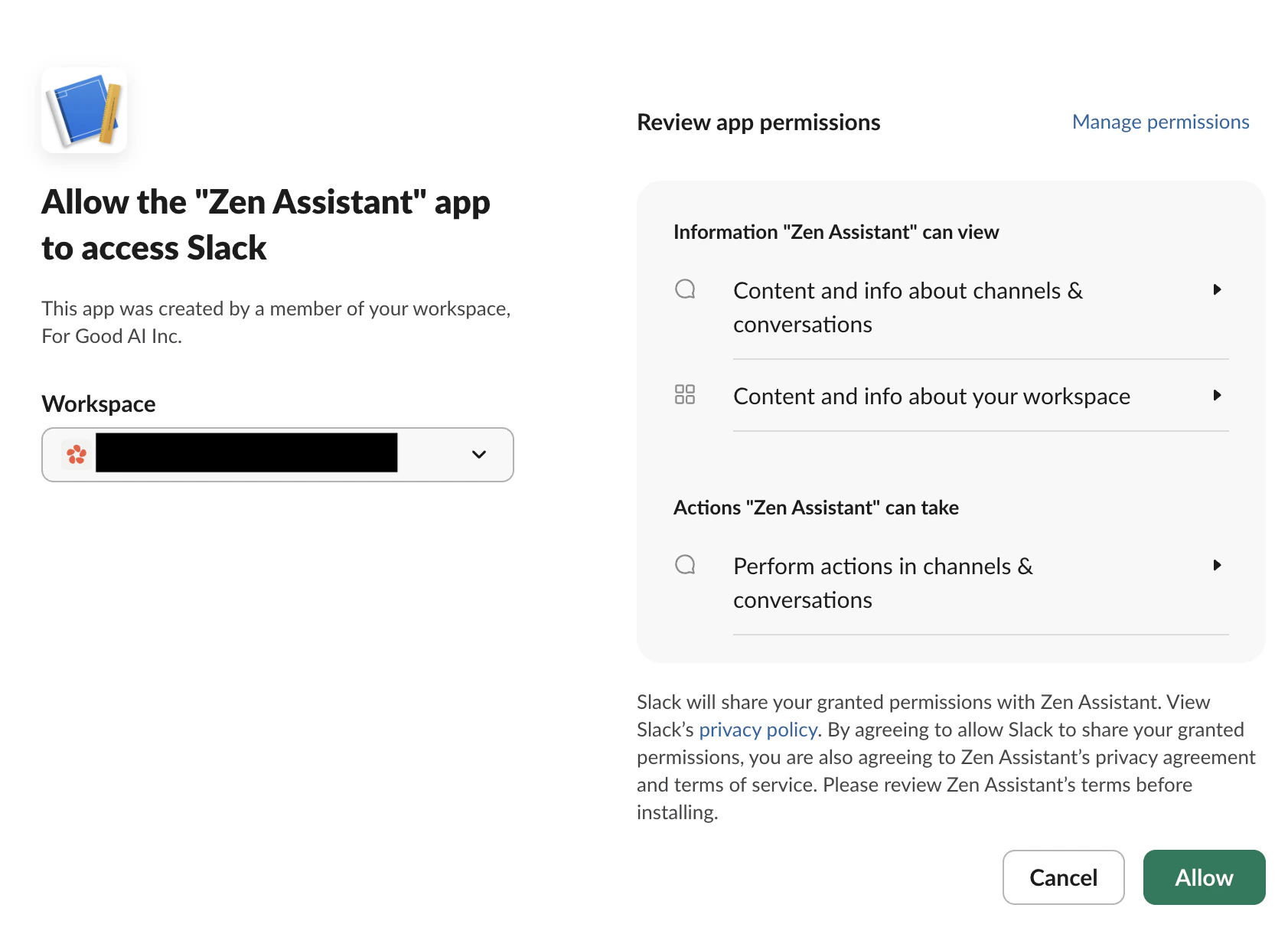
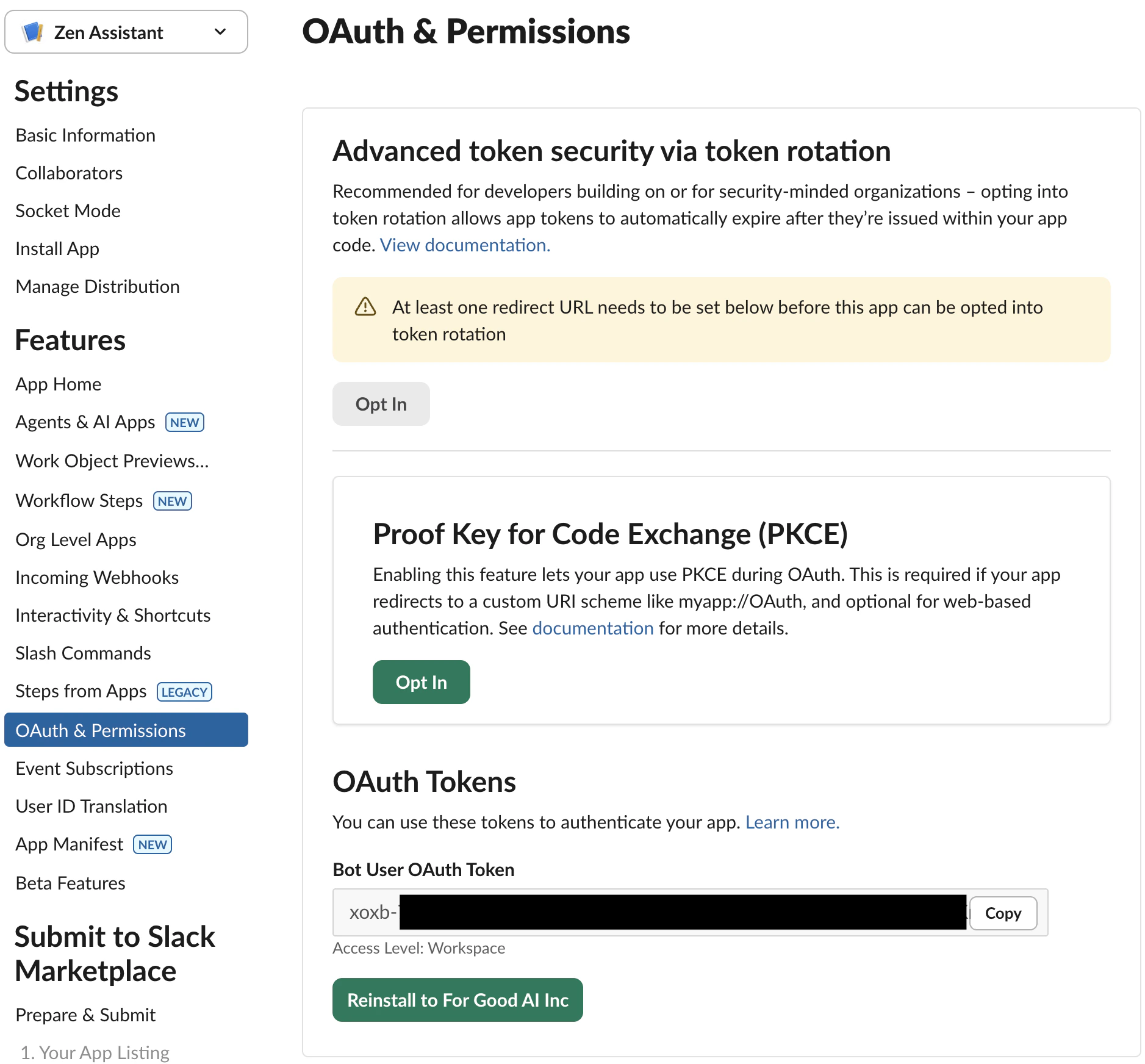
Click OAuth & Permissions in the left column and in OAuth Tokens section click Install to … buttongenerated app level tokenYou’ll be redirected to installation page, verify all the information and click Allowgenerated app level token
Installation approval

Depending on your workspace settings this might require admin approval
After installation, you should see OAuth token, copy and store it, you will need it latergenerated app level token
8

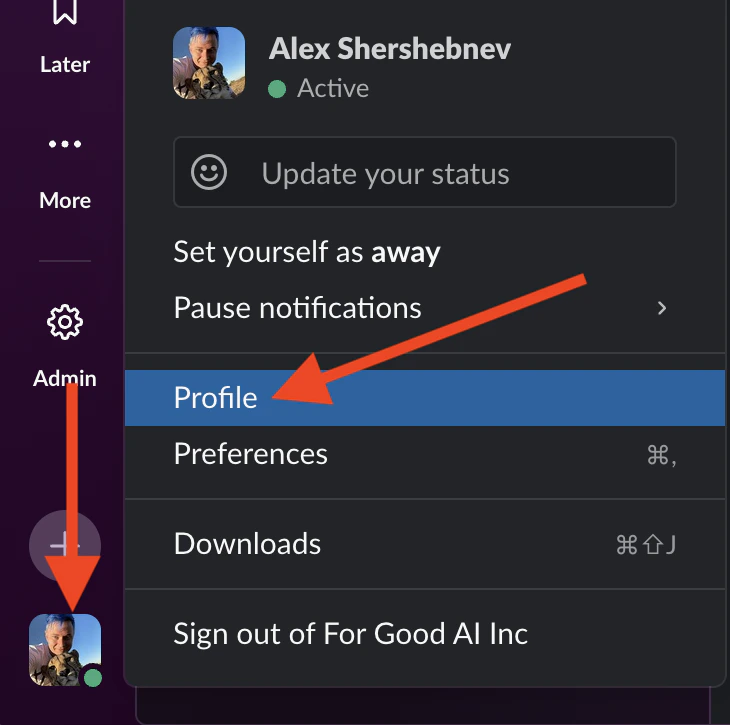
User ID extraction

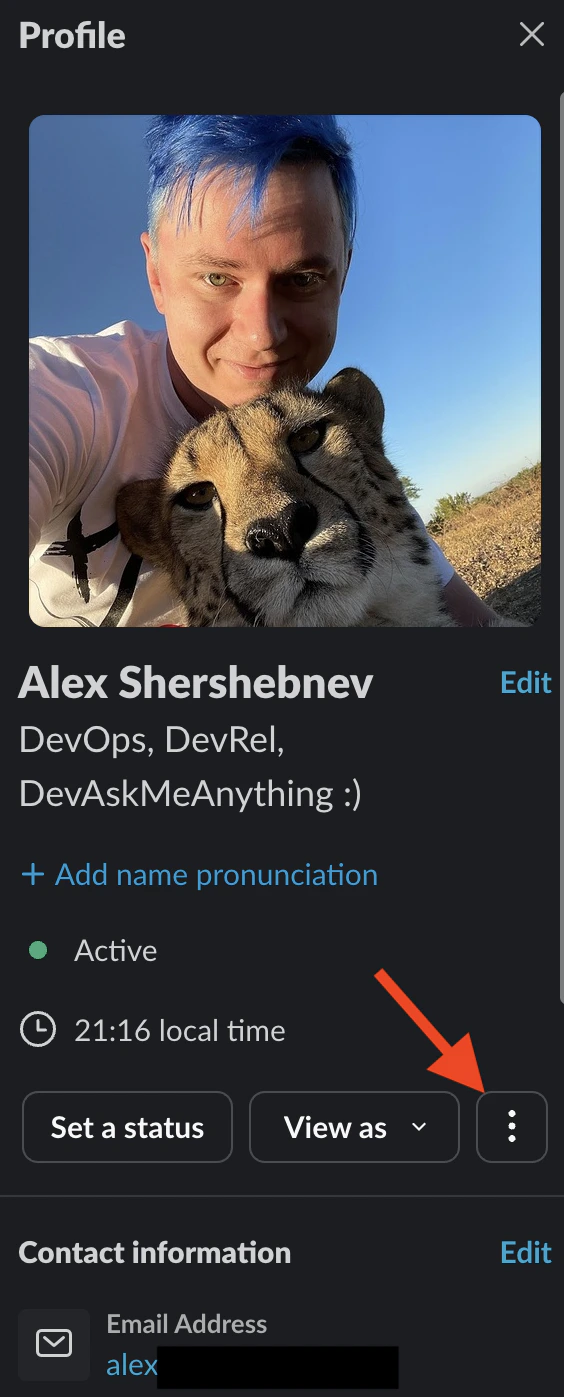
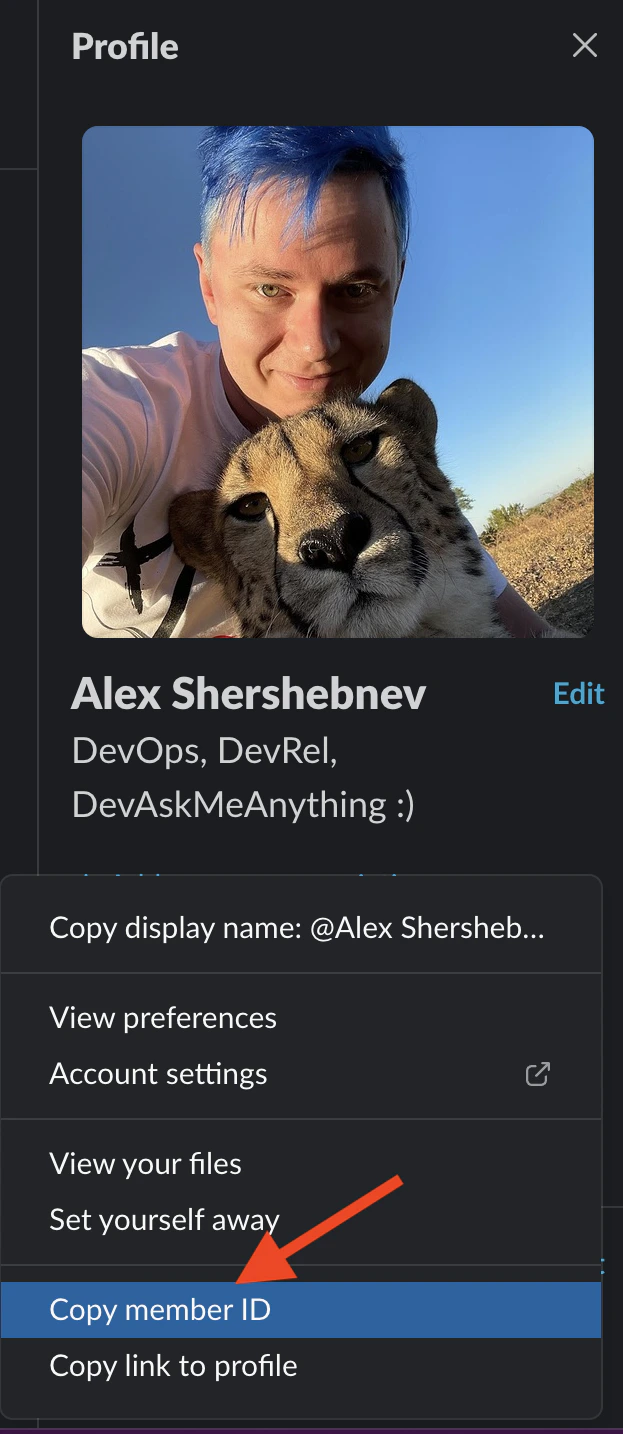
Open your workspace in Slack, click on your profile picture, then click Profile in the menuprofile menuYour profile will open up on the right, click tripple-dot button and select Copy member IDprofile menucopy member id
9

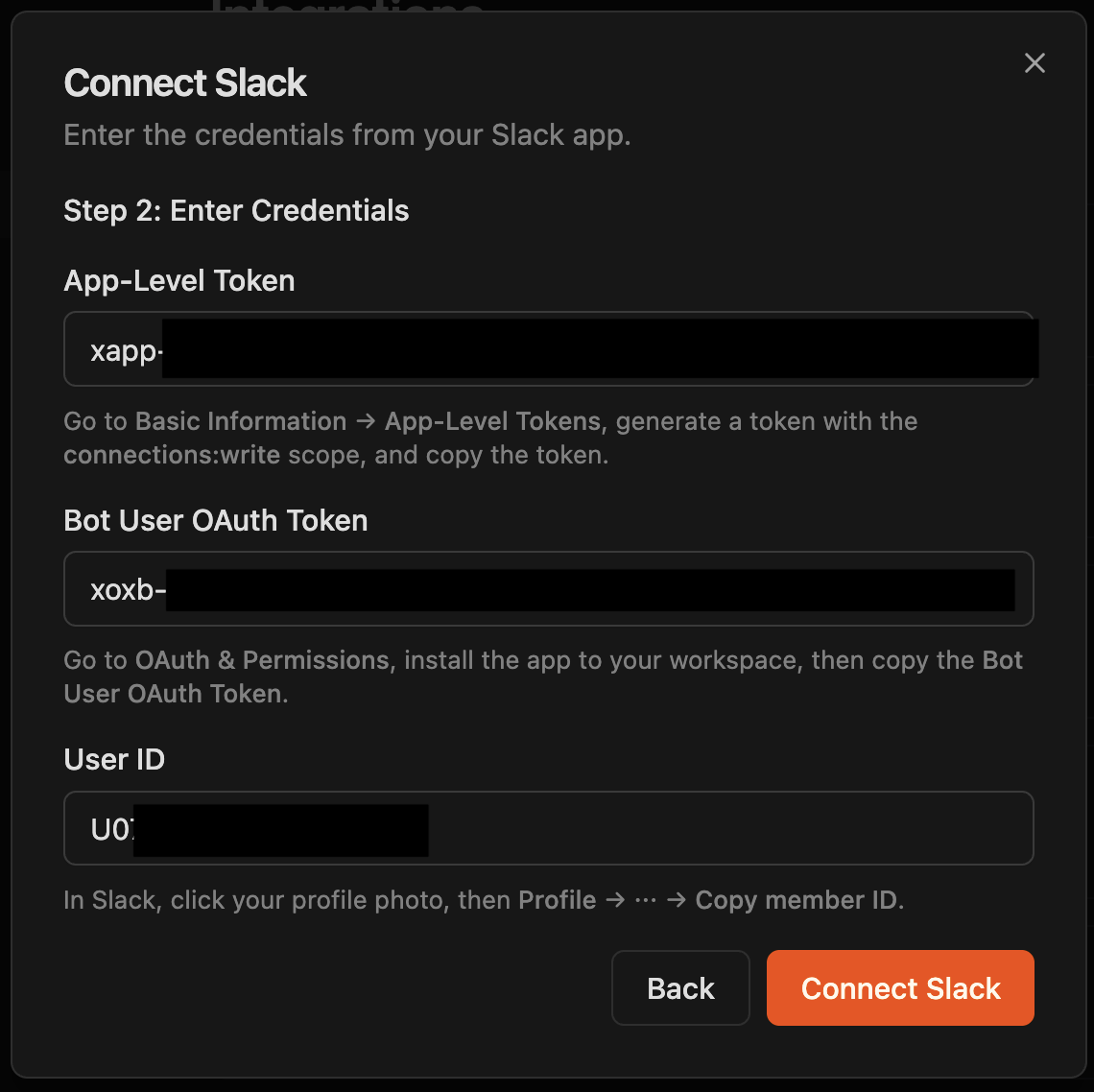
Slack Connection Setup

Paste App-Level Token, OAuth Token and Member ID from steps 6, 7 and 8 above into respective fields and click Connect Slackcopy member id
10

Connection Established

After successful connection you should see Connected as … for the Slack integrationcopy member id

What the Agent Can Do

  • Send messages — Post messages to direct messages
  • Post updates — Share task updates, reports, and summaries to direct messages

Example Use Cases

  • Post daily project status summaries to me
  • Send deployment notifications when PRs are merged
Browse ready-to-use templates in the Zencoder Marketplace.